2.2 Shell Overview 
NWBC consists of a shell and a canvas which is in the center and can contain different kinds of content. The shell is the frame consisting of the horizontal bar above and the vertical bar to the left of the canvas. Thus the shell is the inverted L-shape above and to the left of the canvas. It provides a wide range of functions such as role-based navigation, search functions, help, desktop integration, menus and branding (customer logo).
At the top of the screen is the menu bar where the extended functionality is placed, for example, a list of recently used transactions. Another example could be the access of online help from the menu. Search functionality is also centrally available to quickly find specific data of interest.
 (Example of NWBC Shell)
In more detail, the shell presents the first two navigation levels at the top and then uses the left panel for additional levels of navigation. For more information, see 2.3 Navigation.
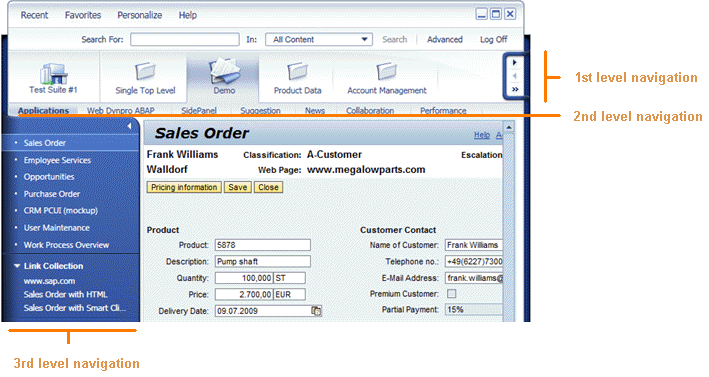 (Example of navigation levels)
The visual design of NWBC is called the signature design. It has two main goals: it harmonizes the look and feel over all SAP products and it enables a modern desktop UI that provides a high-fidelity user experience. The overall design is similar to that of a picture frame. Each application is similar to a picture in its frame. This is primarily achieved with a clasp on both sides of the screen around the canvas area. Modern concepts such as rounded corners on the desktop are used to achieve a more natural look-and-feel and trigger a positive emotional response. The left-side clasp is extended to accommodate the more detailed levels of navigation. It can be resized and collapsed to provide more space for the canvas.
 (Clasp example)
The solid visual appearance of this area, which can also be collapsed and resized, draws the user attention to a more important navigation aspect, the SAP home icon. It takes the well-known home icon a step further by integrating the visual appearance of a modern office building into the look-and-feel of the software environment. Clicking on the home icon will navigate you to the home area.
Clicking on the logo on the bottom of the screen an about dialog is shown, displaying the current version of the client and the user name with which one is logged on.
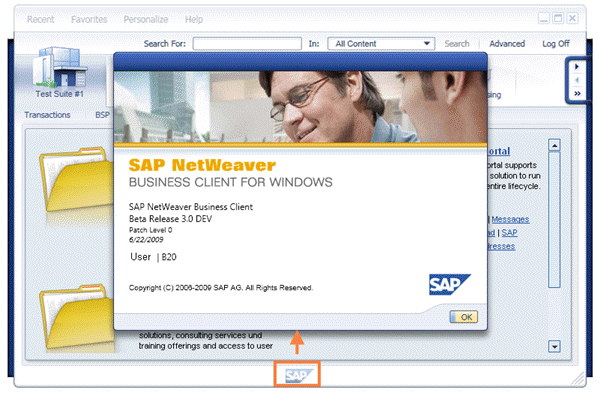 (Example of About)