
 Developing Web Dynpro Applications for
ABAP
Developing Web Dynpro Applications for
ABAP

Use of the Process
This process is part of the following IT scenario:
IT Scenario |
Scenario Variant |
Process Flow
The following process steps are performed as part of this process.
Creating and Implementing Controllers and Defining Contexts
This step is the start of the actual development of the Web Dynpro application. You define the contexts and implement the controllers and their methods. The Web Dynpro application has several controllers that are responsible for the data or control flow in the whole application. The various controller types, such as the window controller, view controller, component controller, are created in this process step. Reusable modules without an obvious interface can be developed as customer controllers. They are then only allowed to be used if a specific function area is required by several other controllers. For example, a custom controller could be used when a BAPI is called and the information has to be processed in some way before it can be displayed.
Controller of a Web Dynpro Component

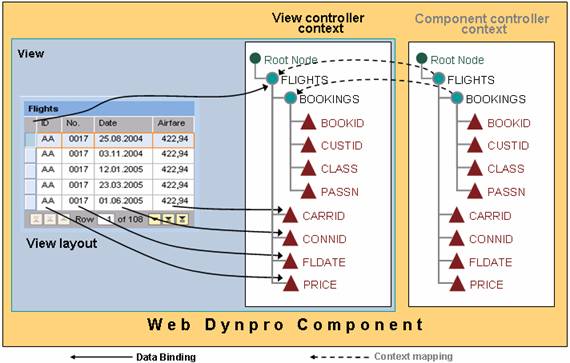
A controller contains a context, that is, the active part of an application entity such as a component, a view or a customer controller. The context is used as a placeholder for hierarchically structured data. The data flow between the controller contexts is referred to as mapping. A copy of the data is passed from one context to another. The model access that calls the business logic APIs provided in the process Modeling a Web Dynpro Application (ABAP) is also implemented in this process step.
You can find more
information about developing applications with Web Dynpro for ABAP in
 Web Dynpro ABAP:
Development in Detail.
Web Dynpro ABAP:
Development in Detail.
Designing Views, Defining Layouts and Linking them to Contexts
The Web Dynpro
tools provide support for interface development during the design and
implementation phase. The view
layout is designed in the layout Editor: The required user interface elements
are separated into different categories to provide a better overview.
The layout of
UI Elements is
usually created at runtime. Alternatively, you can create it dynamically at
runtime. Each element also has
various properties, providing great scope for setting the use and appearance
in accordance with your specific requirements. Examples of simple interface elements are field
labels and input fields. Complex
objects, such as tables provide nesting options. Container elements can be
used to group related elements into an application. Even the interface element for
Integrating
Interactive Forms can be displayed with a mouse-click in the layout
editor’s work area, and from there it can be processed with the
integrated Adobe Designer tool, which in turn contains the Web Dynpro-relevant
form elements, such as for a value check against an SAP system (Adobe
library). The definition of the
data binding in this step enables the automatic data flow between the view
layout and the view context.
View Layout and Data Binding
Defining a Web Dynpro Application
The Web Dynpro
application is the starting point for the Web Dynpro component. The application is accessed from the
URL assigned to
the application. The application
is the only Web Dynpro entity that can be opened from a URL. Any necessary start parameters can also be
defined here.
More Information:
Testing and Debugging
You can test Web Dynpro applications and their associated components either separately in the workbench (menu option Test/Execute or function key F8) or by calling the URL for the Web Dynpro application in the client browser. The single test function is used more often in the development environment. For integration tests, quality assurance scenarios, and productive scenarios the test can be started either by calling the URL in the browser or directly from the portal menu (usage type EP). The debugging process for a Web Dynpro application is very similar to the process for classical ABAP elements. The classical debugger as well as the newly enhanced debugger can be used for this purpose. Debugging settings can be made in the workbench by choosing Utilities ® Settings. In the tab page ABAP Editor you choose Debugging and then New Debugger. To debug Web Dynpro application codes external break points must be set.