 Dynamic Menus


Dynamic Menus
Definition
Training Management
has seven dynamic menus. They are dynamic in the sense that data you create in one menu is automatically updated in the other menus. This data is immediately accessible and ready for editing.There is a dynamic menu for each of the major function areas:
Use
The data-driven menus provide you with an alternative means of creating and maintaining objects in Training Management. They give you direct access to the individual functions of the application, displaying all of the objects required for editing.
What is special about the dynamic menu concept is that it lets you access and execute all of the Training Management functions in the hierarchically structured course catalog. Data maintained in one dynamic menu is immediately updated and accessible in all of the other dynamic menus.
The structured interface of the dynamic menus allow simple and intuitive access to the extensive functions of Training Management. They ensure that data maintenance and administration is swift, efficient, and easy.
Structure
A dynamic menu might be structured something like this:
Depending on what menu you are working in, the objects that can be edited are structured hierarchically, such as, the course hierarchy in the course menu, the information menu, and the participation menu, which includes course dates and participants (as illustrated in the graphic).
The core functions for editing and displaying objects are available in icon form in the function bar:
Choose  to call the enhanced search function for objects in the dynamic menu structure.
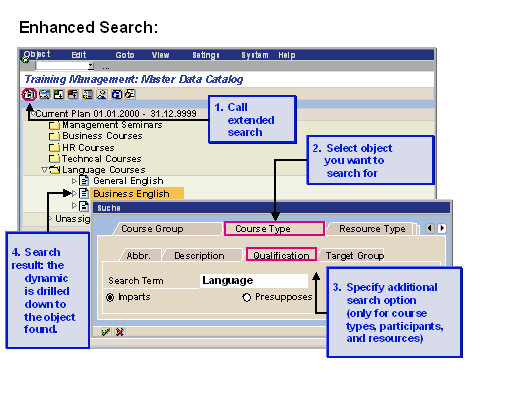
The Extended search function lets you search for all of the objects that exist in the dynamic menu structure, such as course types, courses, participants, resources, and resource types (in the dynamic resource menu and master data catalog). To do so, you simply enter a search string. It is not necessary to expand the structure for this purpose.
There are additional search options for some objects.
If the search finds multiple objects, these are displayed in a dialog box for selection. Once you have selected an object, or if the search only finds one object, the structure is drilled down to the object concerned with the cursor positioned on it.
Choose  to go to the data screen of an object selected by the cursor.
Choose  to display all of the objects underlying a selected object. The subtree is expanded.
Choose  to collapse the subtree underlying a selected object again.
Choose  to set an initial point of access, with immediate effect. When you do so, the display only includes objects underlying the selected course group or course type.
Choose  to display the overall hierarchical structure, regardless of whether you have set a point of access or not.
Choose  to delete the initial access setting again.
Choose  to update the display once you have made changes to object data.
Choose  to change the user-specific settings. In addition, you can configure general settings for the display and editing of objects and specific settings for the individual dynamic menus (such as a specific planning period for the dynamic planning menu).
See also:
User-Specific Settings Object Maintenance in the Dynamic Menus
