 Object Maintenance in the Dynamic Menus


Object Maintenance in the Dynamic Menus
Use
The dynamic menus offer you the same functions as are available in the Training Management main menu for creating and maintaining objects but in a more structured environment. Object maintenance in the dynamic menus is faster and more efficient in that you do not have to call the individual transactions. The hierarchical structure of the dynamic menus provides you with better overview of existing data.
Prerequisites
There must be a structure containing course groups and types that was created in Customizing or in the Current Settings of Training Management.
You can create and maintain all other objects in the structure in the dynamic menus.
Features

For example, if you create a course in the course menu, you can switch to the participation menu and immediately book participants for the course.

Setting a point of access naturally improves runtimes, since the system only has to read a substructure.
See also:
Activities
To maintain objects in the dynamic menus, you simply position the cursor on the object in question and choose the required function. The most important functions can also be accessed with a right mouse click on the object. All of the functions executable in the various dynamic menus are available in the menu.
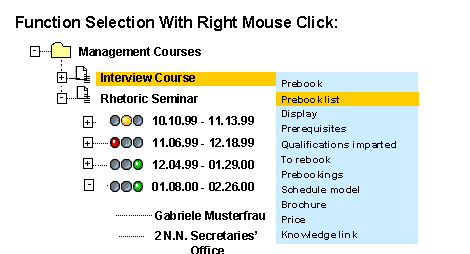
In the dynamic menus, the various maintenance functions are only active for the object types for which they are allowed and possible. Functions that are not executable at a particular level are not active at that level.
In the
You can choose the Book function from the menu at this level. You can then select from all existing courses of the type in the period specified.
The Book function is also available at the course level, but here you can only select one specific course to edit. The system does not offer you all existing courses of a particular type for selection, only the one selected with the cursor. When you choose Book, you immediately access the data screen. All of the relevant data is transferred to the data screen.
At the participant level, the functions Book, Rebook, Cancel, and Replace are available. In Book mode, the system offers you all existing courses of a particular type for selection.
When you have selected a function, refer to the individual functions for more information about the procedure.
See also:
Dynamic Menus User-Specific Settings