 Update Rules for Updating in 9ARAWDAT and 9ADEMAND
The update rules that update the data to the 9ARAWDAT DataStore object and the 9ADEMAND InfoCube consist of the components described below. For a detailed overview of which components belong to which update rule, see Update Rules in Historical Data Capture.
Features
Determine Planning-Relevant Historical Data for Customer Location
If you use the OEM-managed inventory process, the system saves demand information for the location of your customer or dealer twice. It saves both the demand data transferred to you by your customer directly in the business-to-business process and the demand data for this location from SAP ERP SD. To ensure that it does not count the demand data twice, the system determines the saved demand data that is relevant for planning for the location product specified in the sales order item. This is determined for each customer sales item from SAP ERP SD. To do so, it checks the replenishment indicator of the location product and whether the location product is identified as relevant for OEM-managed inventory. It then uses the following logic to determine which data is planning-relevant and used for the demand history:
Case |
Location Product Is Relevant for OEM-Managed Inventory |
Stocking at the Location |
Planning-Relevant Historical Data |
|---|---|---|---|
1 |
Yes |
Yes |
Demand data from the business-to-business process |
2 |
Yes |
No |
Demand data from SAP ERP SD |
3 |
No |
Yes |
Demand data from SAP ERP SD |
4 |
No |
No |
Demand data from SAP ERP SD |
 Note
Note
A location product of a customer location is planning-relevant for Service Parts Planning in case 1 only. Only in this case does the system use the historical data transferred to you by your customer or dealer in the business-to-business process, and only in this case does the system generate a demand history for the location product. In case 2, the system saves the demand data transferred to you by your customer or dealer in the business-to-business process, but uses the historical data from SAP ERP SD for the demand history. In this case, the system does not generate a separate demand history for the customer location, but consolidates the historical data of the customer location with the historical data of the OEM location at the OEM location.
Check Semantic Mapping
For InfoSources and InfoProviders, the system checks whether the semantic mapping is correct. It checks, for example, whether the 9ADEMAND InfoCube contains the 9APRODUCT characteristic. You can make changes to the semantic mapping in Customizing for Advanced Planning and Optimization
by
choosing 
Basis Settings

Transaction Data Layer (TDL)
Configure Settings for TDL Semantics
 . Depending on which semantic mappings you want to change, choose
 InfoProvider
Semantics
, Semantics in InfoSource
, or DataSource Semantics
.
 Recommendation
We recommend that you retain the standard settings.
Recognize Special Order Items
The system checks whether you deliver order items via third-party order processing (TPOP) or whether an order item is part of a kit.
Note
The system does not support third-party order processing for SAP ERP, only for SAP CRM. It does not check produce-to-order products in SAP ERP, either.
Check Whether Data Is Already Realigned
The system checks whether data has been realigned for the order data from SAP Customer Relationship Management (SAP CRM) or from SAP ERP Sales (SD) and for the stock transfer data from SAP ERP Materials Management (MM). If it has already happened but you then changed the data in SAP CRM or in SAP ERP and re-extracted it with a delta upload, the system ignores the changes made in SAP CRM or SAP ERP. This means that it does not load the changes in the Business Intelligence system in SAP Supply Chain Management (SAP SCM). For data for which supersession is valid, the system checks whether it has already realigned the data during historical data maintenance. If so, the system also takes into account supersession during historical data capture. If not, the system does not take into account supersession during historical data capture.
Check Validity
The system checks whether the data was specified correctly. To do so, it checks data including the following:
Location
Product
GUID
Date
Only if all data was specified correctly does the system take this order item into account during historical data capture.
Determine Canceled Sales Orders and Cancellation Reason Codes
The system checks whether a sales order has been canceled and whether you have assigned a cancellation reason code to the canceled sales order. For more information, see Checking Canceled Sales Orders.
Check Master Data
The system checks whether the data extracted from SAP CRM or SAP ERP exists in the SAP SCM master data.
Product
The system checks whether the GUID of the product exists in the master data. If it does not, the system checks whether the internal or external product number exists in the master data. Only if either the product GUID or the product number exists does the system consider this order item when capturing the historical data.
Customer-facing location, stockholding location
The system checks whether the internal or the external location number exists in the master data. Only in this case does the system take this order item into account when capturing the historical data.
Location product
Determine the Stockholding Location for TPOP
If you deliver an order item via TPOP, the system determines the entry location of the BOD as the stockholding location for this order item on the basis of the customer-facing location.
Check the Requested Delivery Date
The system checks whether the requested delivery date in an order item is filled. Only if this is the case does the system take this order item into account when capturing the historical data and it uses this date to assign the order item to a period.
Set a Product Lock
The system sets a lock for products that the system is currently processing in historical data capture. This lock means that the system can process the corresponding product during historical data capture in parallel, but also ensures that a planning service for data realignment cannot process the product concurrently.
Determine the Demand Quantity in the Base Unit of Measure
The system checks whether the sales unit and the base unit of measure in order items are identical. If they are not identical, the system converts the sales unit into the base unit of measure.
Assign Demands to Time Aggregates
The system aggregates past demands in weeks, months, and posting periods in the 9ADEMAND InfoCube. The system uses the customer's desired delivery date to assign the demand for each order item to each of these time aggregates.
Determine Future-Dated Orders
The system checks whether future-dated orders exist and assigns them to the demand category FDO_DEM
. To calculate whether an order is a future-dated order, the system proceeds
as follows:
The system checks your entry in Customizing under Advanced Planning and Optimization
Supply Chain Planning
Service Parts Planning (SPP)
Basic Settings
Make
Settings for Customer Demand
in the Future Cust. Req. and Outbound Del. Qty
field. Only if you have set this indicator does the system identify orders as future-dated in the following way:
If you set the indicator, the system checks whether you set the
Order Type: Future Cust. Req. and Outbound Del. Qty
indicator. If you have, the system checks whether an order type exists that you have assigned to future-dated orders in the navigation tree on the left underOrder Types
.If the system could not determine future-dated orders in this way or if you did not set the indicator, the system checks whether you set the
Horizon: Future Customer Req. and Outbound Quantity
indicator. If you have set this indicator, the system subtracts the ordering date of a sales order from the desired delivery date. If this difference is greater than the horizon you defined in theHorizon: Future Customer Req. and Outbound Quantity
field, an order is considered as a future-dated order.
Assign Demand Categories
The system assigns a demand category to each order. For more information, see Assignment of Demand Categories.
Check Stockholding and Customer-Facing Locations
The system checks whether both the stockholding location and the customer-facing location are filled. Only if this is the case does the system take the order item into account when capturing the historical data.
For order data from SAP CRM, the system also checks whether you delivered the order item using third-party order processing (TPOP). If this is the case, the system uses the customer-facing location to find the product's entry location and adopts the entry location as the stockholding location.
Set an Inventory Planning Trigger
The system sets the SPP_NON_ST_DEMAND trigger in the following cases:
If the customer-facing location and the stockholding location for a sales order item are not the same.
If the system cannot identify a stockholding location for the product because none of the locations in the bill of distribution (BOD) are stockholding. If this is the case, the system classifies the product as "procure-to-order".
The inventory planning service evaluates this trigger.
Flag Rush Orders
The system marks rush orders as such. You can specify which orders are rush orders in Customizing for Advanced Planning and Optimization
by choosing Supply Chain Planning
Service Parts Planning (SPP)
Basic Settings
Priorities and Attributes of Sales Documents
. You can create sales document types under Define Sales Document Types
. You can specify which of these sales document types are rush
orders under Define Priorities and Attributes of Sales Documents
.
Flag Virtual Child Locations
The system marks orders from virtual child locations so that they can be included when demands are aggregated along the BOD.
Include Supersession
The system takes into account whether supersession has taken place. For more information, see Handling Supersession.
Aggregate Along the BOD
The system aggregates historical demands along the BOD.
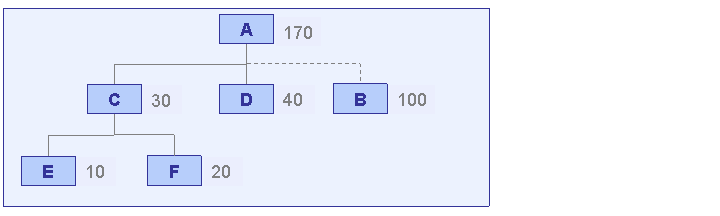
 Example
The following figure shows a three-level BOD. The customer-facing locations E and F have a demand of 10 and 20 pieces. This results in an aggregated demand for parent location C of 30 pieces. The customer-facing location D has a demand of 40 and the virtual child location B has a demand of 100. This means that the system calculates an aggregated demand for entry location A of 170 pieces.
Scaling
Since demand periods can be of different lengths and since the number of working days within the demand periods can also differ, the forecasting service calculates the forecast based on scaled demand.
You have specified 21 as the scaling factor for months.
The raw demand in February 2005 is 40. February 2005 has 20 working days.
In this case, the scaled demand is 42. (40/20 = 2 2*21= 42)
You define scaling factors for months, posting periods, and weeks as well as the calendar for scaling in Customizing. For more information, see the Implementation Guide (IMG) for Advanced Planning and Optimization
under Supply Chain
Planning
Service Parts Planning (SPP)
Forecasting
Make General Settings for Demand History
.
Determine Final Demand
The system takes the scaled demand as the final demand during historical data capture.
Error Handling
For more information about where you can see errors that occur during historical data capture, see Error Handling During Historical Data Capture.