 Scheduling in Non-Working Times
Use
You can configure the detailed scheduling strategy in such a way that operations can also be scheduled during regular non-working times (breaks, weekends, and so on) for a resource, that is, during times in which the resource is normally not being used. In using this strategy, you do not have to change the resource data explicitly if you are anxious for an operation to be completed after the end of regular working time (after the end of the last shift, for example).

As a basic rule, you cannot schedule any operations in downtimes of a resource.
Features
By setting the
N
on-Working Times
indicator in the detailed scheduling strategy, you specify that the same capacity and rate of resource utilization is available at the resource in non-working times as was available in the regular working times immediately prior to them in each case. This data is valid until the start of the next regular working time in each case. You can schedule operations at any time. The operations can lie completely or partly in non-working times.
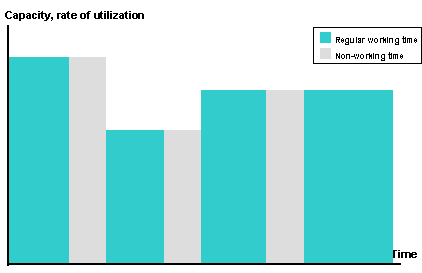
An operation that you schedule in a non-working time is automatically fixed by the system. This means that neither you nor the system can shift this operation to a normal working time during the next scheduling. Even if you unset the
Non-Working Times
indicator, operations that are scheduled in non-working times remain fixed. In order to be able to reschedule a fixed operation, you must
remove the fix
.
Activities
If you want to work with a different capacity in non-working times (with only three people instead of four, for example), you must change the resource data.
On the detailed scheduling planning board , working times are shown in white, regular non-working times (such as breaks and weekends) in gray, and downtimes (due to machine shutdowns, for example) in dark gray.
You can display and hide non-working times on the detailed scheduling planning board. You cannot display and hide downtimes on the detailed scheduling planning board.
In the resource planning table, non-working times and downtimes are displayed as info lines in the periodic view.
You can show and hide the info lines.