
 Creating HTML Templates Manually
Use
You use this procedure to create
HTML templates manually.
Prerequisites
There must be a user in the R/3 System which your service is using.
You must
create a service file first.
Procedure
Choose File
®
New and select the Files tab.
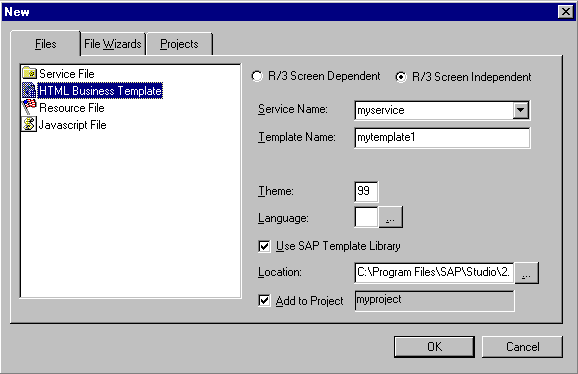
Select HTML Business Template.
Enter information depending on the type of application you are developing:
- If you are developing a screen-dependent application based on Web Transactions, select R/3 Screen Dependent
- In the Service Name field, enter the service name or select one from the list box.
- In the Program and Screen Number fields, enter the program name and screen number of the underlying R/3 transaction.
- If you are developing a screen-independent application based on ITS Flow Logic, select R/3 Screen Independent
- In the Service Name field, enter the service name or select one from the list box.
- In the Template Name field, enter a name for the HTML template.
- Enter theme and language information as required in the following fields:
- Theme
- If the service has more than one theme, enter the theme to which you want to assign the HTML template or accept the default value
- If the service does not have multiple themes, leave this field blank or accept the default value
- Language
- If you want to keep the HTML template language-independent, leave this field blank
- If you need to make this HTML template language-specific, enter a language or select one from the list box
If you enter a language explicitly, remember that the language key must be:
One character for R/3 releases prior to 4.0 (for example,
e
for English)Two characters for R/3 releases from 4.0 (for example,
en
for English)
If you select a language from the list box, you must also check R/3 4.0 System for Releases 4.0 or higher.
- If you intend to use the controls in the SAP General HTMLBusiness Functions Library, select
SAP Template Library.
This tells the SAP@Web Studio to create a skeleton HTML template for the purpose.
- Add the file to the current project or choose a different location:
- To add the file to the current project:
- Ensure that Add to Project is selected.
- To add the file to a different location:
- Deselect Add to Project.
- In the Location field, enter the desired project or browse to find a project.
- Choose OK.
Result
The SAP@Web Studio creates a new skeleton HTML template and displays it in the Workspace – Project View under the current service and theme (if applicable).
The format of the file name depends whether you have created a language-independent template or a language-specific HTML template:
HTML Template |
File Format |
Language-independent |
<program name>_<screen number>.html |
Language-specific |
<program name>_<screen number>_<language>.html |
You can now do one or both of the following, as required:
- If you are developing an application that uses flow logic and the template requires a dialog flow definition,
create a flow file
If you want to keep the HTML template language-independent,
create a language resource