Condition Editor
Use
The remaining process flow of a workflow depends on a condition at various points. The evaluation of a condition always returns either the result true or the result false. You formulate a condition with the condition editor.
|
Using a condition |
|
|
Step type condition |
The result of the evaluation decides which of two modeled branches the workflow processes. |
|
Step type Loop (UNTIL) |
The result of the evaluation decides whether the loop is processed again or not. |
|
Step type Fork |
The result of the evaluation decides whether parallel processing is ended, even if the number of necessary branches is not yet reached. |
|
Step types Activity, Form, Document from template, Wait step, Web activity and User decision on the tab page Conditions. |
The result of the evaluation decides whether the work item is generated or if the work item is completed. In addition, you can enter a condition to check the result of the execution. |
| Basic data of a workflow |
A start condition can be defined for a triggering event. This workflow is only started if this is fulfilled. |
Features
There are two modes for working with the condition editor, which differ only in the display and the way you select expressions and operators. To change between these modes, select  . The following modes are available for display:
Direct text entry (traditional mode)
You can select the expressions and operators for constructing the condition using the F4 input help.
Mouse-oriented (PC mode)
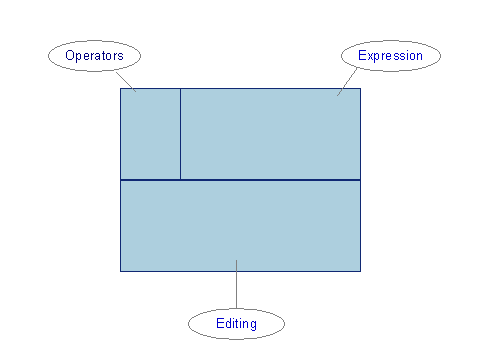
The screen of the condition editor is divided into the following areas:

The mouse-oriented mode requires a 32-bit platform.
Editing
The current condition is displayed and can be edited here. Every condition has the general form:
[<Not>] <Expression> <Operator> <Expression> [<And/Or>
<Not> <Expression> <Operator> <Expression> …]
Expression
Here you will find the following input options for expressions.
You can also access the fields of a structure or the attributes of an object that a container references.
Operators
The operators available are displayed here. When an operator is chosen, it is inserted into the current line of the condition and replaces an operator that is already there.
|
Operator |
Meaning |
Remarks |
|
|
Equals |
|
|
|
Does not equal |
|
|
|
Less than |
|
|
|
Less than or equal to |
|
|
|
Greater than |
|
|
|
Greater than or equal to |
|
|
|
Matches pattern |
c1 matches pattern c2 Ordinary characters and wildcard characters can be entered in pattern c2. "*" denotes a character string and "+" denotes a character. |
|
|
Does not match pattern |
c1 does not match c2 "c1 NP c2" is equivalent to "NOT (c1 CP c2)" |
|
CE |
Table contains element |
c1 contains c2 The multiline element (multiline expression) c1 contains c2. |
|
NE |
Table does not contain element |
c1 does not contain c2 The multiline element (multiline expression) c1 does not contain c2. |
|
EX |
Object/element exists |
Element exists in container or referenced element exists - expression2 is not required |
|
NX |
Object/element does not exist |
Element does not exist in container or referenced element does not exist - expression2 is not required |
Logical operators
|
Operator |
Meaning |
Remarks |
|
AND |
And |
|
|
OR |
Or |
|
|
NOT |
Not |
The whole condition line is evaluated and the result negated. |
NOT
is stronger than AND, and AND is stronger than OR.
A condition of the form A OR B AND C OR D is equivalent to A OR (B AND C) OR D
Constants
You can enter a constant in this input field for expression2. The format of the constant entered depends on expression1.
Parentheses
You can structure the condition by using parentheses and activate the display of the contents of the parentheses selectively.
Activities
Editing conditions
The description below applies to operation in mouse-oriented mode.
The expression you can enter or change is selected using  . To create or edit a condition, you first select the relevant expression field in the condition by double-clicking and then define the content.
Usually at least one of the two expressions refers to a container element of the workflow container.
If you choose an operator or a logical operator, it is transferred automatically into the line in which the selection is located. If you delete a condition line, the logical operators AND and OR of the previous line are also deleted. If you select a NOT operator that already exists in a line again, it is deleted.
Using parentheses and comments
To insert parentheses into an existing condition, you select the condition lines around which parentheses are to be inserted and choose  (¼
).
(¼
).
You can change the comment for parentheses. Note that this text is not translated.
Expanding or collapsing parentheses
You can display or hide the contents of all or individual pairs of parentheses. The position of the cursor has the following effects:
To hide the content of parentheses you select  (¼
) and to display it
(¼
) and to display it  (¼
).
(¼
).
Syntax check
To check the condition for syntax errors, you select  .
.
Testing conditions
You can test your condition at definition time.
Test data
You create the test data required as follows:
 .
.Testing
Select  .
.
After the test you can use Test analysis to see how the test result arose, and Display test messages to display the test messages again.