Business Event Date Planning
Business Event Date Planning
Use
When setting up your business event catalog, you can plan multiple business event dates at one go in the dynamic planning menu based on the demand that exists for them.

There are important differences between the functions Plan and Create. When you plan business events, you can plan a number of event dates simultaneously. With the Create function, you can only create event dates one at a time.
The result of both transactions is the same: in both cases, the new event date is included in your business event catalog.
The special feature of the planning function is that it includes an automatic demand determination function. The number of dates you plan depends on the demand that there is for them. This can be determined before you start the planning procedure.
Features
In the Planning menu, you can determine what demand there is for the event you want to plan. Demand can be derived from the bookings for the previous year, from the demand the previous year, or from the number of prebookings for the event type so far.
See also: Demand Determination
You can automatically generate date proposals when you plan event dates.
You can specify a number of other conditions such as:
 Selection: Resource Types/Resources lets you make more detailed specifications for the resources required in this planning operation. You do so in the dialog box that appears (similar to the one that appears for resource selection when you create individual event dates).
If a resource type is only required for this specific planning operation, you assign it temporarily by choosing  .
.
You can create the permanent relationship requires resource type with the business event type by choosing  .
.
Where possible, the system proposes a number of dates based on the conditions you set. It may however occur that there are no dates to satisfy the conditions. In this case, you can remove or change some of your conditions and restart the planning process.
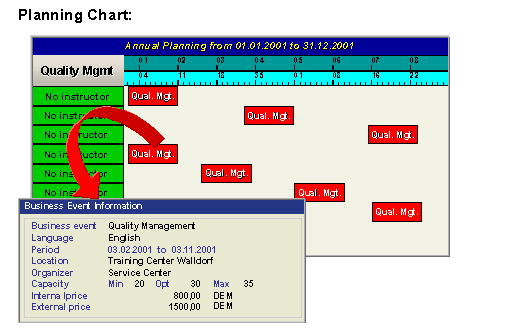
The proposed dates are displayed on a graphical planning chart. You can move, copy, delete, or change the dates. You can display the resource list and time schedule of individual event dates, and you can change resource reservations for events. You can display planned event dates in list format.
When you have determined demand for a particular business event type, a traffic light icon is displayed beside it indicating the following statuses:
A traffic light icon appears beside the date proposals and event dates indicating the status of resource reservations as follows:
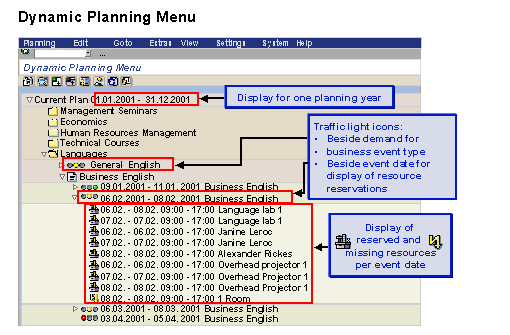
The dynamic Planning menu presents data in a clear structure. You can manually change data in the structure. For example, if you discover that the resources assigned to the event do not cover resource requirements, you can remedy this on the planning menu screen.
You can start the planning as often as you want by changing the demand for event dates.
See also:
Business Event Dates Planning a Business Event Date