Migrating Catalog Content to SAP Business Data Cloud

Including an SAP Datasphere in an SAP Business Data Cloud formation automatically starts the catalog content migration from SAP Datasphere to SAP Business Data Cloud. This ensures that catalog content from the local SAP Datasphere system continues to be available in the catalog.

Prerequisites

To start the catalog migration and monitor its progress, you must have a global role that grants you the following privileges:
  • Data Warehouse General (-R------) - To access SAP Datasphere.

  • Catalog System (-RUDE--) - To view, edit, and delete source system connections and manually synchronize source system.

The Catalog Administrator global role and the DW Viewer role template (used directly as a global role) applied together, for example, grant these privileges. For more information, see Privileges and Permissions and Standard Roles Delivered with SAP Datasphere.
You also must have already performed the following tasks:
  • Rewired your standalone SAP Datasphere and SAP Analytics Cloud systems to SAP Business Data Cloud (see the SAP Business Data Cloud help documentation: Rewiring of Standalone SAP Datasphere and SAP Analytics Cloud Subscriptions to SAP Business Data Cloud).

  • Added your SAP Datasphere system to an SAP Business Data Cloud formation (see the SAP Business Data Cloud help documentation: Creating SAP Business Data Cloud Formations). The catalog migration will automatically start, and you’ll receive notifications on the migration progress at various stages:

    • At the beginning of the migration.

    • When the entire migration finishes.

      You'll find out if the migration outcome is ready to be confirmed or if the migration failed and you need to fix issues.

Because an SAP Business Data Cloud formation can have only one SAP Datasphere system, only the local SAP Datasphere can be added to the formation and its objects will be migrated to the catalog in the integrated setup.

Context

When you see the notification for the catalog migration for SAP Datasphere, you can go directly to the SAP Datasphere system to monitor the migration process and retry failed steps.

Procedure

  1. In the side navigation area, choose (Catalog & Marketplace)Start of the navigation path Next navigation step End of the navigation path (Metadata Extractions).
  2. In the Remote Systems table, find the SAP Datasphere system that you added to the formation and check that its authorized user is set up.

    The system has a migration status of In progress. If the authorized user is missing, you must set it up before the catalog content can be migrated. For instructions on setting up the authorized user, see the section Authenticating the User for Metadata Extraction in Manually Connecting an SAP Datasphere System.

    If you are importing an SAP Analytics Cloud system, check for the authorized user and set it up as needed (see Manually Connecting an SAP Analytics Cloud System).

  3. Choose Monitor Catalog Migration.
    The Monitor Catalog Migration dialog opens.
    If the migration has completed and you are confirming its outcome, look for the Confirm pending migration status and choose the Confirm Migration button.
  4. Choose a step to review its progress.
    1. Check the Extracted Objects step for BW systems that you have to manually synchronize.

      When this step finishes, review the status for each system and go to the systems details page to review the extraction summary and resolve any issues for objects that failed to synchronize and manually synchronize the system. If issues for the objects are not resolved and the migration outcome is confirmed, semantic enrichments to the associated assets (including links to terms, KPIs, and tags) will be permanently deleted.

    2. For all other steps check for failures and use the developer tools in your browser to review the log and fix the issues. You can then retry the migration for the individual step. Alternatively, you can wait until the whole migration process finishes, fix any issues and then retry migrating all failed steps.

      When you retry migrating a step, the content that was migrated will be removed and replaced with content when retrying the migration for that step.

  5. In the final step after all steps have finished migrating, select the checkboxes to acknowledge the following:
    • You reviewed the summary logs and object extractions and are satisfied with the catalog migration.

    • You understand that any catalog content not migrated to the new setup, including semantic enrichments to assets, will be permanently deleted.
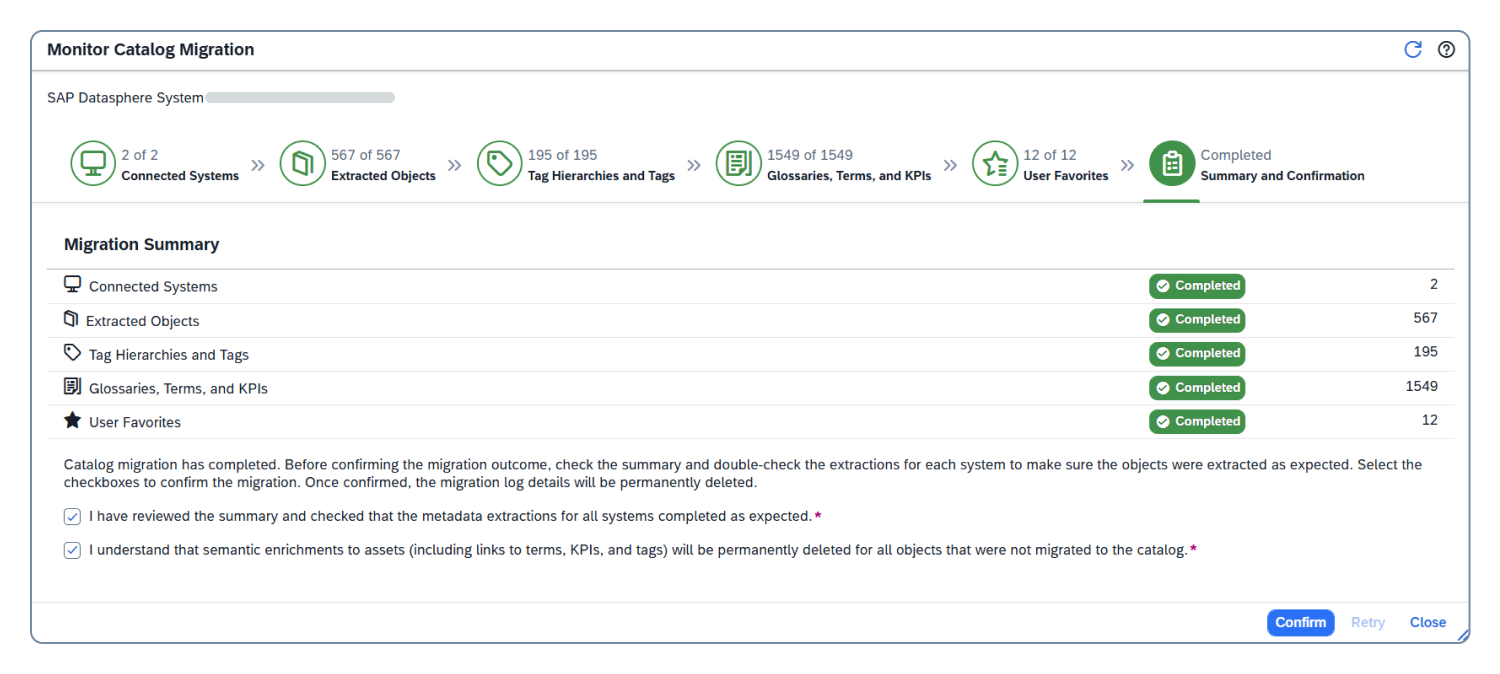
    Monitor Catalog Migration dialog showing the last step of the migration. It has a summary table with all items marked as completed.

  6. Choose Confirm to confirm the migration outcome.

Results

You'll see a message that the migration outcome has been confirmed. The migration summary logs are permanently deleted from your browser, and you'll no longer have access to the migration monitoring dialog. Only the content that was migrated from the catalog in the previous standalone setup will be available in the catalog in the new setup.

Next Steps

Users can access the catalog from either the SAP Business Data Cloud cockpit or SAP Datasphere and search for the migrated content (see Searching for Data Products and Assets in the Catalog). If needed they can enrich the migrated assets (see Enriching and Managing Catalog Assets).

Manually Starting the Catalog Migration

Context

The deployment of SAP Business Data Cloud to SAP data centers follows a controlled release, and rewiring the standalone provisioned systems is allowed in all data centers where SAP Business Data Cloud is available. See the SAP Business Data Cloud documentation to find out more: Product Availability Information.

Customers who rewired their SAP Datasphere and SAP Analytics Cloud systems before the migration feature was available were able to manually migrate only the assets from the source systems. They were not able to migrate glossaries, terms, KPIs, and tags and semantic enrichments to assets (including links to terms, KPIs, and tags). These objects remained hidden from catalog in the new setup. See the knowledge base article: Catalog content is hidden after moving from a standalone SAP Datasphere to SAP Business Data CloudInformation published on SAP site.

To manually start the migration, go to the SAP Datasphere system and follow these steps.

The catalog will be temporarily unavailable during the catalog migration.

Procedure

  1. In the side navigation area, choose (Catalog & Marketplace)Start of the navigation path Next navigation step End of the navigation path (Metadata Extractions).
  2. In the Remote Systems table, find the SAP Datasphere system that has a migration status of Not Started and choose Migrate Catalog.
    The catalog migration process will start migrating all catalog content from the previous standalone setup. The migration status will be updated to In progress and the action name will be updated to Monitor Catalog Migration.
  3. Choose Monitor Catalog Migration to monitor the migration progress. The Monitor Catalog Migration dialog will open.
  4. Choose a step to review its progress.
    1. Check the Extracted Objects step for BW systems that you have to manually synchronize.

      When this step finishes, review the status for each system and go to the systems details page to review the extraction summary and resolve any issues for objects that failed to synchronize and manually synchronize the system. If issues for the objects are not resolved and the migration outcome is confirmed, semantic enrichments to the associated assets (including links to terms, KPIs, and tags) will be permanently deleted.

    2. For all other steps check for failures and use the developer tools in your browser to review the log and fix the issues. You can then retry the migration for the individual step. Alternatively, you can wait until the whole migration process finishes, fix any issues and then retry migrating all failed steps.

      When you retry migrating a step, the content that was migrated will be removed and replaced with content when retrying the migration for that step.

  5. In the final step after all steps have finished migrating, select the checkboxes to acknowledge the following:
    • You reviewed the summary logs and object extractions and are satisfied with the catalog migration.

    • You understand that any catalog content not migrated to the new setup, including semantic enrichments to assets, will be permanently deleted.

    As a best practice before confirming the migration outcome, export the migration summary logs to a separate area for future reference.

  6. Choose Confirm to confirm the migration outcome.

Results

You'll see a message that the migration outcome has been confirmed. The migration summary logs are permanently deleted, and you'll no longer have access to the migration monitoring dialog. Only the content that was migrated from the catalog in the previous standalone setup will be available in the catalog in the new setup.

Next Steps

Users can access the catalog from either the SAP Business Data Cloud cockpit or SAP Datasphere and search for the migrated content (see Searching for Data Products and Assets in the Catalog).

Be sure to check the migrated content for the following issues:

Issue

Description

Learn more

Missing asset enrichments

If asset enrichments you made have been overwritten, add the enrichments again.

Enriching and Managing Catalog Assets

Duplicate entries

If you notice duplicate tag hierarchies, tags, glossaries, terms, or KPIs, compare the entries and consolidate to a single entry or delete unwanted entries.

Manage Hierarchies and Tags

Create and Manage Glossary Terms

Create and Manage Key Performance Indicators

Missing changes to the KPI template

If the KPI template is different from what you expect, edit it as needed.

Define the Key Performance Indicator Template