 Carrier Invoice
In an invoice submission process, the process of settlement between you and your service provider is based on a carrier invoice that your service provider submits to you against a freight order. Your service provider has executed the transportation requirements in your freight order. You have a trusted relationship with your service provider, and your service provider uses the SAP Transportation Management (SAP TM) collaboration portal to submit a carrier invoice.
Prerequisites
You must specify a carrier invoice type in Customizing for Transportation Management
under 
Settlement

Freight Settlement
Carrier Invoice Types
 .
.
Integration
The carrier invoice is integrated with the following objects and systems:
SAP TM collaboration portal
Your service provider can use the collaboration portal for the following business reasons:
To create a carrier invoice
To communicate notes and agree common ground on an associated dispute case
Freight settlement dispute case
You service provider can perform the following tasks for a dispute case:
Submit an invoice for one or more freight orders
Submit changes against the charge amounts or logistics quantities in one or more freight order
SAP TM captures the invoice details submitted by your service provider. If there are differences between the submitted invoice and the original freight order, SAP TM creates a dispute case and links it to the carrier invoice. If your service provider does not submit any changes in the carrier invoice, SAP TM does not create a dispute case.
SAP ERP
You can use the
Posting of Carrier Invoices
background function to transfer the carrier invoices that are ready for posting to SAP ERP. SAP ERP creates incoming invoices. For more information, see Posting of Carrier Invoices.You can also post one or more carrier invoice directly from the NWBC screens, as follows:
Under
Freight Settlement
, choose Worklist
Overview Freight Settlement Documents
Carrier Invoices
.Under
Freight Settlement
, choose Carrier Invoice
Display Carrier Invoice
.
For more information about integration with SAP ERP, see SAP Help Portal at http://help.sap.com/erp
 . In SAP Library, choose
 SAP ERP Central Component
Logistics
Logistics - General (LO)
Integration of SAP ERP with SAP Transportation Management
.
Features
Possible Actions on NWBC Screens
The following table explains possible actions that are available to you on the NWBC screens in SAP TM:
Action | Action Description |
|---|---|
| You can reject a carrier invoice at any time, provided the carrier invoice is not yet transferred to SAP ERP or is not yet posted successfully in SAP ERP. When rejecting a carrier invoice, you can provide notes to your service provider giving your reasons for rejection. Your service provider must create a new carrier invoice for the freight order. When you reject a carrier invoice that has an open dispute case, the system automatically cancels the dispute case. This saves you from taking extra steps to cancel the dispute case manually. |
| You can post the carrier invoice to SAP ERP provided the carrier invoice satisfies all of the following conditions:
|
Life Cycle Status
The life cycle status indicates the resolution status of the overall carrier invoice. The figure below illustrates the life cycle status and is followed by an explanation:
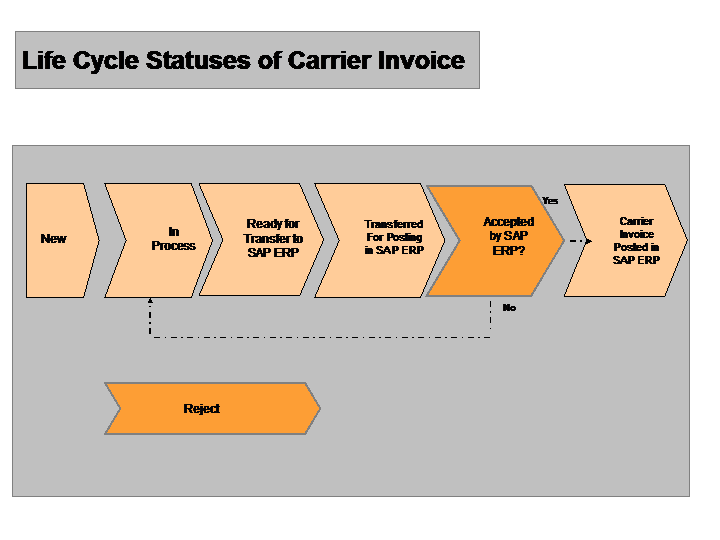
The following table explains what the key life cycle statuses mean:
Status | Status Description |
|---|---|
| Your service provider has not yet submitted the carrier invoice in the collaboration portal. |
| The carrier invoice has one or more of the following conditions:
|
| The carrier invoice satisfies all of the following conditions:
|
| You have transferred the carrier invoice for posting to SAP ERP. SAP ERP is processing your request. If the carrier invoice stays at status |
| SAP ERP has successfully posted the carrier invoice and created the invoice document. |
| You rejected the carrier invoice for business reasons. For example, the tax amounts in the invoice were incorrect |
Dispute Case Status in a Carrier Invoice
In an invoice submission process, your service provider submits a carrier invoice against one or more freight orders. You service provider can also submit a change to the charge amounts or logistics quantities in the freight order. SAP TM subsequently creates a dispute case so that you can come to a consensus on the disputed items with your service provider. The dispute case status reflects the processing status of the dispute on the carrier invoice. The following table explains what the individual dispute case statuses mean:
Status | Status Description |
|---|---|
| The default status of a carrier invoice, where there are no dispute cases on the charges or logistics information in the freight orders covered by the carrier invoice. |
| You as the service requester must act to approve, make a proposal, or reject the dispute created by your service provider. |
| Your service provider must take action on a dispute case. This means you as the service requester have taken one of the following actions:
|
| Both you as the service requester and your service provider have agreed on common ground in the dispute and you both have agreed on a decision. You have accepted the dispute case. Alternatively, you as a service requester reject a carrier invoice from your service provider that also has an associated open dispute case. |
Block Status
The block status prevents the system transferring the carrier invoice to SAP ERP. For example, your service provider can use an invoice number reference from their own transportation system, such as a forwarding order number, a waybill number, or an invoice number. When your service provider submits a carrier invoice, SAP TM checks to ensure that your service provider has not used the same invoice number reference ID to submit an invoice previously in the same day. If your service provider has used the same invoice number reference previously in the same day, as standard SAP TM blocks the carrier invoice and displays the reason Invoice number reference already used
on the carrier invoice screen. This protects you from creating duplicate invoices when you submit invoices electronically, for example, when you use machine-to-machine (M2M) messages or B-to-B (B2B) messages.
You can specify your own additional blocking checks. For example, you can block a carrier invoice if the freight orders in the carrier invoice have a delivery date that is later than the current date. As the shipper, this enables you to pay for a transportation only when all of the parts of the transportation are completed. For more information, see Customizing for Transportation Management
under Business Add-ins (BAdIs) for Transportation Management
Settlement
Freight Settlement
Freight Settlement Dispute Management
BAdI: Additional Checks for Blocking Carrier Invoices
.
You cannot further process a carrier invoice when it is blocked.
To unblock the carrier invoice, choose Unblock
on the carrier invoice screen. For more information on block statuses, see Customizing for Transportation Management
under Basic Functions
General Settings
Define Block Reason Codes
.
Confirmation Status
You can use the confirmation status to track the integration of SAP TM with SAP ERP. The status indicates the result of the last integration interaction between SAP TM and SAP ERP. The following table explains what the main confirmation statuses mean:
Status | Status Description |
|---|---|
| SAP TM has not transferred the carrier invoice to SAP ERP. |
| SAP TM has transferred the carrier invoice to SAP ERP and the status in SAP ERP is not yet known. |
| SAP ERP successfully created and posted the carrier invoice. |
| SAP ERP could not post the carrier invoice. |
Tax Handling
Your service provider can enter tax amounts at charge type item level on the collaboration portal. The collaboration portal uses the charge management master data settings in your SAP TM system to calculate charges. SAP TM includes the charge amounts and tax amounts when it creates the carrier invoice.
SAP TM does not verify the tax amounts. Instead, SAP ERP verifies the tax amounts when you post the invoice to SAP ERP.
If there is a discrepancy between what your carrier has entered and what SAP ERP expects to pay, SAP ERP does not post the carrier invoice. You must manually reject these carrier invoices in SAP TM. You can find the carrier invoices that contain a discrepancy by filtering the following statuses:
Life cycle status
In Process
Confirmation status
Invoice Posting Failed
More Information
Subject | More Information |
|---|---|
Background processing function for posting carrier invoices to SAP ERP in batches | |
Individual aspects of dispute management | |
SAP TM collaboration portal |