
 Implementing a Web Dynpro
Component
Implementing a Web Dynpro
Component

Use
To create a Web Dynpro component that can be exposed as a callable object in Guided Procedures (GP), you must implement the IGPWebDynproCO interface. It enables the execution of the component in the context of a GP process.

For more information about the interfaces used for the implementation, see the API documentation at http://www.sdn.sap.com/irj/sdn/javadocs.
Prerequisites
You must have added all required dependencies as described in Creating and Configuring the Web Dynpro Project.
Procedure
1. Create a Web Dynpro Component
...
1. In the Web Dynpro Perspective, expand the Web Dynpro project that you have created, and select Web Dynpro Components.
2. Open the context menu and choose Create Web Dynpro Component.
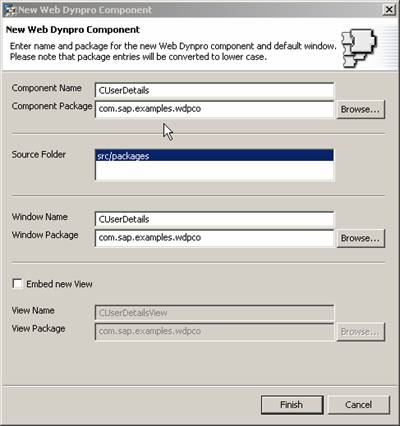
Enter a name for the component – for example, CUserDetails. Enter a package name – for example, com.sap.examples.wdpco.
Deselect the option Embed New View, and choose Finish.
Create a Web Dynpro Component
2. Add Implemented Interfaces
...
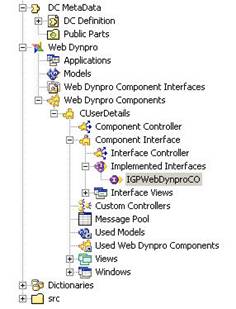
1. Expand the node CUserDetails, select Component Interface → Implemented Interfaces, and open the context menu.
2. Choose Add. Select interface IGPWebDynproCO – com.sap.caf.eu.gp.co.webdynpro and choose Finish.
Add Implemented Interfaces
3. Edit the Interface Controller Implementation
...
1. Open the Interface Controller by choosing Edit from the context menu.
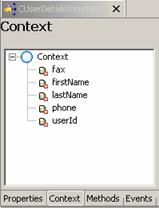
2. In the Context tab page, define attributes for the callable object parameters.
For this example, you define the following attributes:
○ fax
○ firstName
○ lastName
○ phone
○ userId
Context Attributes (Interface Controller)
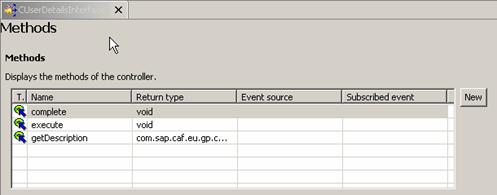
3. In the Methods tab page, declare a new method complete.
Methods execute and getDescription are inherited from interface IGPWebDynproCO.
Methods in Interface Controller
4. In the Implementation tab page, make the following modifications:
a. Add a private variable for the callable object execution context. You need the execution context to retrieve runtime data, such as parameter values, and so on.

//@@begin others private IGPExecutionContext executionContext; //@@end |
b. Method getDescription()
This method returns the technical description of the callable object that contains metadata for the object’s input, output, and configuration parameters, as well as for its result states.
Using the coding example below, you:
§ Define the input parameter userId as an attribute of the pre-existing root structure.
§ Define a sub-structure userfor the output parameters, and add attributes to it.
§ Create a result state Success.
§ Implement invocation exception handling in the catch clause of the try-catch block.
Invocation exception occurs if the technical names contain forbidden characters (only numbers, Latin letters, and underscore are allowed).
In the example, the method returns null if there is an error.
To log the error message, you use an instance of com.sap.tc.logging.Location, which is automatically available in Web Dynpro.
public com.sap.caf.eu.gp.co.api.IGPTechnicalDescription getDescription(java.util.Locale locale) { //@@begin getDescription() try { IGPTechnicalDescription technicalDescription = GPCallableObjectFactory.createTechnicalDescription( "CO_NAME", "CO_DESCRIPTION", resourceAccessor, locale);
// Pre-existing input structure IGPStructureInfo input = technicalDescription.getInputStructureInfo(); IGPAttributeInfo userId = input.addAttribute("UserID", IGPAttributeInfo.BASE_STRING); userId.setMultiplicity(IGPAttributeInfo.MULITIPLICITY_1_1);
//Pre-existing structure for output parameters IGPStructureInfo output = technicalDescription.getOutputStructureInfo();
//Create the attributes in the output structure IGPStructureInfo userStructure = output.addStructure("User");
userStructure.addAttribute( "firstName", IGPAttributeInfo.BASE_STRING); userStructure.addAttribute( "lastName", IGPAttributeInfo.BASE_STRING); userStructure.addAttribute("phone", IGPAttributeInfo.BASE_STRING); userStructure.addAttribute("fax", IGPAttributeInfo.BASE_STRING);
//add result state IGPCOResultStateInfo success = technicalDescription.addResultState("Success"); success.setDescriptionKey("Success_desc");
return technicalDescription;
} catch (GPInvocationException e) { logger.logT( Severity.ERROR, Category.APPLICATIONS, "Incorrect technical name"); logger.traceThrowableT( Severity.ERROR, "Exception while creating technical description: ", e); return null; } //@@end } |
c. Method execute()
In this method, you can implement any functions that the callable object should execute. For example, you can process the input parameters, if any, interact with the system, and so on.
To retrieve the object parameters, you use the execution context.
In the example below, the method parses the input parameter (user ID), and searches user management for the relevant user. Then it retrieves the user details, such as first and last name, phone and fax numbers. The values are then assigned to the relevant context attributes.
If there is an invocation or UME error, the method logs a technical exception.
public void execute( com.sap.caf.eu.gp.co.api.IGPExecutionContext executionContext ) { //@@begin execute() String userId = null; try { this.executionContext = executionContext;
//Process the input parameters IGPStructure input = executionContext.getInputStructure(); userId = (String) input.getAttributeAsString("UserID"); wdContext.currentContextElement().setUserId(userId);
//Retrieve user data IUserFactory factory = UMFactory.getUserFactory(); IUser user = factory.getUserByLogonID(userId); String lastName = user.getLastName(); String firstName = user.getFirstName(); String phone = user.getTelephone(); String fax = user.getFax();
//Set the new values in the context IGPStructure output = executionContext.getOutputStructure(); wdContext.currentContextElement().setAttributeValue( "firstName", firstName); wdContext.currentContextElement().setAttributeValue( "lastName", lastName); wdContext.currentContextElement().setAttributeValue("phone", phone); wdContext.currentContextElement().setAttributeValue("fax", fax); } catch (GPInvocationException e) { String localizedMessage = textAccessor.getText("ERROR_GETTING_PARAMETERS"); wdThis.wdFireEventTechnicalException( new GPTechnicalCallableObjectException( logger, localizedMessage, e)); } catch (UMException ex) { String localizedMessage = textAccessor.getText("USER_NOT_FOUND", new Object[]{userId}); wdThis.wdFireEventTechnicalException( new GPTechnicalCallableObjectException( logger, localizedMessage, ex)); } //@@end } |
d. Method complete()
In this method you complete the execution of the callable object. For example, you can set the result state and the output parameters.
Finally, you must call the execution context method processingComplete(), to indicate that the callable object has been executed.
Technical exception is used to process the errors that might occur.
public void complete( ) { //@@begin complete() try { IGPStructure output = executionContext.getOutputStructure();
//Set the values of the output parameters IGPStructure user = output.addStructure("User"); user.setAttributeValue("firstName", wdContext.currentContextElement().getFirstName()); user.setAttributeValue("lastName", wdContext.currentContextElement().getLastName()); user.setAttributeValue("phone", wdContext.currentContextElement().getPhone()); user.setAttributeValue( "fax", wdContext.currentContextElement().getFax()); executionContext.setResultState("Success"); executionContext.processingComplete();
} catch (GPInvocationException e) { String localizedMessage = textAccessor.getText("ERROR_SETTING_PARAMETERS"); wdThis.wdFireEventTechnicalException( new GPTechnicalCallableObjectException( logger, localizedMessage, e)); } catch (GPEngineException e) { String localizedMessage = textAccessor.getText("INTERNAL_ERROR"); wdThis.wdFireEventTechnicalException( new GPTechnicalCallableObjectException( logger, localizedMessage, e)); } //@@end } |
e. Implement localization
The technical name of the callable object, as well as the technical names of its parameters and result states, is also available as keys that you can add to the message pool.
You can define additional keys to localize error messages, as well as result state descriptions, as shown in the coding examples above.
To access the texts from the message pool, you need an instance of GPWebDynproResourceAccessor.
IWDTextAccessor textAccessor = wdComponentAPI.getTextAccessor(); GPWebDynproResourceAccessor resourceAccessor = new GPWebDynproResourceAccessor(textAccessor); |
4. Create the User Interface
...
1. Expand the node CUserDetails, select Views, and open the context menu.
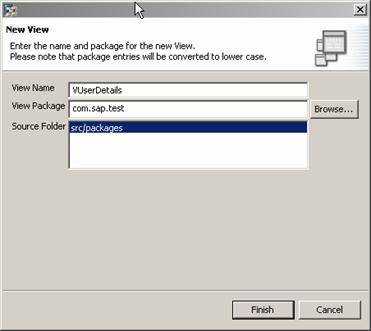
2. Create a new view – for example, VUserDetails.
Create View
3. Open view VUserDetails, and make the following modifications:
a. In the Properties tab page, choose Add to define a new required controller.
Select CUserDetails (Web Dynpro Component Interface Controller).
Required Controllers

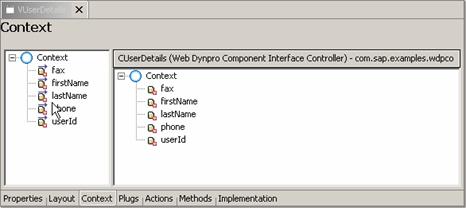
b. In the Context tab page, define attributes for the output parameters that you want to display. Map them to the relevant attributes in the interface controller context.
Context Attributes (View)
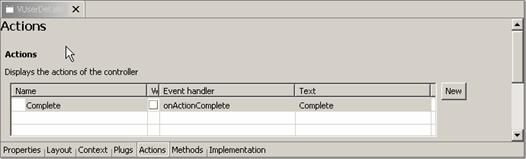
c. In the Actions tab page, define a new action Complete. Choose to use the default event handler.
Define Action
d. In the Implementation tab page, navigate to method onActionComplete(). Implement it to call method complete() of the interface controller, as shown in the example below:
public void onActionComplete(com.sap.tc.webdynpro.progmodel.api.IWDCustomEvent wdEvent ) { //@@begin onActionComplete(ServerEvent) wdThis.wdGetCUserDetailsInterfaceController().complete(); //@@end } |
e. In the Layout tab page, create the view design.
Define an input field for each attribute that you want to display, and map its value to the relevant context attribute.
Create a button, and assign value Complete to its onAction property.
4. In your project tree, expand the Windows node, and delete the CUserDetails window.
5. Select the WebDynproCO window, and open its context menu. Choose Embed View.
6. Select Embed existing view, and choose Next.
7. Select view VUserDetails. Confirm by choosing Finish.
5. Build and Deploy the Component
...
1. Select your Web Dynpro project, and open its context menu.
2. Choose Development Component → Build…. Choose OK.
Check for errors and warnings in view General User Output.
3. In the context menu of the project, choose Development Component → Deploy.
4. Check if deployment is successful in Deploy Output View.
Result
You have implemented and deployed a Web Dynpro component that can be executed within a GP process.
Your next step is to expose the component as a callable object in GP design time.