
 Monitoring Selected Processes with
SAPOSCOL
Monitoring Selected Processes with
SAPOSCOL

Purpose
You can monitor the
availability of selected processes with SAPOSCOL. These are displayed in the
Monitored
Processes subtree of the
 Operating
System monitor and in the detailed analysis of the Operating System
Monitor. The monitor displays the number of running processes and the CPU
and memory usage for each name template, broken down by different users.
Operating
System monitor and in the detailed analysis of the Operating System
Monitor. The monitor displays the number of running processes and the CPU
and memory usage for each name template, broken down by different users.
You can optionally set the configuration for process monitoring in the following configuration files (these files are specified in the following templates):
● File dev_proc in the SAPOSCOL working directory (see SAPOSCOL Log Files)
● Files of the procmon directory in the SAPOSCOL Working Directory. The naming convention for these templates depends on the CCMS agent with which the monitored host is connected to the central monitoring system.
CCMS Agent |
Naming convention |
SAPCCMSR |
*procmon.ini |
SAPCCMSR –j2ee |
*<SysID>_<InstNo>*procmon.ini |
SAPCCM4X |
*ABAP_<SysID>_<InstNo>*procmon.ini |

<SysID> and <InstNo> are the system ID and the instance number of the monitored ABAP or Java instance. The J2EE Engine automatically generates suitable templates and stores these in the specified (cross-instance) directory. Since the shared memory of the CCMS agents SAPCCMSR –j2ee and SAPCCM4X are only to contain the process monitoring tree for the monitored Engine (ABAP or Java), system ID and instance number are part of the naming convention for the templates.
The process monitoring is performed at collection intervals of one minute, by default. CCMS agents can read this data from the shared memory and display it in the SAP system.
Prerequisites
The data transfer
to the central monitoring system is performed using a CCMS agent, which must
also be installed on the monitored host (see
Installing and
Registering the CCMS Agents).
Process Flow
To start monitoring selected processes, follow the procedure below:
Creating the Configuration Files
Create a template for the process monitoring (dev_proc or *procmon.ini); the template must have the following structure:
● The list of monitored processes begins with $PROC and ends with $.
● Comment lines begin with the number sign (#).
● The lines with which you specify the processes to be monitored have the following structure:
<Name template>
[[USER=]<user>] [MTE_CLASS=<MTE class>]
[MTE_NAME=<MTE-Name>] [CUSTOMGROUP=<attribute
group>]
The individual parts of the line have the following meaning:
Parameter |
Meaning |
Remarks |
Name template |
Monitored process; you can use the wildcard character asterisk (*) (see the example below); it is not possible to monitor all processes by entering only the wildcard character asterisk |
mandatory |
User |
User under whose name the process is running; you can use the wildcard character asterisk (*) |
optional, |
MTE class |
MTE class to which the nodes are to belong; you can create your own monitors in which precisely the desired processes are displayed by assigning the process names to an MTE class
To do this,
use the rule CCMS_GET_MTE_BY_CLASS in a rule-based monitor, and specify the above MTE
class there (see
|
optional, |
MTE Name |
MTE name under which the monitoring object for the monitored process name is displayed in the alert monitor; if you do not set this parameter, Name Template is used as the MTE name |
optional, |
Attribute group |
Attribute group to which the attributes of a monitored process name are to belong; you can simplify the maintenance of the threshold values using an assignment to an attribute group |
optional, |
...
Enter the above parameters without quotation marks; the parameter values must not contain any spaces or special characters.
SAPOSCOL reads the contents of the configuration files every five minutes. After changing these files, you do not need to change SAPOSCOL or the responsible CCMS agent.
Java Engine Processes Monitored by Default
The monitor Engines: OS Processes of the SAP J2EE Monitor Templates monitor set contains the AS Java processes that are monitored by default. The Java Engine automatically creates configuration files with the naming convention j2ee_<SID>_<Inst. No.>_procmon.ini for this purpose.
These configuration files are overwritten when the Engine is restarted. If you have changed these templates manually, you must therefore ensure that they are not overwritten with the default settings when the Engine is next restarted. To do this, follow the procedure below:
...
1. Start the Visual Administrator, and choose Cluster → <SysID> → Dispatcher → Services → Monitoring in the navigation bar.
2. Switch to the Properties tab page.
3. Set the value of procmon_overwrite to false.
Setting the Threshold Values
As the expected CPU
and memory usage is different for each process, ensure that you adjust the
threshold values of the corresponding performance attributes. The simplest way
to do this is directly in the Alert Monitor itself, by selecting the relevant
performance attribute and choosing Properties
(see
Changing
Properties and Method Assignments).
There are two options available to avoid accidentally changing the threshold values for other monitored processes:
● Set the threshold values individually for the MTE (to do this, choose Edit → Properties → User for Individual MTE)
● Use a specific attribute group in the configuration file for the desired monitored process. Your changes then affect only the processes that you have assigned to this group.
Result
The data for the monitored processes is displayed both in the Detail analysis menu of the operating system monitor and in the Operating System monitor in the Monitored Processes subtree (settings for MTE class, MTE name, and attribute group have no effect on the output in the operating system monitor).
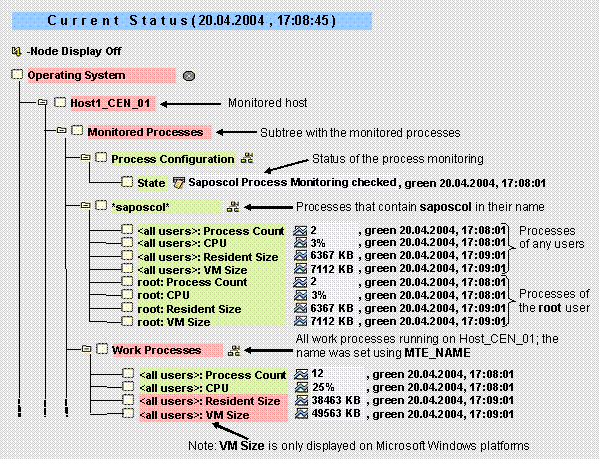
The output shown corresponds to monitoring set up using the configuration file in the example below.
The following table provides information about the monitoring tree elements (MTEs) of this monitor:
MTE |
Meaning |
Process Configuration |
Status of the process monitoring; this node exists, even if no processes are being monitored |
Process Count |
Number of running processes that fulfill the conditions for process name (superordinate node) and user (prefix of the MTE name) |
CPU |
Total of the CPU usage of the above processes, as a percentage |
Resident Size |
Total physical memory that is assigned to the above processes |
VM Size |
Total of the entire memory (physical and virtual) that is assigned to the above processes (only on Windows platforms) |
After changes in the configuration files, subtrees are created for new monitored processes at the next start of the data collection methods, which run once per minute; processes that are no longer monitored are first set to inactive after around five minutes (you can identify this due to the gray color) and then deleted after another five minutes.
Example
Configuration File dev_proc for a UNIX Host
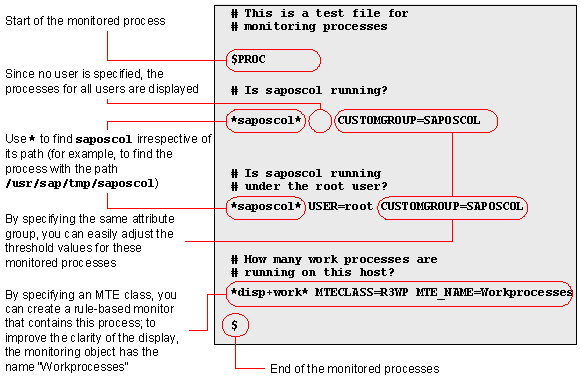
For another example, see Configuring Process Monitoring of the Database.