
 Displaying the Event Log Monitoring in the
Alert Monitor
Displaying the Event Log Monitoring in the
Alert Monitor

Use
If you have
activated the event log monitoring using a CCMS agent for a Microsoft Windows
host, the corresponding subtree is displayed in the
 Operating System
Monitor of the central monitoring system. Which event sources for which
event logs are displayed in this subtree depends on the configuration of the
event log monitoring (see Event Log Monitoring
with CCMS Agents).
Operating System
Monitor of the central monitoring system. Which event sources for which
event logs are displayed in this subtree depends on the configuration of the
event log monitoring (see Event Log Monitoring
with CCMS Agents).
Integration
Since the monitoring is performed by a CCMS agent, this agent must be installed and active on the Microsoft Windows host for which the event log is to be monitored (see Installing and Registering CCMS Agents).
Prerequisites
Event log monitoring must be active; this means that at least the parameter EventLogMon On must be set in the SAPCCMSR.INI configuration file of the CCMS agents.
Features
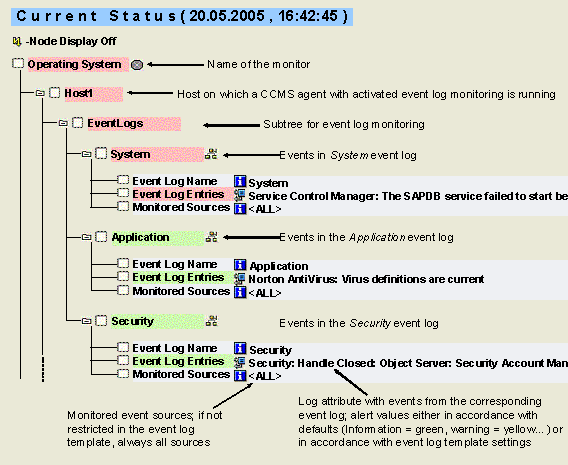
For each monitored event log, a subtree is generated that contains the name of the event log, its events, and the monitored event sources. The subtree consists of the following monitoring tree elements (MTEs):
MTE |
Meaning |
Event Logs |
Subtree for event log monitoring |
<Name of an event log> |
Subtree for the events of an event log (by default, the event logs System, Application, and Security are monitored) |
Event Log Name |
Name of the monitored event log |
Event Log Entries |
Log attribute containing events from the corresponding event log; by default, the alert values have the usual values (information = green, warning = yellow, error = red); however, you can also make these settings yourself in the event log template (see Structure of the Event Log Templates) |
Monitored Sources |
Monitored event sources; if this are not restricted in the event log template, all sources are always monitored |

If you have set the MTE class yourself in the event log template, the name component CcmsEventLogCL in the above MTE class name is replaced by the value of the parameter MTE_CLASS in the template.
Activities
To display the subtree, proceed as follows:
...
1. Start the Alert Monitor using transaction RZ20 or choose CCMS → Control/Monitoring → Alert Monitor.
2. On the CCMS Monitor Sets screen, expand the SAP CCMS Monitor Templates set.
3. Start the Operating System monitor from the list of monitors by double-clicking it, and expand the Event Logs subtree for the desired host.
 CCMS Agents, Advanced
Functions of the CCMS Agents start page
CCMS Agents, Advanced
Functions of the CCMS Agents start page