
 Assigning Collection and Reorganization
Schemata to Performance Values
Assigning Collection and Reorganization
Schemata to Performance Values

Use
A collection and reorganization schema specifies how long data and with which resolution performance values assigned to this schema are to be stored in the Central Performance History (CPH). You can use the predefined schemata or create your own schemata (see Maintaining Collection and Reorganization Schemata (Default Setting)).
To use the CPH, valid collection and reorganization schemata must be assigned to required MTE classes. You can do this either by activating the predefined settings (see Tutorial for the Central Performance History (Beginners)) or by making the assignment yourself. The procedure for doing this is described in this section.
Procedure
...
1. You can call the screen for assigning collection and reorganization schemata from several functions:
¡ On the configuration screen of the Alert Monitor (transaction RZ21), choose Technical Infrastructure → Central Perf. History → Assign Collection/Reorganization Schemata.
¡ In the overview screen of the CPH (transaction RZ23N), choose, in the Data Collection and Reorganization group box, the Assign Schema pushbutton.
2. In both cases, the Assign Collection and Reorganization Schemata screen appears. On this screen, you can perform all work steps required to assign MTE classes from any systems to the defined schemata. You can make the following settings:
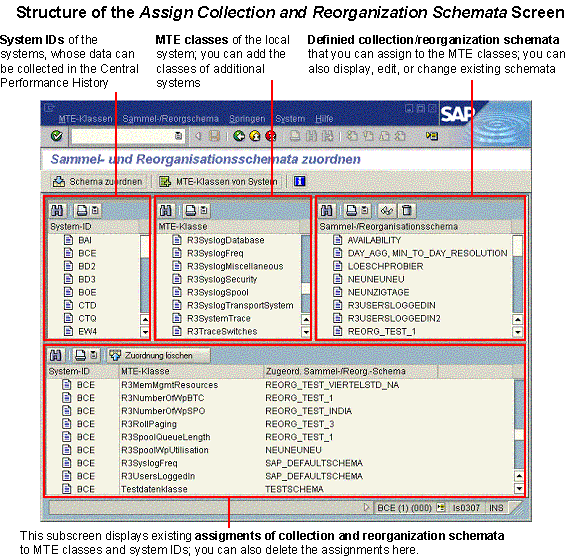
Displaying, Editing, or Deleting a Collection and Reorganization Schema
To display or edit an existing schema, follow the procedure below:
...
1.
In the
Collection and Reorganization Schemata subscreen, select the desired
schema and choose Display Schema ( ).
).
2. The Display Collection and Reorganization Schemascreen appears. For an explanation of using this screen, see Maintaining Collection and Reorganization Schema (Default Setting).
...
1.
In the
Collection and Reorganization Schemata subscreen, select the desired
schema and choose Delete Schema ( ).
).
2. Confirm that you want to delete the schema. If the schema is used in an assignment, the system will also inform you of this, and ask whether you want to delete the schema and all of its assignments.

If you delete the schema despite this warning, the MTE classes that are assigned to this schema are no longer collected and are deleted from the CPH during the next run of the reorganization job.
Assignment of a Collection and Reorganization Schema
...
1. In the System ID subscreen, select the desired systems, and the desired MTE classes in the MTE Class subscreen, to which you want to assign a collection and reorganization schema. You can always select multiple systems and MTE classes.

Different
systems usually have different MTE classes. After calling the function, the
MTE classes of the local system are displayed first. To include the MTE
classes of other systems in the list, select the desired systems and choose
MTE Classes of System ( ). The system then displays the MTE classes of
the selected system in the list of MTE classes.
). The system then displays the MTE classes of
the selected system in the list of MTE classes.
2. In the Collection and Reorganization Schema subscreen, select the desired schema that you want to assign to the selected MTE classes of the selected systems.
3.
Choose Assign
Schema ( ). The system
then immediately displays the corresponding assignments in the lower
subscreen.
). The system
then immediately displays the corresponding assignments in the lower
subscreen.
If an assignment already exists for the selected MTE classes, you must confirm that you want to overwrite the existing assignment.
4. Perform these steps for all desired collection and reorganization schemata.
Deleting an Assignment to a Collection and Reorganization Schema
In the lower
subscreen, the system displays the existing assignments to collection and
reorganization schemata. To delete assignments, select one or more rows of
this table and choose Delete Assignment ( ).
).
Settings Directly from the Alert-Monitor
Assignment of a Collection and Reorganization Schema from the Alert Monitor
To make the assignment of MTE classes to a collection and reorganization schema even simpler, you can also call this directly from the Alert Monitor (transaction RZ20).
...
1. Start the Alert Monitor by calling transaction RZ20.
2. Activate maintenance functions by choosing Extras → Activate Maintenance Functions.
3. Expand the monitor set that contains the monitor that you require, and choose Load Monitor, or double click the desired monitor.
4. Select the MTEs for which you want to assign a collection and reorganization schema to the MTE classes.
In this way, you can also very quickly assign a collection and reorganization schema to all MTE classes of performance attributes in a monitor. To do this, select all nodes by choosing Edit → Selections → Select → All nodes (MTE).

Only MTE classes from the systems that are active at the time of the assignment are collected; there is no dynamic adjustment as at the application server level. Only if you select * (all systems) in the System ID subscreen is the system list updated during each run of the reorganization job (by default, once a week).
5.
If you simply want
to assign the selected MTE classes to an existing collection and
reorganization schema, choose Collect MTE Class in Central Performance
History ( ). A screen
displaying all existing collection and reorganization schemata appears. Select
the desired schema and choose Select Object (
). A screen
displaying all existing collection and reorganization schemata appears. Select
the desired schema and choose Select Object ( ).
).
6.
If you require the
full functions of the Assign Collection and Reorganization Schemata
screen, choose Extras → Central Perf.History
→ Edit Schema
Assignments. This screen
appears; the desired systems and MTE classes are selected, meaning that you
now only need to select the desired schema. Choose Assign Schema ().
Deleting an Assignment to a Collection and Reorganization Schema in the Alert Monitor
You can also delete the assignment of MTE classes to collection and reorganization schemata directly from the Alert Monitor (transaction RZ20).
...
1. Start the Alert Monitor by calling transaction RZ20.
2. Activate maintenance functions by choosing Extras → Activate Maintenance Functions.
3. Expand the monitor set that contains the monitor that you require, and choose Load Monitor, or double click the desired monitor.
4.
Select the MTEs for
which you wish to delete the assignments, and choose Extras → Central Perf.History
→ Do Not Collect Selected
MTE Class, or choose Do Not Collect MTE Class in Central Performance History
( ).
).
See also:
Delivered Assignments of the Collection/Reorganization Schemata
Updating and Reinitializing Assignments
 Central Performance
History of the Monitoring Architecture start page
Central Performance
History of the Monitoring Architecture start page