 Troubleshooting
If you think there may be problems with the enqueue server, you can test the individual layers. Then you can approach SAP support with a more precise problem description.
Prerequisites
To identify and fix problems yourself, you should be familiar with the architecture of the enqueue server. More information: Locking in AS Java: Architecture.
The layers that can be tested are shown in the figure below:
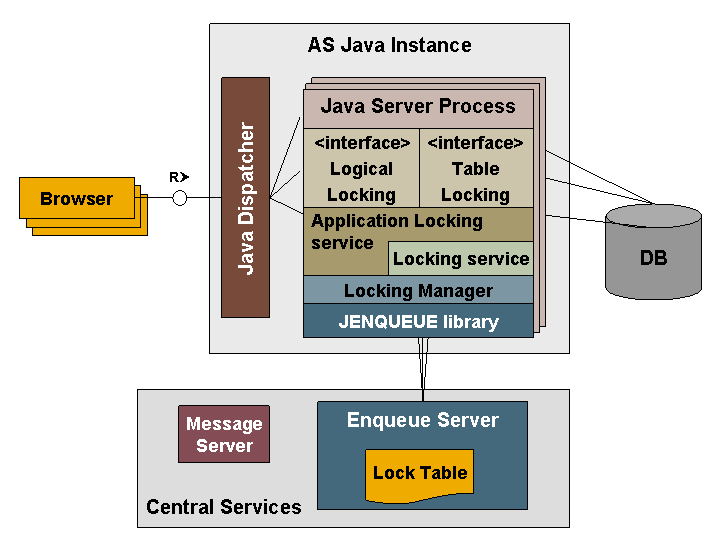
More information about the architecture of SAP NetWeaver Application Server Java: Architecture Manual.
Procedure
Test If Enqueue Server is Functional
Use the enqt program to test whether the enqueue server is able to accept client connections and to perform lock operations. The program can be found in the /usr/sap/<SID>/SCS<instance number>/exe directory.
 Note
Note
Refer to the program's command line help for more information about how to start it, as well as for the different options that you can execute. Enter enqt -help in the command line to access it.
You can use the following operation codes (OpCodes) to test whether the enqueue server is functional:
OpCode |
Description |
|---|---|
97 |
Returns the lock table's creation ID. |
31 |
Reads the lock table statistics. |
 Caution
Note that enqt is a powerful program, with which you could also bring the enqueue server to a standstill. The other OpCodes should only be used by SAP for testing.
If problems arise, use the dev_eq_<process_ID> trace file of the enqt program for further investigation. This file is located in the /usr/sap/<SID>/SCS<instance number>/exe directory.
If the enqueue server has not been started or cannot be reached, the following message appears when you execute the enqt program:
*** ERROR => EncNiConnect: unable to connect (NIECONN_REFUSED) [encomi.c 444]
Locking Manager of AS Java - Interface ServerInternalLocking
As described in the figure, the Locking Manager implements the ServerInternalLocking interface. This can only be called from AS Java, and not from a JEE application.
You can access the Locking Manager in the following ways:
From the Locking Service in Visual Administrator.
From the Locking Service shell commands. More information: Administration of the Locking Adapter Service Using the Console.
The options that you have for testing are described in Managing Locks.
Application Locking Service
This is the service for creating and releasing locks and is available to JEE applications.
You can access the Application Locking Service in the following ways:
From the Application Locking Service in the Visual Administrator. More information: Application Locking Service.
From the shell commands of the Application Locking Service. More information: Administration of the Application Locking Service Using the Console.