
 Calculating and Deleting Subtotals


This concept also applies to the calculation of interim values for mean values, minimums and maximums. The procedure is the same as for subtotals.
Prerequisite
Generally, totals can only be calculated using Key Figures; subtotals can only be calculated using Characteristic.
You have calculated a total for at least one column. The icons and the menu entries for calculating subtotals are only active after you have calculated a total.
Use
The following example clarifies the concept of totals and subtotals. In this example, a total was calculated for the Occupied column.
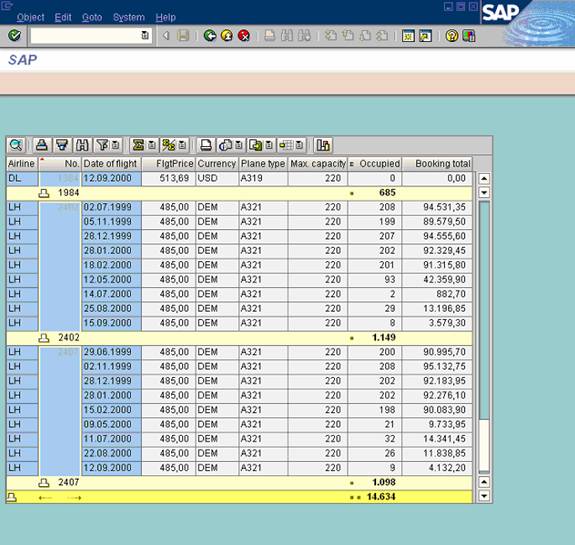
Then a subtotal is calculated using the No. column (flight number). The total is broken down into multiple subtotals. A subtotal is the total number of Occupied seats for all rows with the same subtotal criterion value (here flight number: No. column).
Therefore, the rows between two subtotals have the same value for the subtotal criterion, the identical flight number (No.). The subtotal calculates the total number of Occupied seats of a flight number.
Procedure
Creating Subtotals for One or More Columns
...
1. Select one or more columns.
2.
Choose  → Subtotals.
Alternatively:
...
1. Select one or more columns.
2. Right click on one of the column headers you selected.
3. Choose Subtotals.
Procedure Without Column Selection
If you choose the subtotals function without having selected a column, you must select the columns for which you want to calculate subtotals in the Define Sorting/Subtotals dialog box. Proceed as follows:
...
1. Select the relevant entries in Available Columns.
2.
To add the selected
entries to the Sort Criteria/Subtotals, choose  .
.
Alternatively:
...
1. Select the relevant entries in Available Columns.
2. Click on the selected entry/entries again, but this time hold the mouse button down. The cursor appears with a small rectangle.
3. Drag the entries to Sort Criteria/Subtotals and drop them there.
To find terms, choose
 .
.
To define a subtotal for a column or columns, click on the checkbox under the subtotal symbol. A checkmark is set.
For information about how to change the sort type and sequence, see Sorting in Ascending and Descending Order.
To apply your
settings, choose  .
.
Result
In the following example, a total was calculated for the Occupancy column and a subtotal for the Airline and Flight no. columns.
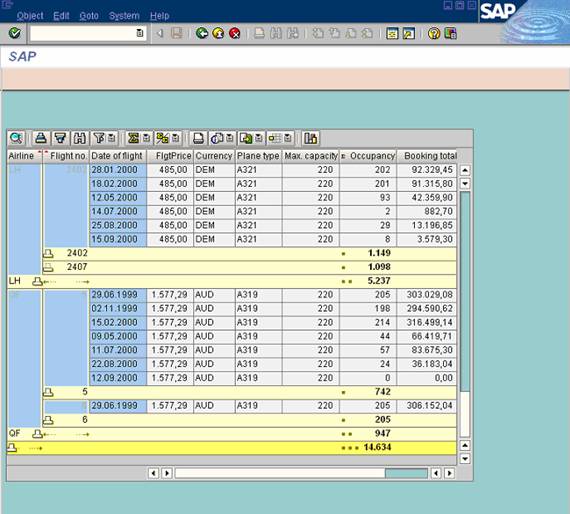
On this screen, you see the two subtotal levels as well as the non-totals rows. The first subtotal level totals the occupied seats (Occupancy) for the rows with an identical flight number (Flight no.), the first subtotal criterion. A small square next to the subtotals indicates the first level of the subtotal calculation.
The second subtotal calculation level adds the subtotals of the first level with the same Airline; this is the second subtotal criterion. Two small squares next to the subtotals indicate the second level of the subtotal calculation. Arrows are used to identify which subtotals belong to which subtotal criteria.
Three small squares indicate the third level; the totals calculation level. This indicates that the total calculates the top level subtotals.
Displaying and Hiding Entries and Subtotals
To hide or display entries underneath a total or subtotal, or to display just the subtotals, you have two options:
· Click on the squares of the relevant subtotal row.
·
Click on the  icon in the relevant subtotal row.
The entries
underneath this total or subtotal are hidden. The  icon
in the subtotal row indicates that the entries underneath a total or subtotal
are hidden.
icon
in the subtotal row indicates that the entries underneath a total or subtotal
are hidden.
To hide all entries and subtotals for a totals or subtotal level, see Set Drilldown Summation Level.
Deleting Subtotals
To delete a
subtotal, choose → Subtotals, without selecting a
column. If you were to select a column here, you would define a new subtotal
for the column.
The Define Sorting/Subtotals dialog box appears.
To delete the subtotal, deselect the relevant checkbox underneath the subtotal icon.
For information on changing or deleting a sort, see Sorting in Ascending and Descending Order.
To apply your
settings, choose .
Alternative Procedure in Full-Screen Mode
In addition to the previously mentioned procedures, in full-screen mode you can also call the functions using the menu paths.
...
1. Select one or more columns.
2. Choose Edit → Subtotals.
To delete subtotals, choose Edit → subtotals without selecting a column.