
 Request for Feedback

Purpose
You can gather feedback from other users. The initiator or creator of the process defines the topic on which the user wants to get feedback. The initiator defines the users who will provide feedback.
There is also a quick response (survey-like) option available.
Process Flow
...
1. Choose Create Task.
2. Select Request for Feedback from the dropdown list.
Feedback Wizard Details
In the Tasks table you can see a description of the general parameters on the user interface. Additional parameters for feedback are described below:
Information on Request for Feedback Specific Parameters.
Parameter |
Description |
|
Recipient |
Add one or more approver/recipient. You can enter the user ID of the approver/recipient or search for a user ID. If a search is started: ● Enter a character string of the user ID, for example, the starting letters. You can also search with placeholders (*): m finds Meyer, Mayer, Mayr *ay finds Mayer, Mayr, Faye, Way ● Choose Find. ● Select the approver/recipient from the Search Result list and add to the selection column. ● Choose OK. ● You can also enter notes which will be private to each approver/recipient. |
|
Allow Nominees to Decline Request |
Recipients can decline this request.
|
|
Responses |
Reply Anonymously |
When checked, all recipients' identities are hidden when viewing the feedback history. Recipients are not able to forward the feedback request. |
Include Quick Response Option |
When checked, includes an option on the recipient's screen to enter a one click (survey-type) response. |
|
Completion Status |
Minimum number of responses required to complete this request The task creator can specify either "All Recipients", if feedback is required from all recipients, or enter a minimum number of responses required to complete the request. |
|
Features
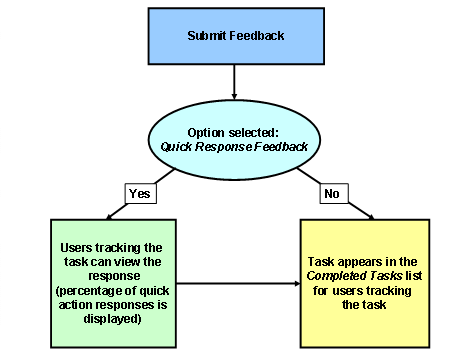
● You can provide feedback as end-user notes or attachments, or by selecting one entry from a pre-configured set of feedback categories (quick response option).
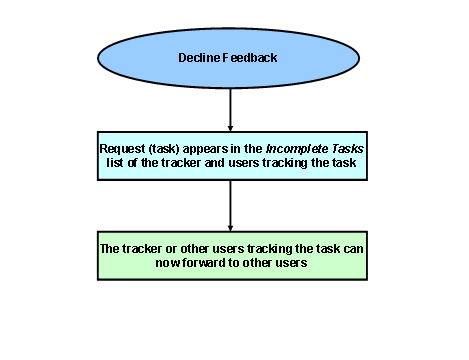
● You can configure whether users can refuse to provide feedback or not.
● You can configure whether feedback can be provided in a quick response option or not. An aggregation of the feedback is provided for quick response feedback.
● You can configure whether feedback is anonymous or not, that is, the information regarding which user gave which feedback is not visible to the process initiator.
● The progress bar is not displayed for any tasks other than the standard tasks, for example, single-step tasks.
Possible Task Processing Steps for Recipient
The following figures show the possible steps for a recipient of a feedback request.
● The recipient can give feedback with or without the quick response feature.
● The recipient can decline to give feedback.
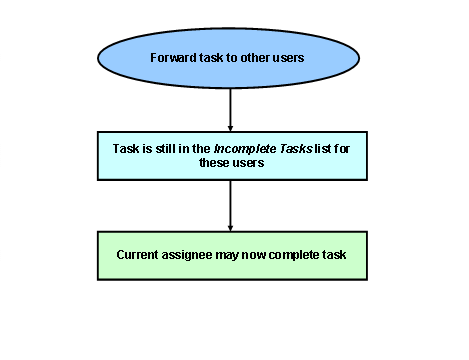
● The recipient can forward the request to other users without completing the task.
Possible Task Processing Steps for a User Tracking the Task
The following figures show the possible steps a user tracking a task can perform during the feedback request process.
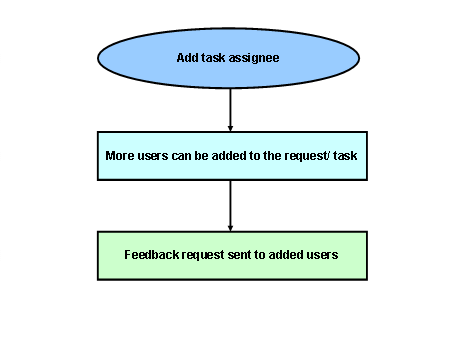
● A user tracking a task can add task nominees.
● A user can delete a task.
Result
You can gather feedback from other users and also view the responses in a survey-like display (if the quick response feedback option was selected).
Example
A user in the HR department wants feedback from employees on a new HR tool. The employees who provide feedback can comment on the new tool and may also have the option to give quick responses.