 Merging Navigation Nodes and Defining the Sequence
You can merge a node from one role with a same-level node from another role. Both nodes then appear as one entry in the top-level or detailed navigation, with their respective subnodes appearing in a given sequence beneath the new merged node.
You can merge the following objects:
Entry points
Root nodes of roles and worksets
Folders in roles or worksets.
Both the merging of nodes and the setting of display priorities of the merged nodes are accomplished through various property settings.
Merge ID: A property of a node or entry within a role or workset. It consists of a given string that you must enter as a value. All nodes to be merged with the selected node must contain precisely this value. The navigation service checks the values of all navigation nodes, and all entries with identical values are merged.
Can be Merged: A property that defines an object as eligible for merging.
Merge Priority: A property that determines which node in a merged group is the dominant node, affecting the title, the display type (in a new window or in-place), the sort priority, and other properties of the node.
 Note
NoteThe merge priority does not change the sort priority of the merged node. The navigation operation determines the sort priority of a merged node, because the merged node functions according to all the properties of the node with the highest merge priority.
End of the note.
Procedure
Develop a concept for merging entries in the top-level or detailed navigation of your portal.
Assign the same merge ID to all the entries and nodes of a role that are to be merged.
Open a role for editing in the Role Editor.
Select a role entry and click Properties to display in the Property Editor the properties of the selected entry.
From the Property Category dropdown list, choose Navigation.
In the property list search for the property Merge ID and enter any string.
In the same editor, set the property Can be Merged for all the entries and nodes of a role.
The default value is Yes.
Choose the value No for individual nodes of a role or workset to prevent them from being merged with other nodes. The Merge ID of these nodes is retained, but has no further effect. It is possible to change this value at a later time.
In the same editor, set the property Merge Priority for all the entries and nodes of a role that are to be merged.
In the property list, search for the property Merge Priority and assign a numeric value from 0 - 100. The lower number has the higher priority.
The default value is 100. If you do not set this property for any of the nodes, then the first node in the role will be the dominant node.
Save the values you have set.
Edit the next role by selecting an entry in the role (the node that is to be merged with a node in the first role).
Assign to it the same Merge ID as that of the first role.
Make sure the Can be Merged property is set to Yes.
Assign a value for the Merge Priority property.
Edit all additional entries to be merged as described above for the first role.
NoteIf the nodes to be merged are not from the same parent, then the parents must be merged as well. In other words, all the hierarchy above merged folders must be merged.
The nodes to be merged in each pair must be on the same hierarchy level within their respective roles.
Merging two nodes does not automatically merge the nodes below them. Each pair of nodes must be merged individually.
End of the note.
Example
The following graphic shows how you can merge the root nodes of two worksets belonging to two different roles.
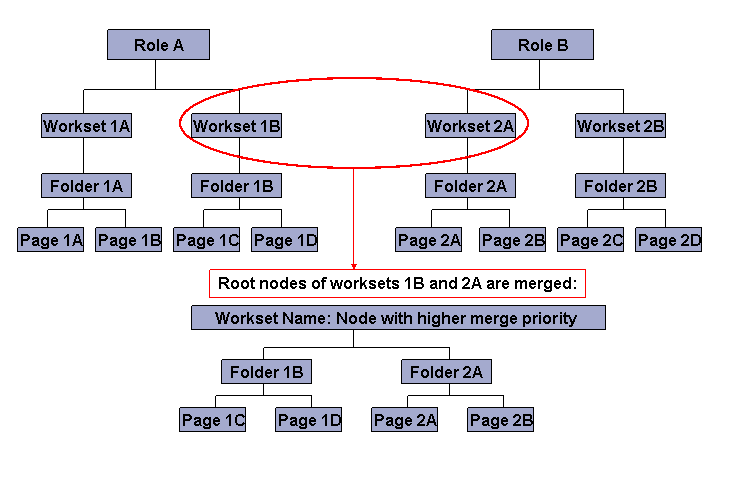
If Workset 1B and Workset 2A are entry points, and have the same merge priority, then after merging, both entries appear as the newly merged top-level navigation entry Workset 1B. If you set a merge priority for the two nodes, the new node will have the name of the entry with the higher priority. Their subnodes appear under the new node according to the defined sort sequence.
When defining your settings for merging:
Make sure that Workset 1B and Workset 2A are on the same level of the navigation hierarchy
Assign Workset 1B and Workset 2A the same Merge ID (for example MERGE1)
If you would like to define a new name (for example, MyInfo) for the merged entry within the portal navigation structure, you must first give both workset root nodes the same name. In the Property Editor, replace both original names with MyInfo.
 Caution
Unless you assign a Merge Priority value to the merged entries, you cannot be sure where or under what name the entry will be displayed in the portal navigation.