Defining the Sort Sequence of Navigation Nodes
You can define the display sequence of the nodes comprising the various levels of the navigation hierarchy by prioritizing the items on a per level basis.
You define priorities by assigning a value between 0 and 100 to each item. Values may include decimal numbers.
The smaller the value of the navigation node, the further left it displays on the navigation bar, or the higher up it displays in detailed navigation. The item with the lowest value appears to the far left or the top, respectively, and the others follow in the order of their priorities.
 Note
Note
The more often a node is used, the further to the left, or higher up, it should be placed; therefore, the smaller its value should be. For example, 1 should be used for items that are used daily, while 50 is more suitable for rarely used items.
If you want to place two entry items next to each other, you should use a priority of 1.1 and 1.2, for example.
You can also sort initial navigation nodes in top-level navigation alphabetically. If you sort the initial nodes by sort priority, and a number of nodes have the same priority, you can also sort the nodes with the same priority alphabetically.
Prerequisites
You have created roles and worksets for your users.
You have defined navigation nodes within your roles and worksets.
You have determined for each level the sequence of its navigation nodes.
Procedure
Launch the Portal Content Studio. In top-level navigation, choose
 Content Administration
  Portal Content
  .
.From the Portal Catalog, right-click a role or workset and choose
Open Object . The role or workset is loaded into the appropriate editor.In the displayed editor, select either:
The root node of the role or workset hierarchy
A workset or folder within the role or workset hierarchy
A folder within a workset of the role or workset hierarchy
In the Role/Workset Editor, click Properties to display in the Property Editor the properties of the object that you selected.
From the Property Category dropdown list, choose Navigation.
In the property list, scroll to the Sort Priority property and enter a numeric value.
Click Save.
In the same way, assign values to all of the navigation nodes that you want at specific locations in the portal navigation hierarchy.
Sorting Navigation Nodes Alphabetically
By default, nodes in top-level navigation are sorted by sort priority. To sort nodes alphabetically, set the SortTypeOfInitialNodes property in the navigation_events_helper service.
Go to
System Administration System Configuration Service Configuration .In the Portal Catalog, open
Applications com.sap.portal.navigation.helperservice Services .Right-click navigation_events_helper, and choose Configure.
Set the SortTypeOfInitialNodes property:
To sort nodes according to sort priority, enter the value 1. This is the default value.
To sort nodes alphabetically, enter the value 2.
To sort nodes by sort priority and then alphabetically within the sort priority, enter the value 3.
Click Save.
Restart the service.
Example
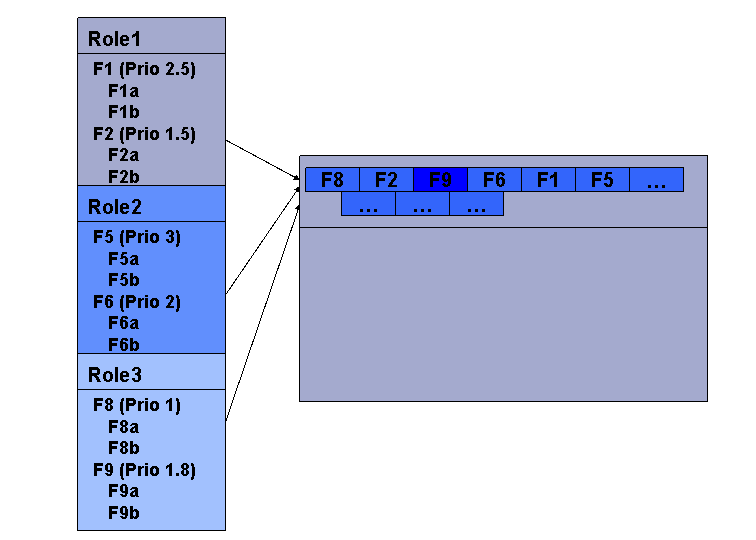
You can decide that entry points F1 and F2 of role 1 should appear in the fifth and second location, entry points F5 and F6 of role 2 at the sixth and fourth location, and entry points F8 and F9 of role 3 at the first and third location of top-level navigation. The following figure shows how you should define the priorities for the entry points so that they appear in the desired order in your portal.