
 Adding and Configuring Value Help

Use
In this example, you create a value help button on the input form and configure the values that will appear in the dialog box it displays.
Prerequisites
You have created the model in Configuring the Main Model Elements and it is open in Storyboard.
Procedure
...
1. On the Layout board, start the value help wizard to begin creating value help for the sales organization field:
a. Right-click the Sales Organization field in the input form, and choose Add Value Help from the context menu. The Value Help Configuration Wizard is displayed.
2. Select the type of value help to add:
a. In the Add Value Help for Selected Input Field screen, from the Type drop-down list, select Single selection. This setting means that the user will only be able to select one value to submit at a time. Notice that information about the selected field, Sales_organization, appears in the Selected Field Properties section.
b. Uncheck the Hide advanced configuration options (BI systems only) checkbox, so that you will be able to see the advanced Specify Data Service Runtime Parameters screen (step 4, below).
c. Click Next.
3. Select the data service that will provide the values for the value help list:
a. In the Select Data Service screen, identify the Sales Organization characteristic as the data service that will provide the actual values for the value help list. This is the typical case, in which the characteristic itself provides its list of values, but you could use values from any data service.
b. From the System drop-down list, select the data service that contains the BI system in which the demo InfoCube is activated.
c. From the Look for drop-down list, select Look for a query.
d. In the Name field, enter the technical name of the query, 0D_SD_C03_Q009, and click Search. All queries matching the name are displayed in the pane below.
e. Expand the query Order and sales values (0D_SD_C03_Q009), expand the Structure folder, and expand the Characteristics folder.
f. Select the characteristic Sales Organization (0D_SALE_ORG).
In the Properties section, notice the Get data from drop-down list. By default, values for the selected characteristic are retrieved from the dimension table. Instead, we want all values present in the master data table to be displayed in the value help list, so change this to Master Data Table.
g. This screen of the value help wizard should look like this:
h. Click Next.
4. Configure value help parameters on the Specify Data Service Runtime Parameters screen:
a. In the Input section, leave the values as they appear by default, as indicated in the following table:
b. These settings indicate that behind the scenes, the sales organization value is delivered to the Input port, the list of valid sales organizations has no pre-assigned values since you want the user to see all valid values, and the user will not be offered search functionality to search for values.
c. In the Output section, leave the values as they appear by default, but place a checkmark in the first column of the Output Fields table in the TEXT (in addition to the KEY) row, as indicated in the following table:
d. These settings indicate that behind the scenes, the list of values are delivered to the Output port (actually returned to the input field), long names (TEXT) as well as key values (KEY) will be listed in the value help list, and the Key field is delivered to the input field for the query.
5. Click Finish.
a. An additional button now appears on your input form:
6. Save your model.
Result
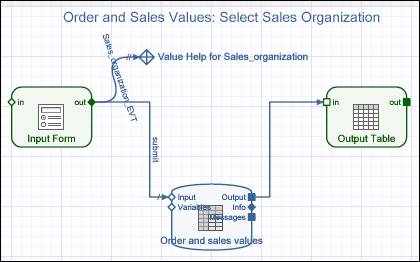
In addition to generating the Value Help button, the wizard has created an embedded iView that represents the value help dialog box and its functionality. At runtime, when the user presses the value help button, the dialog box appears and lists valid values for the sales organization field.
On the Design board your model should now look similar to the following:
You’re now ready to proceed to Fine-Tuning and Deployment.
Input Section
Setting |
Value |
Port |
INPUT (the default) |
Input Fields: Assigned Value |
(blank) |
Search field ID |
(no selection) |
Search field name |
(blank) |
Output Section
Setting |
Value |
Port |
OUTPUT (the default) |
Output Fields |
Both KEY and TEXT are checked |
Key field |
Key (the default) |