Example: Proposing Delivery Schedules
You can use the Delivery Schedule Details
window to view the proposed delivery schedules.
Procedure
As a sales person, you received a sales order of 350 for item I001
from customer C001
on 2012.08.23. You proceed as follows:
In the SAP Business One, version for SAP HANA toolbar, choose
 (
(Available to Promise Check
).The
ATP Check
window appears.In the Item field, enter I001, and choose the item.
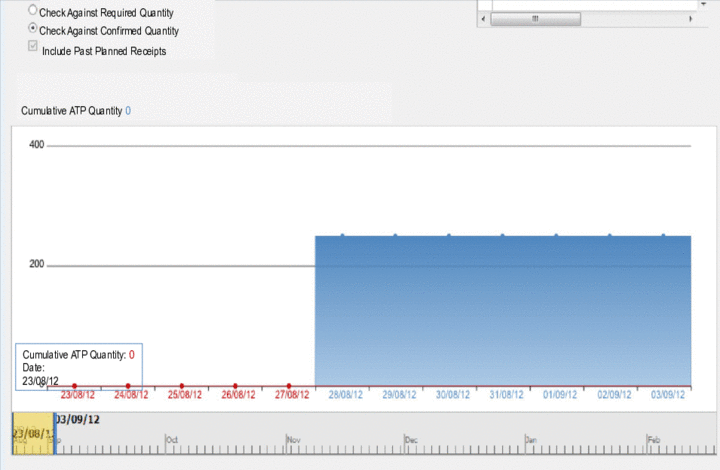
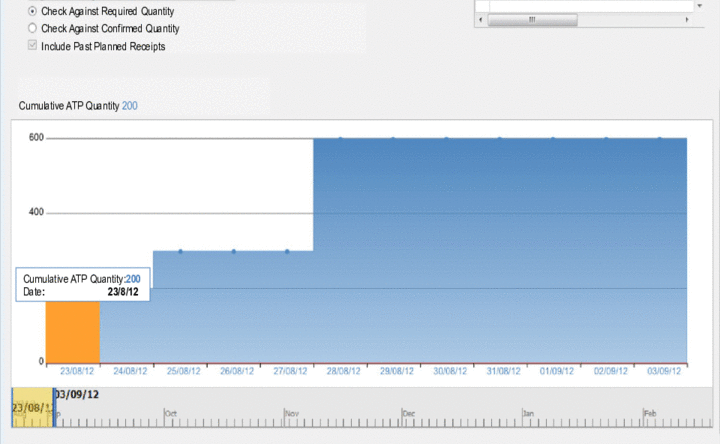
You can see that on 2012.08.23, there are only 200 items left, but there will be enough quantity available on 2012.08.25 and on 2012.08.28.
From the SAP Business One, version for SAP HANA
Main Menu
, choose
Sales A/R

Sales Order
 .
.In the
Sales Order
window, you specifyCustomer
C001
,Delivery Date
2012.08.23
,Item
I001
, andQuantity
350
.The
Delivery Schedule Details
window appears with the following proposed delivery schedules.If the window does not appear, right-click the item row, and choose
Delivery Schedule Details
. Note
NoteIf you selected the checkbox
Display Delivery Schedule Details for Unconfirmed and Delayed Quantities
in theChecking Rule Details
window for the rule that is assigned to this item, theDelivery Schedule Details
window automatically appears. For more information, see Defining ATP Checking Rules.End of the note.The
Delivery Schedule Details
window displays delivery proposals.Delivery Date
Qty (Inv. UoM)
23/08/12
200.000
25/08/12
100.000
28/08/12
50.000
In the
Delivery Schedule Details
window, you can do the following:Fixed Qty/Date
– Select the checkbox to exclude the item row from being rescheduled. Only users who have authorization for this checkbox can edit it. To set the authorization for users, from the SAP Business One, version for SAP HANAMain Menu
, choose Administration
System Initialization
Authorizations
General Authorizations
. In the Authorizations
window, choose Sales A/R
Delivery Schedule Management
Fixed Qty/Date
, and for the user for whom you want to set this authorization, select the Full Authorization
option.Delivery Strategy
– Select the strategy to display different delivery proposals. By default, the default delivery strategy defined in theChecking Rule Details
window appears. For more information, see Defining ATP Checking Rules. NoteThe default delivery proposal may not appear because the required date or quantity cannot be met. You can still select other strategies to see their proposals.
End of the note.Delivery Proposal
– The system checks whether and on which date partial deliveries can be made, and displays a delivery schedule including different delivery dates and quantities. Maximum number of delivery proposals is defined in theChecking Rule Details
window. For more information, see Defining ATP Checking Rules.One-Time Delivery
– The system checks whether the required delivery date can be met, and displays the available quantity on the required delivery date. If there is no quantity available on the required delivery date, this option does not appear in the dropdown list. If this strategy is selected, theDelivery Schedule Details
window displays as follows:Delivery Date
Qty (Inv. UoM)
23/08/12
200.000
Complete Delivery
– The system checks whether the required quantity can be met on a later date, and displays the delivery date on which a complete delivery can be made. If there is no quantity available on any date, this option does not appear in the dropdown list. If this strategy is selected, theDelivery Schedule Details
window displays as follows:Delivery Date
Qty (Inv. UoM)
28/08/12
350.000
Change, add, or delete the delivery by changing the date and quantity, specifying new delivery date and quantity, or choosing
Delete Row
when right-clicking the row.Choose the
ATP Quantities
button to open theInventory Status (Available-to-Promise)
window. For more information, see Viewing Detailed Confirmation Status.Choose the
Check Availability
button to perform a real-time ATP check. After the ATP check, in theDelivery Strategy
dropdown list, theDelivery Proposal
option is selected by default.
To confirm the delivery quantities and dates, choose the
Confirm
button.If you do not want to confirm the schedule, choose the
Continue
button. This option will classify the required quantity as unconfirmed quantity.To save the confirmation, in the
Sales Order
window, choose theAdd
button.In the SAP Business One, version for SAP HANA toolbar, choose
(Available to Promise Check
).The
ATP Check
window appears.In the
Item
field, enter I001, and choose the item.When you select the checkbox
Check Against Required Quantity
, you can see the following: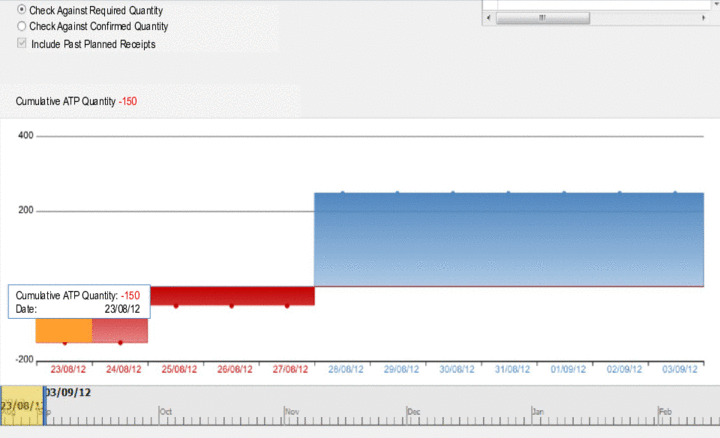
When selecting the checkbox
Check Against Confirmed Quantity
, you can see the following: