 Generating and Updating Documents Based on Approval
An approval procedure is triggered according to its approval template, which determines how an approval procedure can be triggered and when the procedure ends.
The approval procedure also applies when you generate documents by batch using the document generation wizard. One approval request is sent for each document that needs approval; in other words, each document follows its own approval procedure.
Prerequisites
To trigger an approval procedure when generating or updating a document, the following conditions must be met:
The corresponding approval template is active.
The document matches the definition of the approval template. For example, the document type is the target or one of the targets of the approval template.
[For updating an existing document] The generation and updates of the document were never based on approval – such a document does not have the
Approved
flag in the document header. Example
Adam is a manager and does not need approval for generating or updating sales orders. Emily is a junior employee and needs approval for generating or updating sales order. When Emily tries to update a sales order generated by Adam, an approval procedure is triggered.
End of the example.
Procedure
The following graph illustrates generating and updating documents under the restriction of approval procedures:
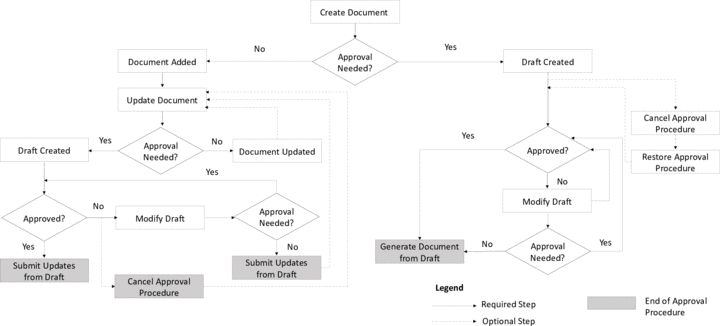
The workflow is described as follows:
When generating or updating a document, the user is notified by the system that an approval is required.
The user sends an approval request, initiating an approval procedure.
The user becomes the originator of the approval procedure and a document draft is created.
The authorizers review the document draft and then approve or reject the request.
The authorizers can access the approval request in the following places:
Messages and alerts inbox in the
Messages/Alerts Overview
windowApproval status report
Approval decision report
Depending on the approval result, the approval procedure continues in the following directions by either the originator or one of the authorizers:
Approval Result
User
Action
Approved
Originator / Authorizer
Generate the document or submit the updates from the draft to the existing document.
Not Approved
Originator
Modify the draft according to the rejecting remarks.
If the modified draft still requires approval, send a new approval request to initiate a new approval procedure.
If the modified draft does not require further approval, generate the document or submit the updates from the draft to the existing document directly.
Authorizer
Modify the draft according to the rejecting remarks.
Generate the document or submit the updates from the draft to the existing document directly.
Result
Before Approval Procedure Ends
When a document is pending generation or update, no user can modify the document draft. Likewise, if an approval request has been sent for updates to an existing document, the following operations are not possible until the approval procedure ends:
Make new updates to the document
Close the document
Cancel the document
Create new documents based on the document
For example, you cannot copy a sales order to an A/R invoice, create an inventory transfer request or an item transfer (inventory transfer) based on a sales order, or generate a pick list based on a sales order.
These restrictions apply to all users, including the approval procedure originator and the authorizers.
When Approval Procedure Ends
Several user actions can end an approval procedure. Upon the end of an approval procedure, the document draft has different outcomes.
Purpose | User Action That Ends an Approval Procedure | What Happens to the Document Draft |
|---|---|---|
Generate a new document | Save a draft as a regular document, that is, generate a document | The document draft is still available from the document draft report, but does not have any connection to the document. You can create new documents based on the draft. |
Update an existing document | Submit updates from a draft to the original document, that is, update a document | |
Cancel the approval procedure for updates to an existing document | You can no longer modify the document draft. We recommend that you manually remove this draft from the document draft report to avoid possible future confusion. |