
 Object Editor

To display or edit an object, open it in the object editor.
If you have opened multiple objects, the different object editors are displayed as tab pages. The tab page index (with the names of the objects and icons for the object types) is positioned at the bottom of the window.
You can call the object editor for an object as follows:
● Create a new object
● Open an object in the navigation area by double-clicking
● Drag an object from the navigation bar to the work area of the application window by using drag and drop
● Double-click an object reference (forward navigation)
Structure of the Object Editors
All object editors have the same basic structure for all object types (illustrated in graphic below).
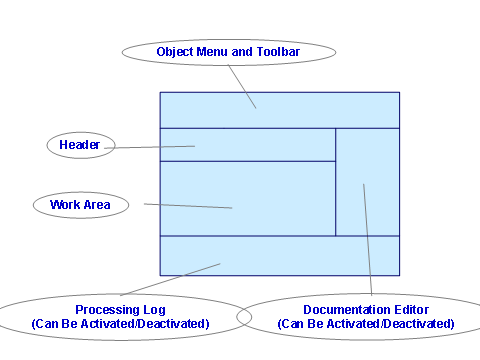
Header
The header displays the following information about the object.
● Object key
The object key depends on the object type and is defined when you create an object.
Further information: Object Key in Configuration Objects
● Description
Contains a language-specific short description for the object. The maximum character length is 250 characters.
More information: Editing Language-Specific Texts
● Status
Displays the status of the object.
More
information:
 Change
Lists
Change
Lists
Choose View → Header ( )
to show or hide the header area.
)
to show or hide the header area.
Work Area
In this area you can display and edit the object. This area contains the object-type-specific functions and information.
The work area is specially adapted to the individual object type. For more information, refer to the documentation for the object type.
More information: Defining Configuration Objects
Documentation Editor
● This area displays the object documentation. You can show or hide this area as required.
●
Choose View → Documentation ( )
to show or hide the documentation editor.
)
to show or hide the documentation editor.
● More information: Editing Language-Specific Textssapurl_link_0006_0005_0006
Maintenance Log Display Area
● This area displays the maintenance log. You can show or hide this area as required.
●
Choose
View → Processing Log ( )
to show or hide the processing log.
)
to show or hide the processing log.
● More information: Checking Objectsapurl_link_0006_0006_0006
Functions of the Object Menu Bar
Each object editor has an object menu bar, which you can use to access all functions that relate to the object you have opened.

You can detach
the object editor from the application window of the Integration Builder. To
do so, choose View → Detach Window ( ).
).