
 Using
the PIOS Emulator for the Scanner Peripheral Type
Using
the PIOS Emulator for the Scanner Peripheral Type

Use
This procedure provides an overview for using the Peripheral I/O Emulator for the scanner peripheral type.
Prerequisites
● SAP NetWeaver Developer Studio is installed and configured.
● The Peripheral Support Actions Toolbar has been added to the current perspective.
● You have prepared barcode data.
More information: Creating Barcode Data
Procedure
...
1. Write code that uses the scanner API of the SAP NetWeaver Mobile client API.
2.
Choose  Launch the Peripheral I/O Emulator to
start the Emulator.
Launch the Peripheral I/O Emulator to
start the Emulator.
3.
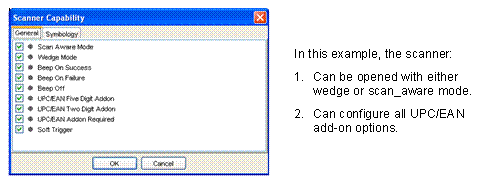
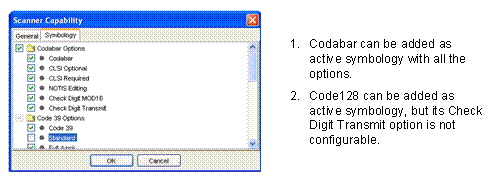
Choose  Capability… to configure the
Emulator capabilities you want.
Capability… to configure the
Emulator capabilities you want.

4.
Choose  Open the Emulator Launch Configurations
Manager from the toolbar to open the Emulator Launch
Configurations window.
Open the Emulator Launch Configurations
Manager from the toolbar to open the Emulator Launch
Configurations window.
5. Select the launch configuration to run your application from the list.
6. Click on the Run button in the Emulator Launch Configurations window to run the application with support to the PIOS Emulator.
7. Arm the scanner and establish an idle state to wait for scanning results.
8.
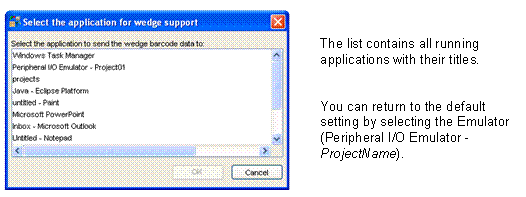
In wedge mode, if
you want to specify a target wedge application other than the default
application (the emulator itself), then choose  Wedge Window… to select it.
9. Scan prepared barcodes.
More information: Scanning Existing Barcode Data
Result
All scan results are recorded under Scan History.
The formatted scanned results either appear in a wedge window or are passed to the application for processing. Formatted results are those that have been processed; for instance, the preamble and postamble have been added to the barcode data.