 Using the Connector Administration Cockpit
The connector administration cockpit is the entry point for the administration of SAP NetWeaver Enterprise Search. It provides an overview of the available search object connectors and allows the system administrator to monitor their status and schedule indexing runs. You can also access further administration and monitoring tools as well as the modeler, which you can use to define your own search object connector models.
You use the following URL to launch the administration cockpit:
http://<host_name>:<port_number>/sap/es/cockpit
In this case, <Host name> stands for the host and <Port number> stands for the port that you use to reach SAP NetWeaver Enterprise Search.
Alternatively, you can launch transaction ESH_COCKPIT from the SAP NetWeaver Enterprise Search system.
Structure
The administration cockpit displays all search object connectors filtered by status.
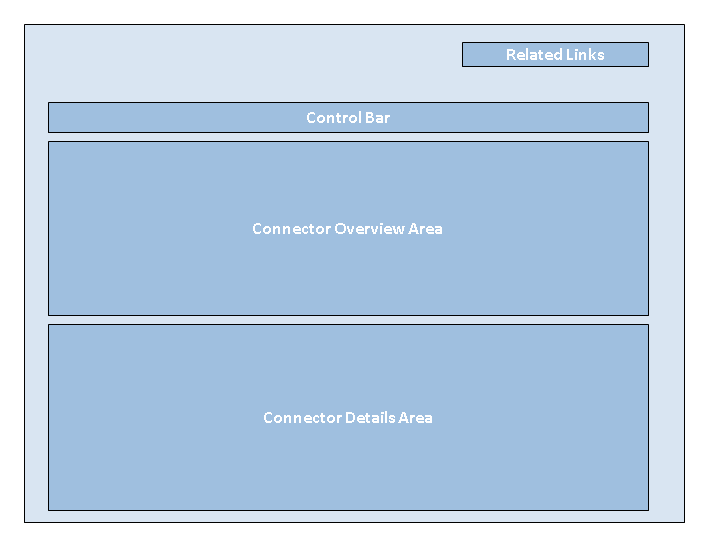
Administration Cockpit Structure
Filtering Connectors
You can filter the search object connectors listed in the connector overview by the following status values:
Value |
Explanation |
|---|---|
All |
Lists all search object connectors irrespective of status. |
Active |
Lists all search object connectors that are active, that is, that can be used for searching. This status is set by default after completion of indexing. |
Inactive |
You define a search object connector as inactive to exclude it from the search function. This status applies for all search object connector types. |
New |
Lists all new search object connectors that have not been prepared. |
Preparing |
Lists all search object connectors for which the preparation is in process. During the preparation, the physical indexes and join indexes are created in the indexing layer. |
Prepared |
Lists all search object connectors for which the preparation has finished. The indexing can now be scheduled or started immediately for these search object connectors. |
Scheduled for Update |
Status of the search object connectors after you have chosen the Update function. This status is retained until the asynchronous scheduled background job for the update starts. |
Scheduled for Deletion |
Status of the search object connectors after you have chosen the Delete function. This status is retained until the asynchronous scheduled background job for deletion starts. |
Is Being Deleted |
Status of the search object connectors while they are being deleted. |
Scheduled für Indexing |
Lists all search object connectors for which indexing is scheduled. |
Is Being Extracted |
Applies only for search object connectors of type BI/BW Search and BO Legacy Search. Lists all search object connectors for which the extraction of the search data from a file share, Web server system, or back-end system is in process. |
Indexing |
Lists all search object connectors for which indexing is in process. |
With Errors |
Lists all search object connectors with errors. |
Not Defined |
This status appears if the system cannot determine any other status. |
Connector Overview Area
The connector overview contains the following information for the individual search object connectors:
Column |
Explanation |
|---|---|
Search Object Connector |
Displays the name of the individual search object connectors. |
Search Provider |
Shows the connectivity data for the connection to the search provider, for example, the RFC destination of the back-end system containing the business objects for which the search object connector was defined. |
Changed |
Specifies that the model used to created this search object connector has been changed in the modeler. To update the search object connector accordingly, select it and choose Actions Update. |
Searchable |
Specifies whether or not the search object connector can be used for the search. In this context, you should note the relationships to the status of the search object connector:
|
Status |
The current status of the search object connector. |
Index ID |
The index ID in the indexing layer (TREX) of SAP NetWeaver Enterprise Search. |
Last Indexing |
Date and time of the last indexing (initial indexing and index update). |
Optimized |
Number of files or business objects that have been processed and indexed. |
With Errors |
Number of search objects for which indexing was not completed because an error occurred. |
In Process |
Number of search objects in the queue that are still to be processed. |
Connector Details Area
When you select a search object connector in the connector overview, the details of this connector appear here. This includes the scheduling data for the indexing runs, for example.
Tab Page |
Description |
|---|---|
General |
Display detailled information about the search object connector or its nodes. You can use the Edit function to change the connector name in the available languages. You can use the OpenSearch Description link to call up the OpenSearch description of the connector. |
Scheduling |
Display the time of the first scheduled indexing. If you have set up recurring indexing, the interval is also shown here. You can choose Delete Schedule to delete all scheduled indexing runs. |
Job Log |
You can see here the log information for the job that is assigned for the selected object. In the dropdown list, you can call up the logs for the available technical objects. The log information corresponds to the information that you can also call up for a specific job from the job overview in the Related Links section. |
Crawl Settings |
This tab page is displayed for the crawls of the search object connectors of type SAP File Search. You can call up the crawler settings and choose Edit to change them. More information: Managing Crawls |
Categories |
In addition to the categories specified in a model, you can create and manage other categories here.
End of the note. Note that categories created here are not maintained directly in the model. You cannot delete categories that originate from the model here. More information: Managing Search Categories |
Host Information |
This tab page is displayed for the crawls of the search object connectors of type SAP File Search. If you want to assign another path to the crawl, which is required to allow another user access, you can define the relevant path and the user information here. |
Excluded Directories |
This tab page is displayed for search object connectors of type SAP File Search. It lists the directories that the crawl does not include. If you want to exclude another directory from the crawl, you can specify the path to the directory relative to the seed URL. |
Control Bar
This section contains the pushbuttons for performing actions for the search object connector that is selected in the connector overview.
 Note
Note
You can choose more than one search object connector and thus perform an action on more than one search object connector at the same time. To do this, hold down the Ctrl key and select the required entries.
Actions are displayed as inactive if an action cannot be executed for the search object connector. In the case of multiple selection, all selected entries must support the chosen action. If an action is not possible for any one of the search object connectors, it appears as inactive. In such cases, correct your selection.
Pushbutton/Command |
Function |
|---|---|
Type |
Filter by the required search object connector type:
|
Status Selection |
Filters by the required status. |
Refresh |
Refreshes the list of search object connectors and their respective status. |
Create |
This takes you to a dialog box, with which you can create search object connectors from predefined models. You choose the required model from the required software component and choose Create Connector, then the system creates a new connector in the background. You should note that further search object connectors are implicitly created if fields in the response or requests of the search object connector being created are referenced by other search object connectors. |
Delete |
Deletes the selected search object connector. A message informs you whether the deletion process takes place in the background or not. |
Actions |
Lists the actions that are available for the selected search object connector. You can find a list of the actions in the table below. |
Crawling |
Contains all action necessary for performing crawls. More information: Managing Crawls |
System Settings |
This pushbutton takes you to the following system settings:
|
Display/Edit Model |
Takes you to the modeler, in which you can edit or display the selected search object connector. |
Modeler |
Takes you to the modeler, in which you can define your own search object connector models. For more information, see Search and Analytics Modeler. |
The following commands are available through the Actions pushbutton:
Action |
Description |
|---|---|
Activate |
Activates the selected search object connector. |
Deactivate |
Deactivates the selected search object connector. |
Update |
Updates the selected search object connector so that it reflects the changes made to the underlying model. If an underlying model has been changed, the checkbox in the Changed column is activated for the search object connector in question. The update is processed in the background. |
Reset |
Resets the selected search object connector of type SAP BO Legacy Search to status Created. The preparation is triggered automatically. |
Prepare Indexing |
Starts the preparation of the search object connectors for which automatic preparation ended with errors. |
Scheduling Indexing |
Schedules indexing for the selected search object connectors. More information: Scheduling Indexing |
Continue Indexing |
Continues the indexing run at the point at which it was stopped due to an error. You can identify indexing runs with errors by filtering by search object connectors with the status With Errors. You can then trigger indexing for these runs again. |
Consistency Check |
You can use the consistency check to solve errors in search object connectors. Select the search object connectors that have an error status and start the consistency check. The system performs a sequence of tests to establish the cause of the error. You receive the check results with details of the individual tests. Read the error messages to receive more detailed information about the cause of the error.
If no search request is defined for a search object connector, the system cannot perform a search and the consistency check reports an error. Define a search request to solve the error. End of the example. |
 Example
Related Links
Using the links in the Related Links section, you can access the following monitoring and administration tools:
Link |
Explanation |
|---|---|
Application Log |
This link takes you to the application logs written during the preparation and indexing of a connector. These logs are important during troubleshooting. |
Job Overview |
This link takes you to an overview of the jobs scheduled for preparation and indexing in the ABAP system. Here, you can monitor the processing of these asynchronous jobs for a connector. For more information, see Displaying a Job Log. |
TREX Administration |
This link takes you to the TREX administration tool, which you can use to monitor and manage the indexes created. For more information, see TREX Admin Tool in the SAP System (TREXADMIN). |
Customizing |
The link opens the implementation guide for SAP NetWeaver Enterprise Search in the SAP system, in which you can configure basic settings.
If you are using a customizing project, specify this on the logon screen; if not, continue without making an entry. End of the note. For more information, see Configuring Basic Settings for Searching. |
Extraction Monitor |
You can use this link to launch the monitoring tool for BW loading and data transfer processes (transaction RSMON). In the monitor, you can choose For more information, see the SAP NetWeaver 7.0 EHP1 documentation at |
Basic Configuration Test |
Start a basic configuration test for SAP NetWeaver Enterprise Search. For more information, see the installation guide. |
SOA Management |
Launches the SOA Management tools on the SAP NetWeaver Application Server (transaction SOAMANAGER). For more information, see the developer's guide in the SAP NetWeaver PI 7.1 EHP1 documentation at |
OpenSearch List |
Launches the Description Document List of the SAP NetWeaver Enterprise Search system. Here you can find the URLs of all supported OpenSearch services, in the form OpenSearch Description Documents. |
Enterprise Search |
Launches the Search UI. |
 Monitors
  Load Data
More Information
Administration in the Technical Operations Manual