 Displaying the Process in a Graphical Representation
The process visualization shows the process as a diagram. You can launch the process visualization from a process context (process list) and from a task context (task execution user interface).
For more information, refer to:
Displaying Processes in the Process List
Task Execution User Interface.
You can also launch process visualization from NetWeaver Administrator (NWA) through the Manage Processes application or from the Process Repository.
 Note
Note
If you open the Process Visualization from the Process repository in NWA, you cannot see your tasks or the current activity. Through the Process repository, you see only the general process definition and process flow.
For more information, refer to:
Managing and Monitoring the Processes
Displaying and Starting Processes in the Process Repository
The process depiction in the process visualization is similar to the visualization scheme in the process composer, which follows the Business Process Modeling Notation (BPMN). You can see the process flow, lanes, pools, and flow objects, as well as details about tasks and activities. Thus, you can easily navigate through the process and check the progress on process execution.
Note
Passive pools are not displayed in the graphical representation of the process. For more information on pools, see Defining Process Participants Using Pools.
For more information about BPMN, refer to http://www.bpmn.org/.
You can also activate the Accessibility mode of process visualization.
For more information, see Navigating Through a Process in Business Process Management.
Procedure
1. Open the graphical representation of a process in one of the following ways:
In the process list, select the process which you want to display in a diagram and click Process Flow.
In the task execution user interface (task execution UI), click the process name link at the top right.
In NWA, navigate to
 Operations Management
  Processes and Tasks Manage Processes
  and select the process instance you want to visualize.
In NWA, navigate to
Configuration Management Processes and Tasks Process Repository and select the process definition you want to visualize.
The process visualization is opened in a separate window.
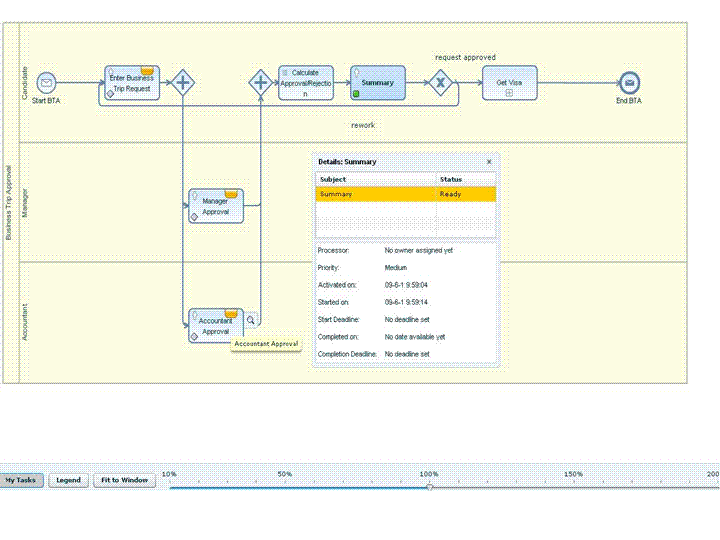
Process Visualization of Business Trip Approval Process
2. You can display:
The current activity that is in progress – the activity marked with

The tasks you are involved in – all human activities marked with

To see your tasks, choose the My Tasks pushbutton.
The tasks that are completed – tasks marked with

Details of tasks
Press
 next to the task.
Sub-processes
Sub-processes are marked with a
 in the activity. To open a sub-process, press
next to the activity. Sub-processes are opened in a separate window.
in the activity. To open a sub-process, press
next to the activity. Sub-processes are opened in a separate window.Erroneous tasks or sub–processes — tasks or sub-processes marked with
 Note
NoteTo find out what the error for a task is, you can check the logs in NetWeaver Administrator. For more information, see Managing and Monitoring Processes and Tasks with SAP NetWeaver Administrator.
End of the note.Additional data such as data objects and notifications
A legend describing the most common flow objects
Choose the Legend pushbutton.
3. (Optional) You can also resize the process flow diagram by choosing the Fit to Window pushbutton or do it manually with percentage scale.
To print a process diagram, right-click anywhere on the diagram to open the context menu and choose Print.