The Rules Composer Interface
The rules composer interface is shown below:
Rules Composer
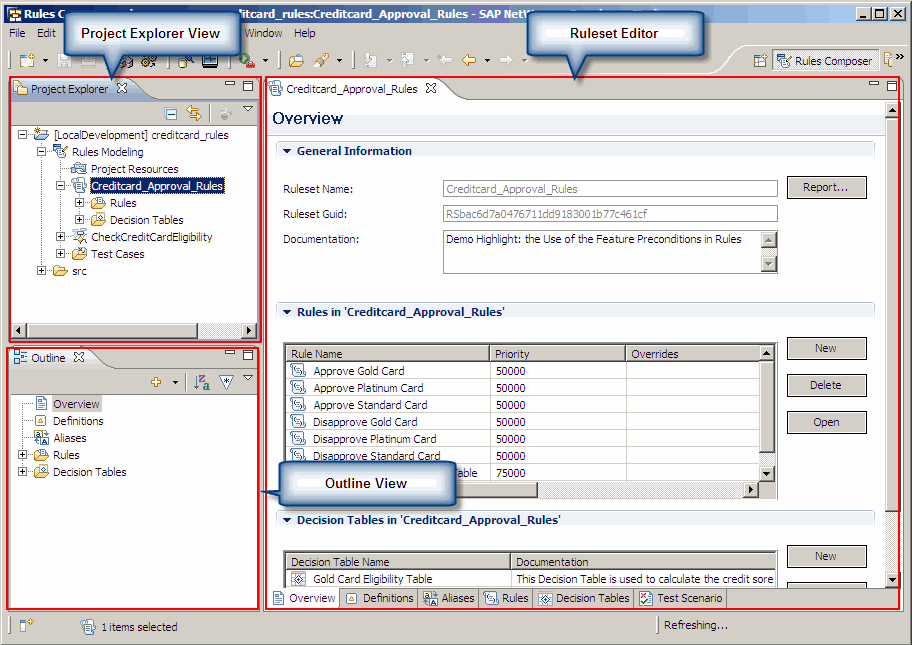
Project Explorer view: The Project Explorer view displays the rules composer DC node. Each rules composer DC node has the following nodes:
Rules Modeling: Contains the Project Resources ,ruleset and flow ruleset nodes.
Test Cases: Contains the test case folders and test cases.
src: Contains the brms and wsdl nodes.
 Note
NoteYou can not drag and drop the nodes from the Project Explorer view to the editor window.
End of the note.Outline view : The Outline view displays the Overview, Definitions and Aliases nodes by default. You should also see the Rules and Decision Tables folders by default. When you create an if-then rule or a decision table, the corresponding nodes appear in the respective folder. In the Outline view, choose a node and the corresponding editor opens in the editor window. You can also create an if-then rule and decision table in the Outline view.
NoteTo view the Outline view:
In the Developer Studio, choose
 Window
  Show View Other.
In the dialog box that appears, expand General and choose Outline. Choose OK.
End of the note.To open an editor window, double-click the relevant node in the Project Explorer or choose the relevant node in the Outline view.
Project Resources Editor
The Project Resources editor allows you to create constructs that can be reused in rulesets and flow Rulesets across the DC.
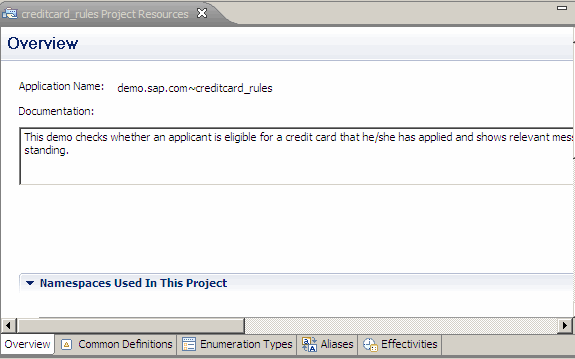
The reusable constructs are:
Definition Editor
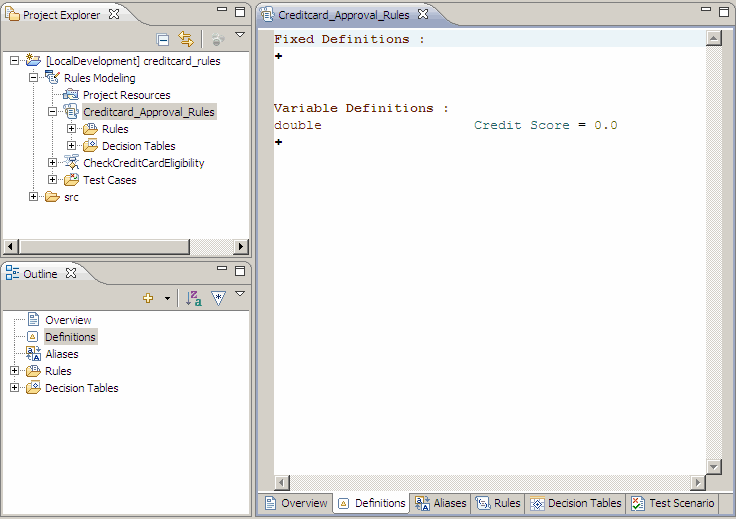
The definition editor allows you to create and edit fixed definitions and the variable definitions.
You can create common definitions in Project Resources. These definitions can be used across the rules composer DC.

You can create definitions at the ruleset level, available for use only within the ruleset.
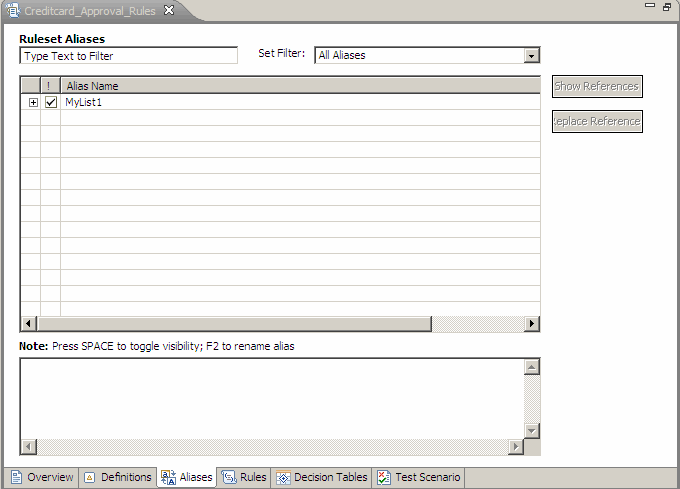
Definition Aliases Editor
The definition aliases editor allows you to view aliases of operations on definitions whose return type is non-primitive.
You can create definition aliases at the project level. These definition aliases can be used across the rules composer DC.

You can create definition aliases at the ruleset level, available for use within the ruleset.
Enumeration Type Editor
The Enumeration Types editor allows you to create and edit enumeration types.

Aliases Editor
The Aliases editor allows you to add, remove and reload XSD Elements and Classes. You can also delete aliases.

Effectivities Editor
The Effectivities editor allows you to create and edit effectivities.

Ruleset Editor
The ruleset editor allows you to create if-then rules, decision tables and definitions in the rules composer. The ruleset editor has tabs such as:
Overview: You can create, open and delete if-then rules and decision tables in this tab page
Definitions : This tab is a link to the definition editor, where you can create and edit definitions
Aliases: This tab is a link to the ruleset aliases editor, where you can view definition aliases
Rules: This tab is a link to the rule editor, where you can edit rules
Decision Tables: This tab is a link to the decision table editor, where you can edit decision tables.
Test Case: This tab is a link to the test case editor, where you can add and edit test cases.
Rule Editor
The rule editor allows you to edit if-then rules and preconditions. You can also set rule priority, overrides and effectivity for rules.


Flow Ruleset Editor
The flow ruleset editor allows you to create rule flows, rule scripts, if-then rules, decision tables and definitions in the rules composer.
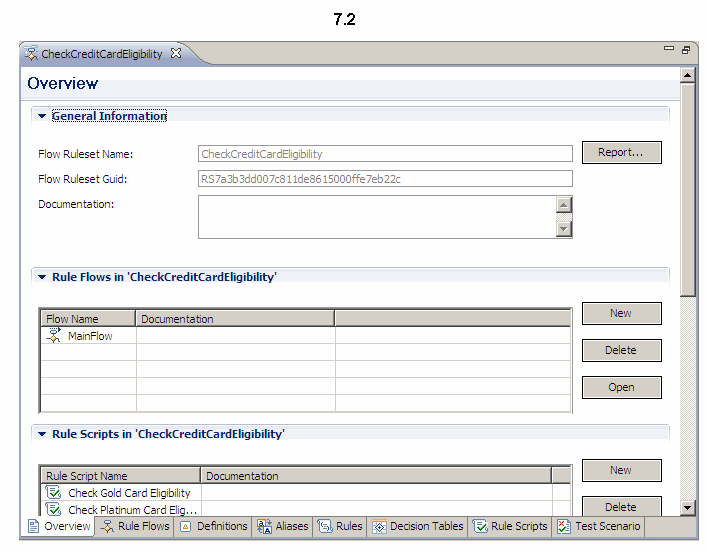
The flow ruleset editor has tabs such as:
Overview: You can create, open and delete rule flows, rule scripts, if-then rules and decision tables in this tab page.
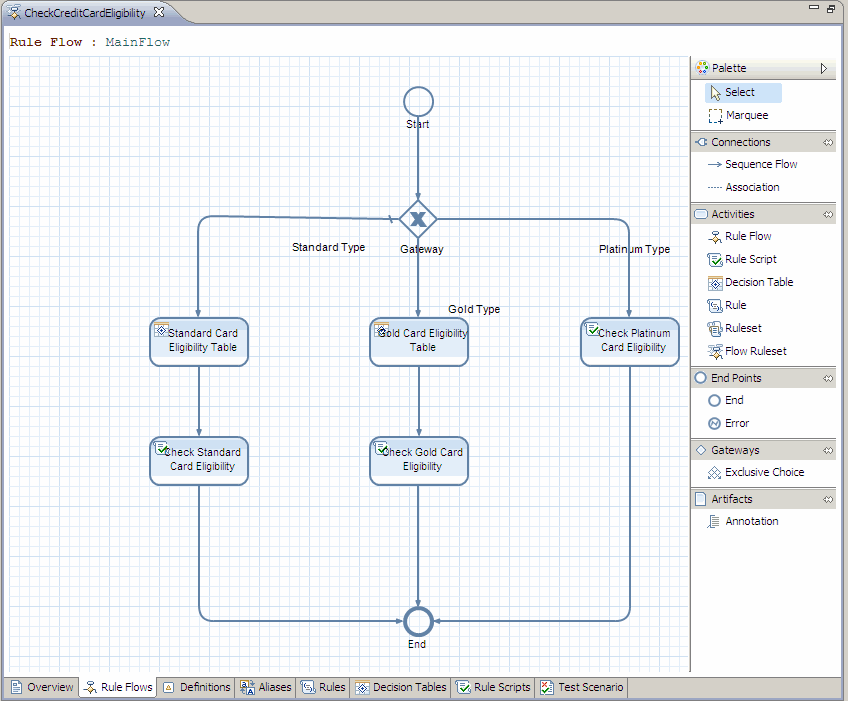
Rule Flows: This tab is a link to the rule flow editor, where you can model the sequence of steps for evaluating business rules.
Definitions : This tab is a link to the definition editor, where you can create and edit definitions.
Aliases: This tab is a link to the definition aliases editor, where you can view definition aliases within a flow ruleset.
Rules: This tab is a link to the rule editor, where you can edit rules within a flow ruleset.
Decision Tables: This tab is a link to the decision table editor, where you can edit decision tables within a flow ruleset.
Rule Scripts: This tab is a link to the rule script editor, where you can add and edit actions.
Test Case: This tab is a link to the test case editor, where you can add and edit test cases.
Rule Flow Editor
The rule flow editor allows you to model the sequence of steps for evaluating business rules.
Rule Script Editor
The rule script editor allows you to add and edit actions. It also allows you to create definitions in the form of local variables valid only for the rule script.

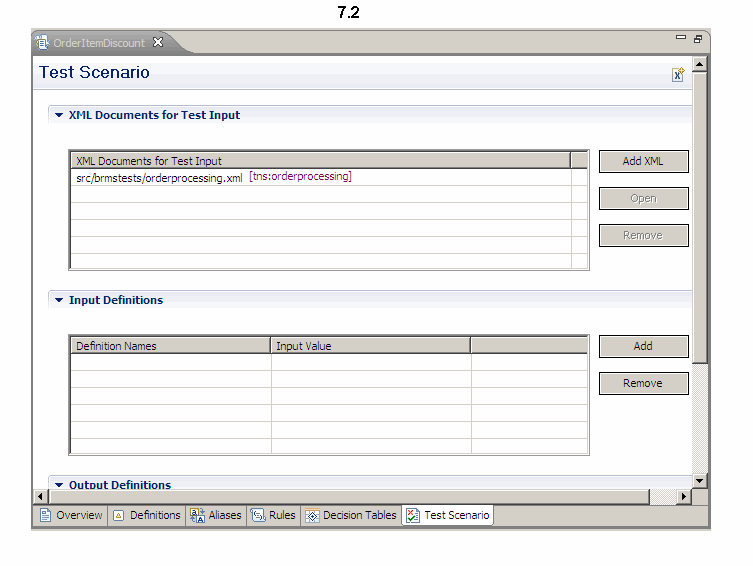
Test Scenario Editor
The test scenario editor allows you to quickly check the correctness of your rules by using only one set of simulated data.
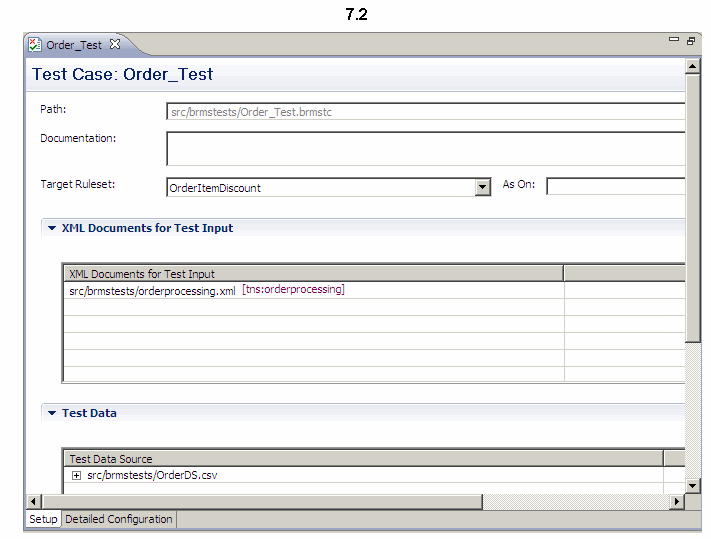
Test Case Editor
The test case editor allows you to check the correctness of your rules before you deploy and execute them. You can use a CSV file to capture multiple sets of data.