Display Types
For the ALV output, independent of the ALV tool, you are able to choose between up to three display types:
-
Classic ABAP list
The ALV output takes up the whole screen. This means you are only able to display one ALV output. The screen is part of ALV.
-
Full screen display
The ALV output takes up the whole screen. This means you are only able to display one ALV output. The screen is part of ALV.
-
In a SAP GUI container
You create a container of class CL_GUI_CONTAINER on your screen. The ALV output is displayed in this container. With this type of display, you are able, for example, to display more than ALV output on the screen or to mix the output with other SAP Enjoy controls.
You are also able to display the simple, two-dimensional table and the hierarchical-sequential list in a separate dialog box, the ALV popup.
The graphic that follows shows which display types you are able to use in which ALV tool:
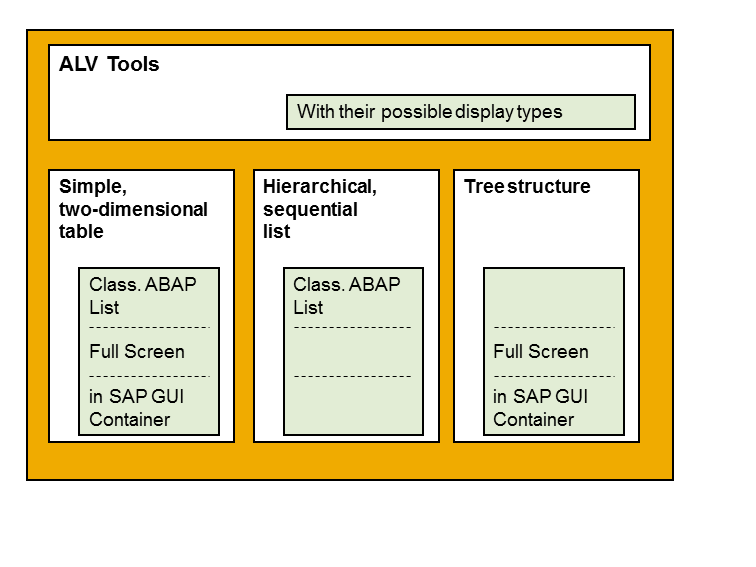
Some functions that you are able to apply with the ALV object model are not available in all display types. In the following chapters of this document, you will learn which functions you can use where and where you cannot use them. In places where the functions differ, you will find the following table (shown filled as an example):
| ALV Tool | Display type | Function available |
|---|---|---|
| Simple, Two-Dimensional Table | Classic ABAP List | Yes |
| Fullscreen | Yes | |
| In the Container | Yes | |
| Hierarchical-sequential list | Classic ABAP List | No |
| Tree structure | Fullscreen | Yes |
| In the Container | Yes |
The display types designated with Yes are the ones in which you can use the described function. At the end of each table you will find information on how you can activate the function. The display types designated with No are the ones in which the function is not possible.
Difference Between Display Types
Display types have different properties that affect the way the can be used. The following list shows the most important differences between the display types:
Managing the Screen
You are able to use the ALV object model to control the entire screen in the following display types:
-
In the classic ABAP list
-
In the full-screen display
With ALV object model methods, you the have the option of defining the screen status and
the header or footer area of the ALV output.
On the other hand, if you use the display in a GUI container, the effect of the methods on the area within the container is limited. The screen status and header/footer area of the ALV output cannot be reached from the ALV object model.
Appearance
Above all, the classic ABAP list looks different from the other two display types:
-
The classic ABAP list looks like a traditional, row-oriented output. You only have limited options for formatting and using color. Especially in the areas above and below the list, you are only able to use one font and very few text colors.
-
The full screen and the output in the container look very similar. Some elements appear three dimensional (for example, the column header as a pushbutton), the font and colors are more varied. You are also able to use lines and other graphic elements.
However, you are only able to change the areas above and below the ALV output using the ALV object mode only in display types in which ALV has control over the whole screen.l There, various design options are available to you:
Pushbutton toolbar
The only area outside of the actual ALV output that you can also influence in the container as well is the application toolbar. In the Classic ABAP List and Full Screen display types, if you are using functions, this is located directly below the screen title. In the container display it is on the upper edge of the container.
In the container displays, you change the application toolbar with the object model methods directly. In the other display types, you design the application toolbar using the screen status.
Methods
The majority of methods in the ALV object model are valid no matter which display type you use for the ALV output. Nevertheless, there are a number of differences, especially in the graphical design options, which means that some methods are not possible in specific display types. Read the system documentation for the classes and methods.
Set Up Display Type
You use the FACTORY method to determine which display type you want to use for your ALV tool. This method is available to you in all three main ALV classes. However, since you are not able to vary the display type in the hierarchical-sequential list, the following sections only refer to simple, two-dimensional tables and the tree structure.
Setting Up Display Type in a Simple, Two-Dimensional Table
In the CL_SALV_TABLE class, the FACTORY method gets the following parameters that are relevant for the display type:
-
LIST_DISPLAY
-
R_CONTAINER
-
CONTAINER_NAME
You determine how the table is displayed with a combination of these parameters.
|
Parameter |
LIST_DISPLAY |
R_CONTAINER |
CONTAINER_NAME |
|
Display type |
|||
|
Classic ABAP list |
ABAP_TRUE |
Initial |
Initial |
|
Fullscreen |
ABAP_FALSE |
Initial |
Initial |
|
In the Container |
ABAP_FALSE |
Reference to container; type CL_GUI_CONTAINER |
Name of the container |
Setting Up Display Type in the Tree Structure
In the tree structure, you are able to choose whether you wish to display the ALV output as full screen or in a container. To do this, use the R_CONTAINER parameter from the FACTORY method:
-
If you transfer a container (Type CL_GUI_CONTAINER), you display the tree structure in this container.
-
If the parameter is initial, you display the tree structure as full screen.