UI Elements of Views
The provided UI elements are used to structure information and functions within the view. This means that they are crucial for the design of the screen layout. A range of elements with various different purposes is therefore available.
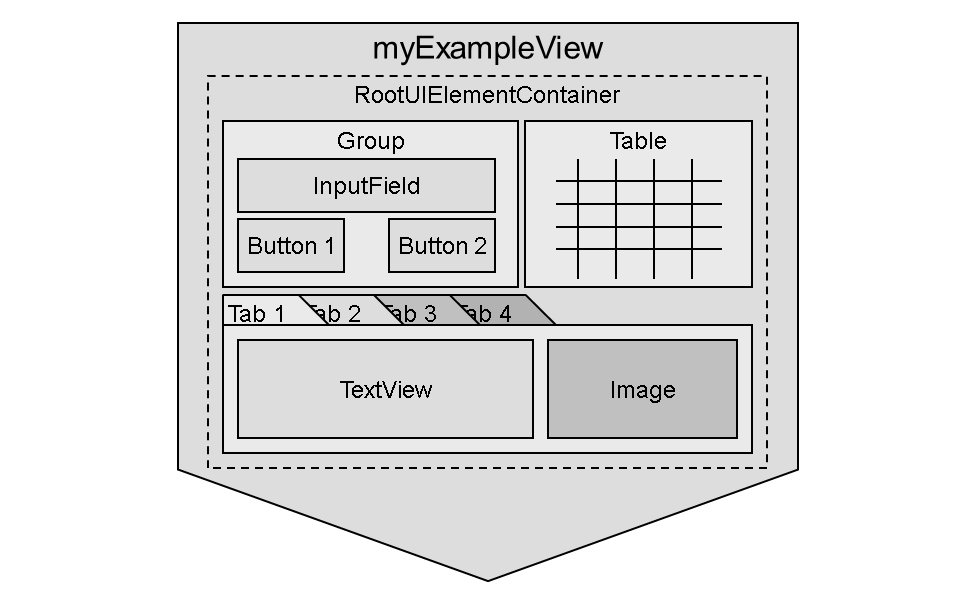
Some elements are used to arrange UI elements on the interface, such as Group or TabStrip. You can embed other elements into these elements. Elements such as Table or TextView display data, whereas element InputField allows the user to enter values. Interactive elements such as Button or CheckBox are also provided. The following figure provides an example of how UI elements can be arranged in a view:
UI Element Properties
Each UI element has different properties. Some properties have obvious functions, such as background color or element width. There are also various other properties that can be used to control a UI element. The properties are displayed in the View Designer in the properties table . This table is displayed for each UI element when the element is selected in the tree structure.
In this chapter, the UI element properties will not be described in detail but only used in examples. Refer to the reference section of this programming manual to get a complete list of all available UI elements , including a description of their properties.
All static properties can only be entered into the table directly - for example, the ID of a table column.
Most of the properties, however, can be specified statically and also be bound to an element of the corresponding context.
For some properties, the binding to a context element is mandatory. For example, the data source of a Table can only be specified when it is bound to a context element.
More Information
For more information about the structure of a view context, and binding UI elements to the UI elements of the view context, see:
Actions
In addition to the properties, possible events of UI elements - known as actions - are also managed in the table.
Actions are provided for every UI element that involves user activity, such as Button or an InputField. The corresponding event handler is created when you enter a name for the action in the properties table. When you double-click the action name, an ABAP Editor is called in which you can create the code for the event handler method.
The newly created event handler method is automatically entered on the Methods tab page. If event handler methods for other Button s have been created in the current view, these methods are also already entered on the Methods tab page. They are offered for selection when you enter the name for the new action.
More Information
For more information about UI element actions, see: