Data Binding
UI elements have properties. Each of the UI elements that can be used for transferring or displaying data contains one property that describes the value of a user input or the source of the data to be displayed.
These properties can be specified at design time by specifying a fixed value or they can refer to a context element. The second option is called binding to a context element. In this case, the value of the context element is displayed at runtime, or the content of the input field is passed from the screen to the context element of the view element.
Two simple examples illustrate the principle:
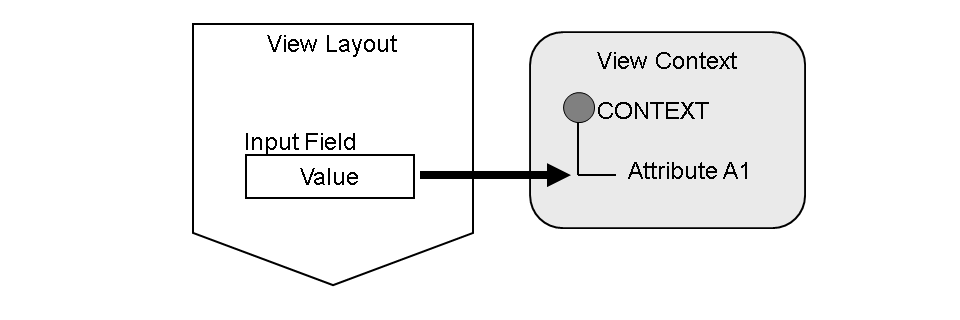
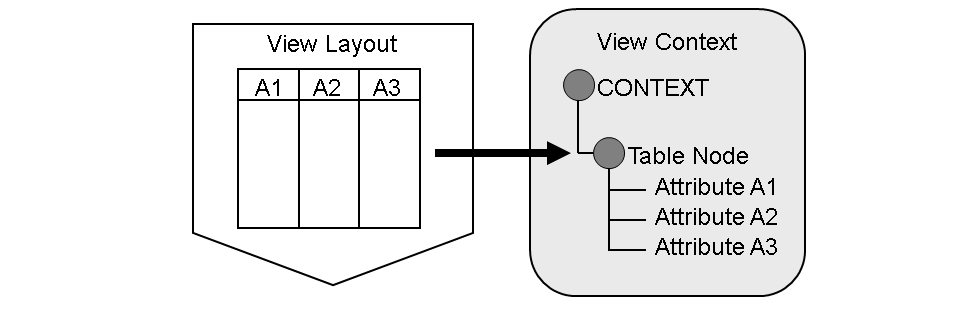
The two examples above describe two typical application cases: The transport of an input value and the supplying a UI element with application data. However, many other properties of a UI element can be bound to a context element. To mention just two more examples: The length of a text field and the width of a table. Whether the value of a UI element property is specified and consequently the same in every view presentation or whether the value is bound to a context element depends on the design of the Web Dynpro component. A binding to a context element is required for properties like value or dataSource of the two UI elements mentioned above.
For a tabular list of all available UI elements including a usage description for each property, refer to the reference section of this documentation. In the context of the Advanced Concepts of Web Dynpro for ABAP, the subject of Data Binding of UI Element Properties is discussed in detail.
Setting Up Data Binding
Data binding of a UI element property is set up in the view layout. For this purpose, you use the Binding column in the properties table of the embedded UI elements. You click the button to open a dialog box which provides the context structure of the corresponding view for an element selection.

Data Binding Using the Wizard
A wizard is available for some UI elements to make it easier to specify the design of the UI element by including the structure of the corresponding context node in the layout design. For example:
You start the wizard by selecting the option Create Binding in the context menu of a UI element in the tree structure below the root container.
Attributes Flagged as "Nullable"
Context Aspect (for example, search fields)
Motivation: With search fields it is relevant whether a user has entered a value in the search field, that is, whether the content of the search field is to be used for the search. Provided the search field is empty, it has the status NULL and is not used for the search.
UI Aspect
A field with the status NULL is output as an empty field. For some UI elements (for example, those of a numeric type or of the type T) that are bound to a context attribute, any fields without a value are automatically output with a null value. With type NUM4C this is the value "0000", with type T "00:00:00", and so on. For all other UI elements you have to implement this output behavior manually.
- First, you must use the method IF_WD_CONTEXT_NODE_INFO=>SET_NULLABLE( ) to flag the value in the node info as nullable. You can either set individual attributes of a node, or all the attributes of a node as nullable.
- In your second step, the value must be actually set to "null". The interface IF_WD_CONTEXT_NODE provides the method SET_ATTRIBUTE_NULL( '"Node_Name"' ) to set the value to null. Another way to set the value to null is to enter an empty string in the input field (that is, delete its content). For example, if an InputField is used, the attribute is set to NULL when the user deletes the entry completely.Note
You can also declaratively set the entry Null Value in the workbench under the context attribute properties. See also: Creating and Maintaining User Master Records.
This applies to all data types for which the initial value output on the screen is not the same as the empty string. Similarly, for string and character data types the following applies: If the attribute is set to NULLABLE and the user deletes the input, then the associated context attribute is also set to null.