Working with Error List of Test Executions
Grouping Columns
Since the table for listing the errors of a test run contains a very large amount of information, the individual columns are arranged in groups. Each group is headed by a special grouping column, which always contains the same pushbutton in every single row. You use this pushbutton to hide or show individual columns belonging to this group. A group of columns can have one of three states:
|
State |
Number of Visible Columns |
Symbol on Pushbutton |
|
Completely compressed |
No columns of the group are displayed |
> |
|
Partially expanded |
Only the most important columns of a group are displayed |
>| |
|
Completely expanded |
All columns of a group are displayed |
|< |
These three states are arranged in a fixed sequence, one after the other. If you click the relevant pushbutton, in any row, the display of a whole group switches to the next state:
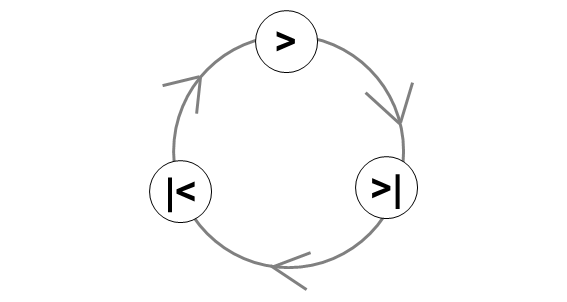
Information Groups
Group: Key
This group occupies the first columns of the table; it contains the key fields. The columns of the Key group always have a blue background.
The Key group has a special feature: If the group has been partially or completely expanded, these columns always remain visible at the left edge of the table, even if you scroll to the right to view other columns in the table.
If you double-click an element in the Procedure Number, Object Number, or Script Number columns, this takes you to a new mode in the eCATT log display. You can also use the following pushbutton in the table menu:

Group: Create New Messages
This group has a pink background and contains two columns related to the Test Workbench. One displays the status for the respective test in the Test Workbench at the time the error list was called. If you double-click the status, a new mode opens, which takes you directly to status maintenance of the test.
You can also go to status maintenance by clicking the following pushbutton in the table menu:

In status maintenance, you can view the existing messages on the Messages tab page, or create a new message.
The second column displays the number of messages that already exist for this test case. You have the option of displaying all the information required to create a new message:
-
Select a row or put the cursor in one of the row fields and then choose
 in the table menu. A dialog box appears containing the existing details for the error message, which you can copy to the text of a new message.
You also have the option of displaying an overview of the existing messages. Select a message row or put the cursor in an element of the respective error and click the following pushbutton in the table menu:

Group: Execution Data
The third column, also with a blue background, contains administrative overview data for the test. The Status column refers to the result of a test run at the time of execution.
The values in the Status ( Execution Data) and TWB ( Create New Messages) columns are not necessarily identical. The status of a test case in the Test Workbench refers to the most recent test run, whereas the value in the Status ( Execution Data) column refers to one particular test run.
Group: Error Path
This group has a yellow background and contains information about the content and organizational context in which the test was executed. This incudes information about the test plan, test configuration, and the superordinate test script.
If you double-click an element, this takes you directly to the respective status analysis, the editor for the test configuration or test script. You can also display the test script by choosing the following pushbutton in the table menu:
 .
.
Group: Command
This group contains information about individual eCATT commands called within a test script. If a test script has not been integrated into a superordinate test script, the values for the Top Level Test Script ( Error Path) and Test Script ( Command) columns are identical.
Group: SUT Data
This contains information about the system name, client, and user name of the tested system (SUT = system under test). In remote calls, the name of the RFC destination is specified here.
Group: General Errors
This group lists all errors that have occurred, in chronological order, with information about the origin, message type, and so on. The following message types are supported by eCATT:
|
T100 |
T100 message |
|
BAL |
Business Application Log message |
|
EXCP |
Exception |
|
ESF_T100 |
ESF T100 message |
|
ESF_FREE |
ESF exception free text |
|
COM |
COMMUNICATION_FAILURE message in RFC |
|
SYST |
SYSTEM_FAILURE message in RFC (also in dumps) |
-> Group: T100 Error
If errors with a T100 error message occurred during the test run, this is where you find detailed information.
-> Group: Exceptions
This group contains detailed information about errors with the error message EXCEP.
-> Group: ESF Error
If the error message for the error that occurred was an ESF_T100 message or an ESF_FREE message, the details about the error are displayed in this group.
Group: Variable Parts
This group displays the variable parts of a message text (for example, for T100 messages the variables MSGV1 - MSGV4). In the default setting, they are in one row, one after the other.
You can change the display of the variable parts of a message text in the error list before the list is compiled, by selecting the Variable Parts Multiline checkbox in the Scope of Output area of the selection screen. In this case, each variable part is given its own table row.
Double-Click Properties of Individual Columns
Double-clicking elements in the table takes you to various destinations. In many columns, this is an additional dialog box with detailed information about the selected error. In some columns, however, double-clicking takes you to additional useful functions:
|
Column |
Target of Double-Click Navigation |
|
LogID, ObjLnr, ScriptLnr, Command |
Display of error log at the position of the command in question |
|
Title, Test Plan |
TWB status analysis |
|
Test Configuration, TC Title |
eCATT test configuration |
|
Variant, Variant Title |
eCATT test configuration, Variants tab |
|
Top-Level Test Script, Version, Title |
eCATT test script |
|
Test Script, Version, Title |
eCATT test script at position of command in question |
|
SUT System |
Opens the system under test |
|
RFC Destination |
Opens RFC destination in transaction SM59 |
|
Message Type |
If the message type is "SYST", transaction ST22 (ABAP runtime error) opens in the target system |