TextEdit Properties
-
activateAccessKey
Activates access keys.
Both users and administrators can personalize this property.
-
adjustRowsToText
If property displayAsText is set, with adjustRowsToText the display of TextEdits is restricted to the text rows that actually exist.
-
cols
Width of the TextEdit UI element as the number of characters.
NoteNote that the cols property can be overridden by the width property.
This property can be personalized by administrators.
-
design
Display of the TextEdit element.
This property can be personalized by administrators.
Value
Description
Can Be Set Using Personalization
monospace
Text is displayed in non-proportional font type. Each letter takes up the same space.
Yes
standard
Text is displayed in default font size (former mode).
Yes
-
displayAsText
Specifies whether the TextEdit is to look like a pure Textfeld when the focus is not set on it. When the mouse pointer is moved over the UI element, the UI element is highlighted. When the UI element is clicked, it behaves like a normal TextEdit, and the user can edit the content.
-
explanation
Help text displayed when the help mode is activated.
More information: Help Texts for Web Dynpro Applications
This property can be personalized by administrators.
The explanation iproperty is only displayed if a Label exists for the corresponding UI element.
Note the following exception :
The explanation property of an AbstractTableColumn is always displayed. If the UI element appears in a Table, and therefore has no Label, then use a AbstractTableColumn.explanation as a replacement for an explanation for the respective UI element (for example, InputField).
-
height
Height of the UI element; see also Methods and Properties of UI Elements.
NoteNote that this property overrides the rows property.
This property can be personalized by administrators.
-
imeMode
Control of the frontend IMS mode.
IME (Input Method Editor) is a basic component for writing Chinese, Japanese, and Korean characters. This system of writing has more characters than could be keyed in using a normal (restricted) keyboard. IME enables users to key in and edit Chinese, Japanese, and Korean characters using a normal (restricted) keyboard.
The following values are possible:
Value
Description
active
IME mode is active but can be deactivated
auto
IME mode setting is disregarded
disabled
IME mode is inactive but cannot be activated
inactive
IME mode is inactive but can be activated
-
readOnly
Specifies whether the user can edit text in the TextEdit or whether it is to be displayed as read-only.
This property can be personalized by administrators. In personalization, this property can be assigned the value: true
-
rows
Height of the TextEdit UI element as a number of lines.
NoteNote that this property can be overridden by the height property.
This property can be personalized by administrators.
-
state
Input status of the UI element. Read the note about the required asterisk for a Label in FormLayout under Truncating Contents in the FormLayout.
This property can be personalized by administrators.
Value
Visualization
Description
Can Be Set Using Personalization
normal
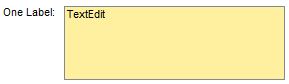
Normal status of the interface element
No
required
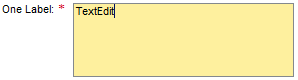
The value must be entered
Yes
-
textDirection
Text or writing direction.
This enables labels of interface elements to be read in languages that have an RTL writing direction, such as Arabic or Hebrew, as opposed to LTR for languages like English.
This property can be personalized by administrators.
Value
Description
Can be Set Using Personalization
INHERIT
The text direction is inherited from the parent element. Therefore, the text direction is identical to that of the parent element.
Yes
LTR
Left to right text direction
Yes
RTL
Right to left text direction
Yes
-
value
Text to be displayed. The text can be edited.
The attribute to be bound can be of type STRING or STRING_TABLE. With STRING_TABLE rows from TextEdit are stored as table rows. A line break is always stored as a line feed in a STRING (CL_ABAP_CHAR_UTILITIES=>NEWLINE, ASCII decimal 10). The Web Dynpro framework carries out the conversion for the client platform.
Both users and administrators can personalize this property. You can also predefine values; refer to Methods and Properties of UI Elements.
-
width
Width of the UI element.
More information: Methods and Properties - General Information.
NoteNote that this property overrides the cols property.
This property can be personalized by administrators.
-
wrapping
Specifies whether or not the texts can be wrapped to the next line.
This property can be personalized by administrators.
Value
Visualization
Description
Can Be Set Using Personalization
off

The text is not wrapped. If the text row length exceeds the width specified by property cols, a horizontal scroll bar is displayed.
Yes
hard

Wraps the text if the value specified by property cols is reached. A carriage return is inserted for each wrapping. A horizontal scroll bar is not displayed for this value.
NoteNote that this feature is not supported in the browser.
Yes
soft
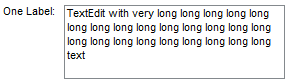
Wraps the text if the value specified by attribute cols is reached. A carriage return is not inserted for each wrapping.
Yes