 Alert Watchlist
You use this function to do the following:
Maintain the alerts that were raised from the SAP MII Workbench screen.
View the status and the severity of the alerts. For more details on alert status and severity, see the table in the Features section.
Delete the alerts.
Forward or assign the alerts to a different SAP MII role.
 Note
Note
Alerts that are not mapped to any roles can be viewed by everyone. In general, you can view the alerts mapped to your role.
Prerequisites
You have created the alerts. For more information on alert creation, see Alerts.
Features
The following table describes the actions available in the Alert Watchlist screen:
Actions |
Description |
|---|---|
Set Status |
You can change the status of a new alert to In Process or Acknowledged. |
Delete |
Deletes a alert |
Forward Alert |
You can forward an alert to multiple roles. An alert notification email will be sent to all users assigned to that role. The user must take actions mentioned in the Follow-Up action tab. |
Severity |
Determines the severity of the alert: Low/Medium/High |
General Tab |
Provides information about the alerts |
Follow-Up Action |
Displays follow-up actions mentioned in the alerts |
Container Information |
Provides container information mentioned in the alerts |
Logs |
Displays the logs for the selected alert, that is, the actions such as status change. Comments added are logged along with the timestamp and the user responsible for the change. |
Comments |
You can enter your comments. |
Status |
Displays one of the following statuses:
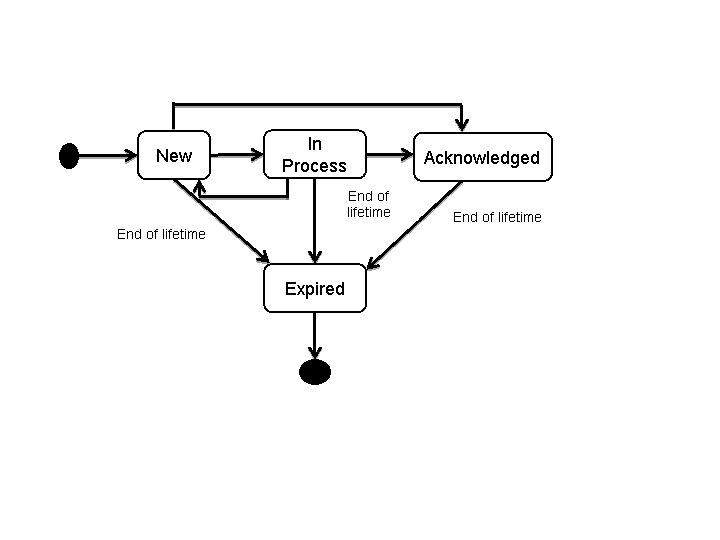
You can change the status of the alerts. For example, you can change the status of alert from New to In Process or directly from New to Acknowledged. Also, the alert can go to Expired state from any of the above states if the time limit defined in System Jobs exceeds the expiration time of the alert. The following diagram explains the state transition of the alerts: |
Activities
To maintain alerts, on the SAP MII administration screen, choose  KPI and Alerts
  Alert Watchlist.