
 Merging Objects

Use
Sometimes, you may want to merge multiple object records into a single record. The MDM Data Manager provides you with two options for doing so.
The Merge Objects command reassigns all of the links to each of the merged object to the surviving object. This operation lets you choose which images, language layers, and field details you want to preserve from among all of the merged object table records and assigns them to the single, surviving record.

The Merge Objects command is currently available for image and PDF objects only.
Procedure
To merge links and details from multiple object records into a single object record:
...
1. In the Records pane, select all of the object records you want to merge.
2. Choose Objects ® Merge Objects from the main menu to open the Merge Objects dialog (figure below).

3. To select the object to use for a language layer in the merged record, double-click in a language layer cell (left pane) to open the Object Selectordialog (figure below).
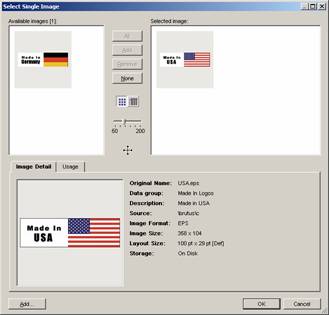
See The Object Selector Dialog at a Glance for more information about using an object selector dialog.
4. When you have selected the object to use, click OK to close the Object Selector dialog and return to the Merge Objects dialog.
5. When you are done selecting objects for language layers, edit the field details for the merged record in the right pane of the Merge Objects dialog.
6. When you are done editing the merged record’s field details, click OK to close the Merge Objects dialog. MDM creates a single, merged record that replaces all of the merged records and reassigns to it all object lookup field values that reference any of the merged objects.