
 Text
Block (and Copy Block/Text HTML) Lookup Cells
Text
Block (and Copy Block/Text HTML) Lookup Cells

An example of a text block field is shown in the figure below. You can link one or more text blocks to a text block lookup field by double-clicking on the cell in the Record Detail tab to open the text block selector dialog (see The Object Selector Dialog at a Glance).
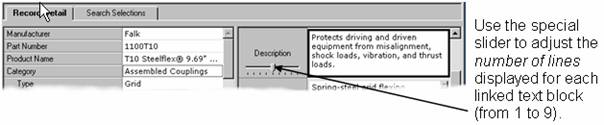

To change the row height of the cell, drag the row splitter up or down. This adjustment is independent of the slider control; making the row taller does not display more lines than indicated by the slider control. Finally, use the vertical scroll bar on the right of the cell to move through the list of linked text blocks.
You can also right-click on the text block field and, without even entering the text block selector dialog, choose from the context menu to perform various functions, some of which cannot be performed from the main menu.
Text blocks differ from large text in that text blocks, like images, are stored in an object lookup subtable for linking to fields in one or more records in the main table or another subtable, while the text in a large text field is entered directly into the record of the table itself. Text blocks are useful when several records may share the same textual information.
MDM also supports copy blocks and HTML text blocks, which you can link to a copy block or text HTML lookup field the same way you link text blocks to a text block lookup field.