2.3 Navigation 
At the top part of the shell, all work centers are shown. The first one is the home work center, represented by a modern office icon. Here you find functions that are associated with the user in the specific business processes.
 (Example of home work center)
The navigation controls for the work centers are situated in the right clasp. You can scroll through the list of work centers or see a complete list of available work centers.
 (Top-level navigation scrolling)
The order of the navigation tabs can be changed by dragging and dropping the corresponding icons. You can change the icon of the navigation tab by choosing Change Icon from the context menu.
A selected work center (navigation tab) is represented by an open folder.
 (Example of navigation tab)
To navigate quickly to a specific entry inside the work center, you can use the quick navigation function. Click the arrow symbol.
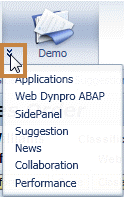 (Example of quick navigation)
The navigation panel on the left side allows a more detailed navigation for the specific work center found on each navigation tab.
 (Example of navigation panel)
The lower section (Create in the example) contains a collection of typical tasks that are common for the specific work center. Click any of these entries to start the task. An animation is shown when NWBC is waiting for a server response. Clicking an entry in the lower-left section opens a new window.
NWBC remembers the size and position of windows that have been opened previously. When the same application window is reopened, appears in the same place as it was the last time it was opened.
You can open a new window to look at different data at the same time. Multiple windows can be displayed for this purpose. To do this, either use SHIFT + click or choose Open in New Window from the context menu of a menu folder or menu item. Depending on whether a menu item has further navigation levels below, a new shell window or application window is opened:
By choosing Open in New Window (or SHIFT + click) from the context menu of a work center or menu entry that has further navigation levels below, a shell window is opened.
By choosing Open in New Window (or SHIFT + click) from the context menu of a menu entry that does not have further navigation levels below, an application window is opened.
For more information, see 2.5 Multi-Windows.
Shortcuts and Hotkeys
The following shortcuts and hotkeys are relevant for NWBC for Desktop:
Shortcut / hotkey |
Action |
|---|---|
CTRL + ALT + L |
Focus the quick launch/search bar |
CTRL + ALT + W |
Open the window manager |
CTRL + ALT + N |
Focus top level navigation |
CTRL + ALT + M |
Focus menu |
F6 / SHIFT + F6 |
For Web content: navigation between groups (that is, between menu, top level navigation, navigation panel, content area) For SAP GUI transactions: as defined in the standard for function keys |
F5 |
For Web content: refresh For SAP GUI transactions: as defined in the standard for function keys |