 Flexible User Interface Designer (FLUID)
The flexible user interface designer (FLUID) is the editor for FPM application configurations and their individual components. It replaces all previous, individual FPM configuration editors.
You use FLUID to carry out the following tasks:
Edit and enhance FPM applications and their user interfaces, and to fit them to your business needs
Edit Web Dynpro component-defined configurations of user interface elements
With FLUID, you can edit the following component configurations within an application:
Floorplan
UIBB/GUIBB within the floorplan
Identification Region (IDR) (where applicable)
You launch FLUID in administrator (Customizing) mode or in expert (developer) mode, depending on the types of changes you want to carry out and for whom the changes are applicable.
Structure
FLUID is launched in its own browser window. The following figure illustrates the layout of FLUID. However, as it can be personalized, it may not appear exactly as it does here:
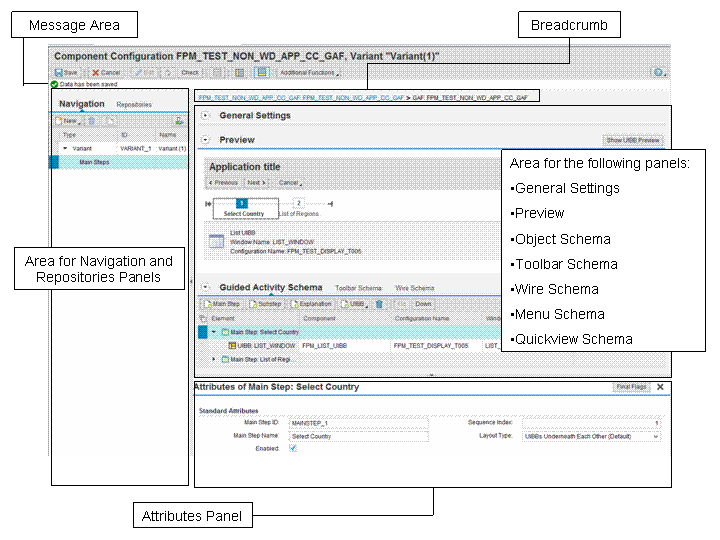
FLUID is divided into a number of areas and panels; not all are visible for all components. These areas and panels are described in detail below:
Identification Region (IDR)
Title Bar
Displays the name of the component configuration and the active screen or page within it.
Page Toolbar
As well as switching between edit and display modes, this toolbar provides you with toggle buttons to control the display of the Adaptations, Comparisons, Repositories, Navigation, and Attributes panels. Additional Functions displays menu options for testing your application (displaying it in the runtime environment), making copies of application configurations and their individual component configurations (Deep-Copy), creating modification-free enhancements, and resetting customizing changes, and displaying properties of the component such as package details.
Message Area
Is the primary area for the display of system messages.
Bread Crumb
Allows you to move to different components within your application configuration. When navigating between different components, FLUID ensures that the original work mode (Edit or Display) for each component remains the same.
General Settings Panel
The information displayed in the General Settings panel is component-dependent. Information that relates to the floorplan or GUIBB component as a whole is displayed here. The panel is divided into the following sections:
Classification Settings
Component configurations may be grouped into different classifications.
Transient Settings
Settings to determine the transient behavior of the application.
Message Settings
Settings to determine the appearance of the message area and whether or not the message log is displayed.
Additional Settings
Contains settings specific to the particular floorplan or GUIBB being edited. For example, OVP personalization settings, width of a list component, layout type of a form component.
The General Settings toolbar is also component-dependent. It provides you with access to a number of actions for both the floorplan and GUIBB component. Menu options for the floorplan components include Application Controller Settings, Event Action Types and Message Mapper Settings. Menu options for the GUIBB components include settings for Final Flags, feeder classes, and Drag-and-Drop settings.
Preview Panel
This panel provides you with a picture of how the application looks at runtime. The Preview displays the interface of the application as a set of configurable components (the UIBBs).
Select a UIBB in the Preview and its attributes are displayed in the Attributes panel for you to edit. You can move the individual UIBBs around the Preview panel using drag-and-drop. You can also access the attributes of toolbar elements from this panel and move elements around on the toolbar.
You can add items from the Repositories panel to the Preview panel using drag-and-drop; you can remove them too by dropping them back on to the Repositories panel.
The way objects are displayed in this panel depends on which level of your application (floorplan or UIBB) you are on:
Floorplan Level
Individual UIBBs appear in the Preview panel as separate boxes; each UIBB identified by its component and configuration names.
You can navigate into the individual UIBBs directly from the Preview panel. You can tell if a UIBB is configurable by moving the mouse over the UIBB box; the box changes color and an icon appears in the top right corner of the box. Choose the icon to navigate directly to the UIBB component. If the UIBB component is actually a GUIBB component, you remain inside FLUID; otherwise, you are transferred to the standard Web Dynpro editor.
You can also select the individual toolbar elements in this panel and edit their attributes.
UIBB Level
The Preview panel displays the UIBB as it appears at runtime, for example, as a table or a form.
On both levels, a context menu allows you, for example, to navigate to and configure the different components in your application, add or delete UIBBs, and add new sections and toolbar elements.
The Preview panel contains the Show/Hide UIBB Preview button. This allows you to change how the UIBB is displayed in the Preview panel; UIBBs can be displayed as abstract boxes with their most important technical details or they can be displayed as they would appear at runtime. Only UIBBs that have implemented the interface IF_FPM_CFG_UIBB_PREVIEW can be displayed as they would appear at runtime. This feature is available for all floorplan components (except the OVP floorplan), and the tabbed component.
Object Schema Panel
The name of this panel is component-dependent; it appears as <Floorplan Type> Schema or <GUIBB Type> Schema.
This panel outlines the structure of the individual GUIBB or floorplan configuration and displays its UI elements in a tabular form. You can move elements within the table by using the Up and Down buttons or by dragging them to a new location. You can select elements in the table and edit their attributes in the Attributes panel.
The toolbar of this panel is component dependent. It provides the following actions:
Add or remove individual UI elements to the GUIBB or floorplan component.
For example, you can carry out the following actions: add a main or substep to a GAF floorplan component; add a section, UIBB, or object-selection panel to an OVP component; add a column in a list or hierarchical list component.
Configure the IDR (of OIF and GAF floorplan configurations)
Configure a UIBB
You can switch directly to editing the individual UIBBs within the floorplan. Use the breadcrumbs above the work area to navigate back to the floorplan component. Note that the Configure UIBB button is only visible when the component has a configuration name in the Attributes panel, that is, it is configurable.
You can drag and drop items between the Repositories panel and the object schema panels.
Toolbar Schema Panel
This panel displays the toolbar plan and individual toolbar UI elements in your application. You can add additional elements to the toolbar (such as and buttons, button-choices and links) and edit their attributes in the Attributes panel. Note that the available toolbar elements vary according to the type of page you are working on. The position of some toolbar elements is determined by the FPM framework and is unchangeable.
Wire Schema Panel
This panel displays the individual wires (connections) between the UIBBs in a floorplan component. It is available only for the floorplan components and the Composite UIBB component. It also displays the transaction handler class. It allows you to add and remove wires and also gives you access to the Graphical Wire Editor; a tool for creating and editing wires within your application in a graphical, easy-to-understand way.
Menu Schema Panel
This panel displays details of action menus and context menus that are used in the application. This panel allows you to configure existing menus and create and define new menus of both types. This panel is available for certain GUIBBs only.
Quickview Schema Panel
This panel displays details of any quickviews that might be anchored to particular elements of a GUIBB. Hence, this panel is visible only on the GUIBB level and not at floorplan level.
Attributes Panel
Choose the Attributes button on the main toolbar to display this panel. The attributes of configurable UI elements are displayed in this area. Whether you can edit these elements depends on the UI element you have selected. In this panel, you also have access to the following features:
Settings for Final Flags
Properties dependent on display types
Action assignments for buttons
You display the Attributes panel using the Attributes toggle button on the main toolbar.
Navigation Panel
Choose the Navigation button on the main toolbar to display this panel. Note that this panel is not available for all components.
The Navigation panel allows you to move between, and select the pages you would like to edit in your application, for example, the initial screen, the main screen of an application variant, an edit page, or a dialog box. Here, you can also add new, delete, and copy pages in your application.
The type of pages available in the Navigation panel depends on the type of floorplan; not all page types are available for all floorplan types.
This panel is available only at floorplan component level.
You can store multiple variants of a selected floorplan for each FPM application. A variant provides you with an additional level of differentiation within Floorplan Manager. For example, you can use variants to show multiple user roles in the same application at the same time. The individual variants are separated from one another in an initial screen.
Repositories Panel
Choose the Repositories button on the main toolbar to display this panel. Note that this panel is not available for all components.
The Repositories panel provides you with a list of repository items that can be dragged to the object schema and the Preview panels in the work area. The list of repository items is component-dependent and includes, for example, the following items: form fields, list columns, search criteria and search result list items, and UIBBs for the floorplan, composite and tabbed components. You can search for specific component configurations by entering values in the Component, View or Configuration fields or you can display all component configurations for a specific type of UIBB.
The Repositories panel may also contain a Buttons section from which you can drag various button type elements to the object schema, Toolbar Schema, and the Preview panels.
This panel contains a New button allowing you to create a new UIBB component configuration, which is then added to the Repositories panel, and which you can drag to the <Floorplan Name>Schema and Toolbar Schema panels. Note that the new UIBB configuration is always created on the configuration (development) level, even if you launch FLUID in administrator mode.
Adaptations Panel
Choose the Adaptations and Comparisons toggle button on the main toolbar to display this panel. Note that this panel is not available for all components.
This panel allows you to easily create small adaptations of existing configurations based on different user contexts, for example, country or role.
Comparisons Panel
Choose the Adaptations and Comparisons toggle button on the main toolbar to display this panel. Note that this panel is not available for all components.
This panel shows you the changes that have been made to a configuration, and on which level of the Web Dynpro ABAP configuration framework they have been made (for example, on the Customizing level or the configuration (developer) level).