 Working with Screen Areas
You use the user interface in the Organization and Staffing or Organization and Staffing (Workflow) view to create, display, and edit organizational plans.
The user interface is divided into various areas, each of it which fulfills specific functions.
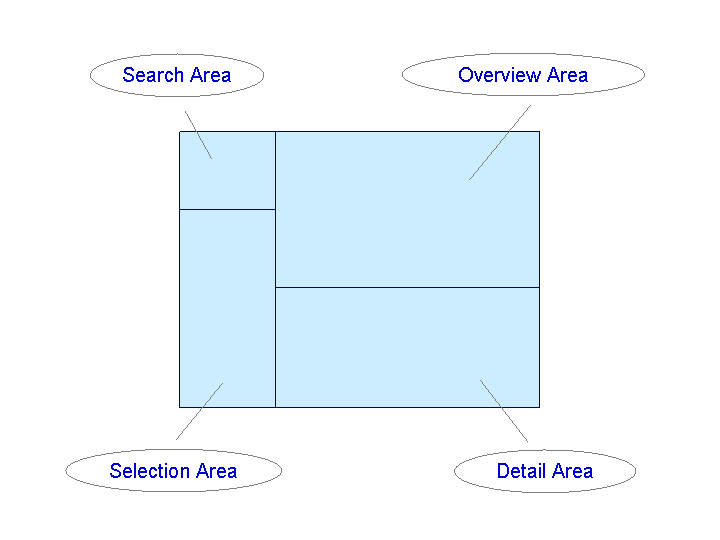
Together, the search area and the selection area make up the Object Manager.
In the search area you can choose between different object types. Depending on whether you are in the Organization and Staffing or Organization and Staffing (Workflow) view, you are offered different object types to choose from.
 Note
Note
Each time you access the Organization and Staffing or Organization and Staffing (Workflow) views, the objects that you edited last are automatically called up, though (if appropriate) with a new date. You can continue editing the objects directly. In addition, the last user-specific settings relating to the size of the screen, and in some cases the preview period, are available again.
You can reset user-specific settings in the object manager using the report RH_DELETE_OM_USER_SETTINGS. For more information, see the report documentation.
You can reset the last object selection and the preview period using the report RH_DELETE_NF_USER_SETTINGS. For more information, see the report documentation.
Note that the reset takes place across all applications.
Prerequisites
Before you work with screen areas in the Organization and Staffing or Organization and Staffing (Workflow) views, you must be familiar with Validity.
You have decided to use either the Organization and Staffing or the Organization and Staffing (Workflow) view. If necessary, choose the required view over  Goto
Goto  Change View
  .
.
Process
A typical work process could look like the following:
In the Search Area, find one or more objects that you want to display or edit, for example:
a complete organizational structure
all objects of a certain object type, positions, for example
one or more objects of a certain object type, for example, a particular organizational unit
The objects found are listed in the Selection Area. Select one of these objects
by double clicking on it, if you want to display the object itself including its environment in the overview area and its characteristics in the detail area
by clicking on it, if you want to assign it to another object using drag & drop; you can assign a position to an organizational unit, for example
In the Overview Area
the selected object including its environment is displayed.
According to the object type the environment can be displayed as
an organizational structure
a report hierarchy
staff assignments in the form of a list or a tree structure
task assignments
organizational assignments
job assignments
a task hierarchy
Agent
account assignments
you can, if required
switch between these representations of the object’s environment using
 .
.create, copy, assign/move/reposition, or delimit/delete new objects.
select another object
In the Detail Area, characteristics of the selected object are displayed on tab pages. You can edit the characteristics of this object or add new ones, as required.
Using
 , you can hide the detail area, so that you can enlarge the overview area. You can display the detail area again using
  . Note
In customizing you can define which tab pages should be displayed. For further information, see the Implementation Guide (IMG) under
Personnel Management Organizational Management Hierarchy Framework .End of the note.