 Object Manager
With the object manager you can search for and select objects that you want to display or edit.
Prerequisites
You are familiar with the validity concept of the application. The validity concept determines which objects you can find during a search.
Features
The object manager consists of the search area and the selection area.
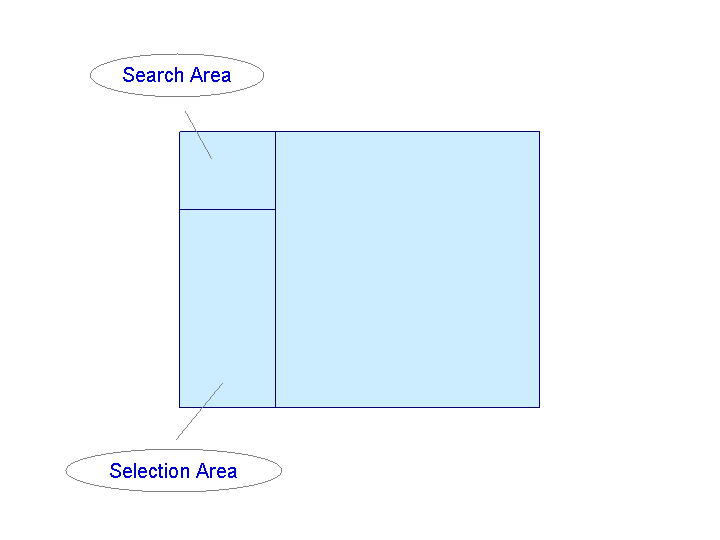
In the search area are one or more search functions for each object type, for example the Search Term and Structure Search functions. These search functions are marked with
 . In addition, the object type itself can contain a search function. The object types are marked with the respective object type-specific symbol.
 Note
NoteIf necessary, you can add more object types and search functions in customizing. You can also change the sequence of the search functions. For further information see the Implementation Guide (IMG) under
 Personnel Management
  Global Settings in Personnel Management Settings for Object Manager
  or the IMG for Organizational Management.End of the note.
In the search area you can create search variants, so that you can reuse search criteria you have grouped together, or hits. These search variants are marked with
 .
.In the selection area the system displays the objects that you searched for and actually found. According to the search function, this can be either a hit list or a structure.
You can scroll through search results in the selection area using
 and .
and .You can completely hide or display the object manager, so that the other screen areas get correspondingly bigger or smaller. To do that, choose
Settings Show Object Manager or Hide Object Manager.With
 you can increase or reduce the size of the selection area, in order to show more hits. As you do that, the search area is hidden or displayed accordingly. Note
The system saves the last settings relating to screen size and the last object selection user-specifically, and they are available next time you call up the transaction.
You can reset these settings and the last object selection using the report RH_DELETE_OM_USER_SETTINGS. Note that the reset takes place across all applications. For more information, see the report documentation.
End of the note.You can call up generic object services for a selected object using the right mouse button menu. To do that, select an object in the selection area with the right mouse button and choose Generic Object Services. For further information about generic object services, see List of Object Services.