
 Overview

In CMS mode,
you perform transports using the Integration Builder and the CMS
 Transport Studio.
The tools focus on the following transport areas:
Transport Studio.
The tools focus on the following transport areas:
Transport Functions in the Integration Builder and Transport Studio
Integration Builder |
Determining the object set for transport |
Displaying the status |
|
Resolving conflicts in imports |
|
Finding Transports |
|
Transport Studio |
Importing change requests to the target system |
Assembling software component versions (Assembly) |
|
Quality assurance step (Approval) |
We will assume that the software component version of the objects that are to be transported is released for transport using the CMS. SAP provides a software component version for the entire content of the Integration Directory.
See: Transporting Using the Change Management Service
Transport Units in the Integration Builder
You determine the object set for transport in the Integration Builder. You can transfer either change lists or transport lists to the CMS. Once the change or transport list has been exported from the Integration Builder, it appears as a change request in the Transport Studio.
Change Lists
The Integration Builder collects all changes to objects in a change list. It stands to reason that these are the changes you will want to transport (from the development system, for example). Once you have released the change list, its status changes from Open to Transportable. To transfer it to the CMS, choose Release for Transport in the context menu on the Change Lists tab page. All changes at the time of release are transported in a change list.
Transport Lists
To compile a list of objects independently of change lists, you use the transport wizard in the Integration Builder to create transport lists. To create a transport list, proceed as follows:
...
1. Choose Tools ® Export Design Objects (Integration Repository) or Tools ® Export Configuration Objects (Integration Directory).
2. Select the Transport Using CMS mode and determine the object set in the next step.

You can use change lists as a filter when determining the object set in the transport wizard. Objects lists compiled in this way nevertheless have all the normal properties of a transport list.
The Integration Builder displays the transport list on the Change Lists tab page. This list is transferred directly to the CMS and has the status Waiting for export… until the process is complete. Object versions that are active at the time the transport list is compiled are transported in a transport list.
See also: Change and Transport Lists for CMS Transports
Interaction Between Integration Builder and Transport Studio
Within an XI track you can transport objects from a development system (DEV) to a consolidation system (CONS) and then from the consolidation system (CONS) to a productive system (PROD). Depending on the target system, the Integration Builder provides various options for determining the transport units:
Transport Units by XI Track and Transport Scenario
Type of XI Track |
Supported Transport Units |
|
From DEV to CONS |
From CONS to PROD |
|
Integration Repository |
Change and transport lists |
Usually: |
Change and transport lists (emergency corrections in the Integration Builder) |
||
Integration Directory |
Transport lists |
Usually: You can also create new transport lists. |
Complete copy |
||
As shown in the table, the usual transport units and the necessary steps depend on the type of the XI track (Integration Repository or Integration Directory) and the transport scenario.
In the CMS Transport Studio, there are a number of tab pages for each track, which you work through one after the other during a transport. The tab page on which your exported change or transport lists are shown depends on the Integration Builder you are working with (development, consolidation, or productive system):
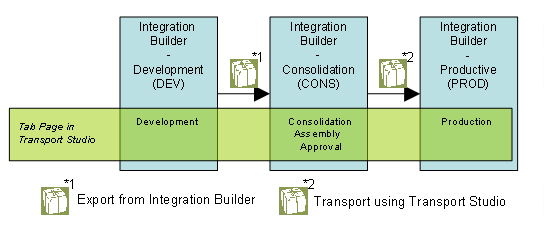
In the development Integration Builder, you usually export transport requests, which appear in the import queue of the Transport Studio for the consolidation system. You control the rest of the transport from here. Exceptions:
· In the consolidation Integration Directory, change lists are usually generated when changes are imported. You must check and release these change lists in the Integration Builder before you can transport them further with the Transport Studio.
· If you have to make emergency corrections in the Integration Repository of the consolidation system, you export change or transport lists, which appear in the Transport Studio (as in the Directory case). You can then either reassemble the whole software component version (in the Assembly step) or create a package containing just the changes for the productive system.
See: Transporting Design Objects and Transporting Configuration Objects
The table below summarizes the transport procedures in the CMS. The sequence of the tab pages in the Transport Studio corresponds to the transport route within a track.
Development Status of the XI Track in the Transport Studio
Step |
Tab Page |
Use |
|
Check-In |
You use check-in to make archive files with the extension .PRA that you have received from an external source known to the Change Management Service, and make them available for transport through the development landscape. Checked-in archives are added to the import queue on the Development tab page. Integration Builder users do not use this function at present because the Integration Builder supports the import of export files (see also: Transporting Using the File System). |
0 |
Development |
This import queue contains checked-in archives and exports from other XI
tracks connected to this track (see also:
|
1 |
Consolidation |
Once a transport request has been exported in the development Integration Builder, this is where the change requests appear for each software component version for import to the consolidation system (Integration Repository or Integration Directory). |
2 |
Assembly |
After import in the consolidation system, this is where you assemble transports of software component versions. |
3 |
Approval |
This tab page displays assembled software component versions. You use this step for quality assurance, to decide which changes to import to the productive system. |
4 |
Production |
After approval, the transport is ready for import to the productive system. The corresponding tab page is only displayed if you have entered a productive system in the corresponding track. |