
 Change and Transport Lists for CMS
Transports
Change and Transport Lists for CMS
Transports

Use
A change list enables a collective release of changes to various objects in the Integration Repository or Integration Directory. With regard to transports, it is obvious that those objects that have been changed are exactly those objects that you want to transport. Transporting on the change list level therefore simplifies the selection of changed objects during development.
Alternatively, you can group transport lists containing object sets that are independent of a change list, together in the transport wizard.
Prerequisites
See the prerequisites under Transporting Design Objects (Integration Repository) or Transporting Configuration Objects (Integration Directory).
Features
Creating Transport or Change Lists
●
Transport
Lists
The Integration Builder creates a transport list when you group objects
together by using the transport wizard in Transport Using CMS mode. The name of the transport list is displayed
later during the transport. Once you have performed all the steps in the
transport wizard, the Integration Builder transfers the transport list
directly to CMS and displays it on the Change Lists tab page. As usual,
the Integration Builder exports the last active version of the
objects.
●
Change
Lists
The Integration Builder creates a standard change list as soon as an object is
saved or deleted by a user who has not yet been assigned a change list. Since
you cannot change the name of the standard change list, we recommend that you
create your own change list before saving or deleting an object. The name of
the change list is displayed later during the transport. Once activated, an
open change list has the status transportable. You can then either
transfer the change list to CMS (context menu Transport) or close the
change list (Close Without Transport) on the Change Lists tab
page. In the first case, the Integration Builder exports the changes
contained in the change list. This corresponds to the object versions at
the time of release of the change list (see the example below).

In the Integration Repository, the export of objects is generally restricted to one software component version. Therefore, you cannot include objects from change lists of different software component versions in an export.
Status of Change Lists and Transport Lists
The following figure gives you an overview of the different statuses that change lists and transport lists can have:
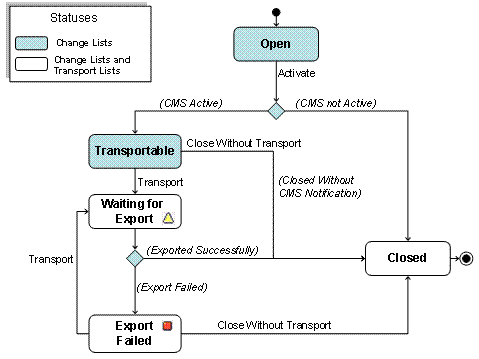
The different statuses are displayed in the quick info for either the transport or change list, and when searching for transports.
Notes on Status "Waiting for Export"
The following behavior relates to direct exports from the Integration Builder and applies to exports from the Integration Repository and from the Integration Directory:
● After exports from development systems, the status Waiting for Export is only visible for a short time in the Integration Builder, then it changes to either Export Failed or Closed.
● After exports from consolidation systems, the change or transport list in the Integration Builder has the status Waiting for Export at first. Such exports are usually performed for emergency corrections (Integration Repository) and selective changes (Integration Directory), and are possible in addition to the normal transport path in CMS. After exports from a consolidation system, these selective changes are not displayed on the Assembly tab page. To display them, choose Assemble Component(s) on this tab page in the Transport Studio. For more information about the options provided there, see the table under Transporting Design Objects and Transporting Configuration Objects. The status does not change in the Integration Builder until after assembly of the selective changes.
Example
You have entered a software component version in an XI track in CMS and want to transport a corresponding change list using CMS. Once you have activated the change list, the Integration Builder moves it to the Transportable branch of the Change Lists tab page.
The Integration Builder transfers open change lists of software component versions that are not entered in CMS directly to the Closed branch at release.
In this way, when you release changes, the intermediate Transportable status gives you control over whether and when changes are transported.
You can make new changes to objects in transportable change lists before transport. The result of this is that different versions of an object can exist in different transportable change lists. The following figure shows an example:
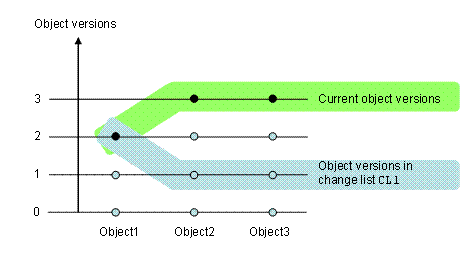
The transportable change list CL1 contains three objects. At the time CL1 was released, both objects Object2 and Object3 had version 1 and Object1 had version 2. After this, the objects Object2 and Object3 were changed using other change lists. You now have the following options:
● To transport the object versions in change list CL1, use the Transport function on the Change Lists tab page.
● To transport the current object versions, create a transport list by using the transport wizard.