 Creating Page Fragments

Creating Page Fragments
Use
Page fragments help ensure that the appearance of your Web application is consistent. Similarly to frames, you can use page fragments to implement the same layout for different parts of your page. In this tutorial, you will use a page fragment to implement a consistent header for all BSPs in your BSP application. You simply include the page fragment in all your BSPs.
Procedure
Take the following steps to create a page fragment for your BSP application:
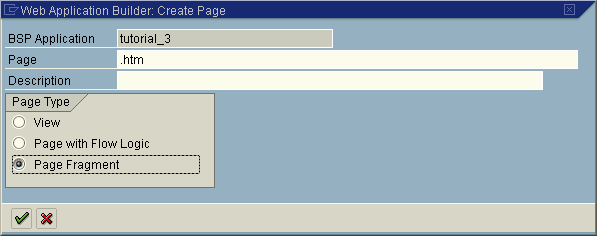
 .
.|
<%@ page language="abap" %> <html> <head> <body BGCOLOR="#B5E1D2" > <h2> <img height="80" width="80" src="book2.jpg"> mySAP Bookshop <hr> |
Make sure that you do not include the end tags
</body> and </html> in this code, as this is a page fragment, and page fragments are always located at the beginning of the HTML page. Correspondingly, page that include the fragment head.htm have no start tags, only end tags.This ensures that the headers that are included in every BSP by means of the steps outlined below always look the same:

This also sets the background color for the whole page.
 .
.Result
In the Web Application Builder your entire BSP application with the pages, images, and page fragment are displayed:

