 Drag and Drop
With drag and drop a user can select UI elements from a UI area (source), drag them from the source, and drop them into another UI element area (target). Source and target can be either the same UI element or two different UI elements.
In Web Dynpro specific UI elements can be used as the source and the target of a drag and drop operation.
 Note
Note
To ensure the accessibility of your application, you should also enable a task to be executed without drag and drop.
Procedure for Users
Drag and drop functions as follows:
The user drags a UI element, for example, an image, data in a table or tree, or an ItemListBox with the mouse button held down.
While the user holds the mouse button down, a ghost image indicating the action being undertaken is displayed on the screen.
If the user moves the mouse pointer over a UI element that is defined as a DropTarget, this is either indicated by a dotted line around the container or by a line displayed in bold between the relevant lines. If the user moves the ghost image across areas that are not defined as DropTargets, or across areas whose tags do not match, a prohibitory sign is displayed.
When the user drops the ghost image, the onDrop event of the associated UI element is triggered.
The application developer must ensure that the data is actually moved or copied, that is, that the actions are executed.
Procedure for Developers
Note
Web Dynpro ABAP Framework provides visualization for drag and drop: Functions like swapping, sorting, adding, and deletion of entries must be programmed by the application.
To implement drag and drop proceed as follows:
To define a drag source, add DragSourceInfo to the UI element in question.
To define a drag target, add DropTargetInfo to the UI element in question.
To define which drag source can be moved to which drag target, specify the corresponding string (same name) for property tag of the relevant DragSourceInfo and DropTargetInfo.
You can also use multiple tags. You separate the tags with blank spaces.
The system does not differentiate between uppercase and lowercase letters in tags. You can use an asterisk (*) as a wild card at the end of the tags for example, grid*.
You are not allowed to use the following characters:
Colon (:)
Comma (,)
Semicolon (;)
Backslash (\)
Slash (/)
Point (.)
You can use this property to define your own development standards. As software architects you should pay attention to which tags you use, and how you design them.
Data transport
The data is transported using property DragSourceInfo.data: When data is dropped, an event is triggered and DragSourceInfo.data is transferred as the event parameter. If applicable, additional information, such as the insertion position, is transferred in an event parameter.
 Caution
Since the data is transferred through a client, the data property must not contain any security data nor large data sets. It is preferable that the data values are a type of reference to the actual data.
The same applies for drop actions: The system must always check whether a drop action is permitted, similar to an input check for an InputField.
Features
Drag and drop is provided for:
UI Element |
Action |
|---|---|
Tree |
Single nodes and end nodes can be moved. Nodes can be inserted into a Tree in certain places:
Multiple nodes can only be selected for drag and drop if at least one of the tags is common to all nodes. In an empty Tree there is only one possible insertion position (first = last position). |
GridLayout |
In the GridLayout single cells of the layout can be moved, or UI elements (for example, an Image) can be inserted between cells.
Drag&Drop is only possbile with one-column GridLayouts. End of the note. So that a cell can be moved with the mouse, it needs a handle that you can grasp it with. This handle is either an Image or a SectionHeader, or a Caption in this cell with In the test application WDR_TEST_DRAG_AND_DROP under GridLayout there is a TransparentContainer with a GridLayout. This TransparentContainer has multiple child UI elements, for example, a TransparentContainer with the title "Here you cannot drag". The SectionHeader behind this has a
Exception: The Captions of Tabs cannot be used as drag handles. End of the caution. |
Image |
The image can be moved. |
ItemListBox |
Single entries can be moved. Entries can be inserted into a ItemListBox in certain places:
In an empty ItemListBox there is only one possible insertion position (first = last position). |
Table |
Single table rows can be moved. Rows can be inserted into a Table in certain places:
In an empty Table there is only one possible insertion position (first = last position). |
DropTarget |
See DropTarget: |
Example
WDR_TEST_DRAG_AND_DROP
The test component WDR_TEST_DRAG_AND_DROP is provided in the system. Here you can find scenarios where it is used.
Note
Any further programming must be done yourselves.
Drag and drop for various uses is provided in this test component:
Browse&Collect
Here a user selects one or more entries, and drags them to a position on a different UI element. The data is either copied or moved. The same DragSourceInfo is used for all lines. Entries can be added wherever a DropTargetInfo is defined.
Browse&Collect is available for the following UI elements:
Generic Drag&Drop
The user moves a UI element, and drops it on a different UI element. Image and GridLayout can be used for this. In this case a DropTarget is used as a wrapping UI element.
Runtime authoring
You can define the following UI elements as drag handles (property isDragHandle), to sort various screen areas. The following UI elements can be moved in this way:
Image
Event onDrop is provided for the following UI elements:
Tree (using AbstractTreeNodeType)
-
Note
Drag and drop is only possible with one-column GridLayouts, and only if programming is dynamic.
End of the note.
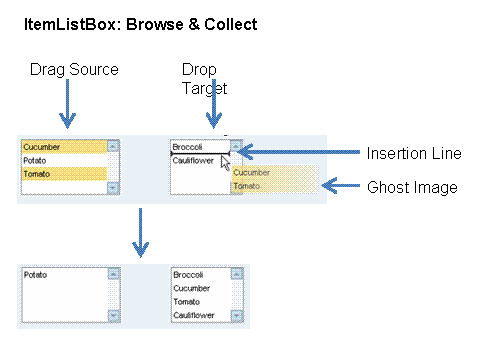
Example of Browse&Collect
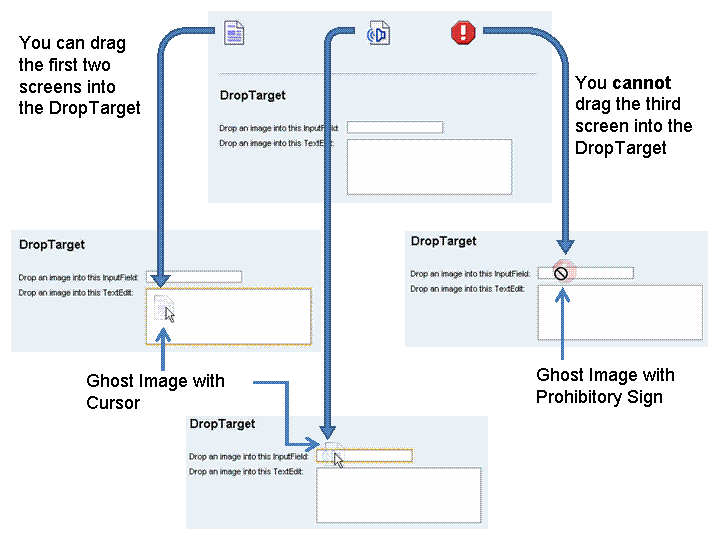
Example of generic Drag&Drop with Image