 Escheat
Purpose
With this process you can transfer the balances of dormant accounts to clearing accounts.
 Note
Note
In some countries and regions, carrying out escheatson a regular basis and documenting them is a legal requirement.
If you have no longer had contact with an account holder for a period defined by yourself, the system automatically labels his/her account with an activity status that is relevant for escheat, (such as
Abandoned
).
Using
SAP Business Intelligence (BI)
you can create
queriesabout escheat and use them, for example, for informing the authorities responsible. You can inform the account holder using
SAP Correspondence (FS-TO-COR)
(or a comparable application).
Prerequisites
You use the monitoring dormant accounts process and in the Customizing for
Account Management (FS-AM)
you have chosen
Contract Management

Account
Activity Status Conversion
Define Activity Status
 and labeled an activity status as
Relevant for Escheat
.In the Customizing for
Account Management (FS-AM)
you have carried out the following activities under Contract Management
Account
Escheat.
Define Reporting for Escheat
Define Cash Transfer to Clearing Accounts
Process Flow
The process flow for escheat is as follows:
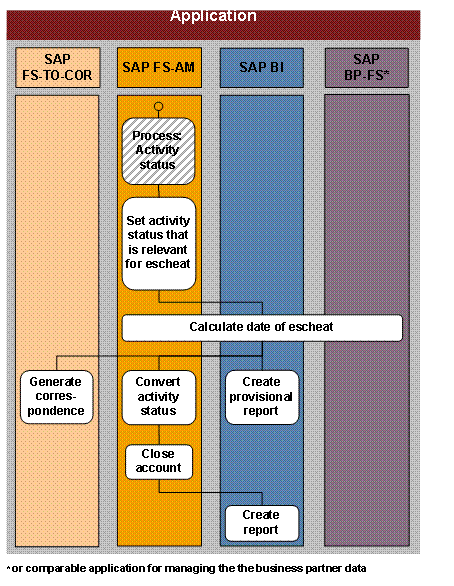
Process flow for
escheat
in the applications involved:
Set activity status that is relevant for escheat (SAP FS-AM)
If all the conditions of a status transition rule labeled as relevant for escheat apply for an account,
Account Management
gives this account the activity status that is relevant for escheat (such asAbandoned
).Calculate date for escheat (SAP BI, SAP FS-AM and SAP GP-FS)
On the basis of the date of the last customer contact, the BI System calculates the date for the escheat of the account balance and informs
Account Management
about this date.Generate correspondence (SAP FS-TOR-COR)
Using SAP Correspondence you can generate a notification to the account holder, either at the time of the activity status conversion or before, depending on the Customizing for
Account Management.
 Recommendation
If you wish to inform the account holder about the pending escheat, we recommend you proceed as follows: In the Customizing settings, take account of the time period between the bank's attempt to contact the customer and escheat, which is stipulated by law.
End of the recommendation.Create provisional report (SAP BI)
In the BI System you can periodically create provisional reports about all the accounts affected by escheat. These contain details about all the accounts whose activity status is relevant for escheat at the defined time: Accounts Scheduled for Escheat (query 0TB_IS02_Q0002).
RecommendationWe recommend you use provisional reports to fulfill the obligation to inform the authorities responsible that is a legal requirement in some countries and regions.
End of the recommendation.Convert activity status (FS-AM)
If the account holder does not get in touch with the bank within a defined period despite the notification,
Account Management
receives an order from the BI System to convert the activity status of the account again (toReverted by Escheat
, for example).If the account holder gets in touch with the bank, the BI System updates the date of the last customer contact in the
Business Partner for Financial Services (FS-BP).
Account Management
receives and order from the BI System to reactivate the account and resets the activity status to the initial one (standard:Active
).In this case, theMonitoring Dormant Accounts
process starts again.For more information about updating the date of the last customer contact, see Relationship Between the Applications , section
BI and FS-BP
.Transfer account balance (SAP FS-AM)
On the basis of the provisional report, you manually transfer all the account balances to be escheated to a previously defined clearing account. If applicable according to law, you transfer the account balances that are on the clearing account to an account of the authorities responsible (procedure in the USA, for example).
Close account (SAP FS-AM)
RecommendationWe recommend you close all accounts that have been reverted by escheat. As notice reason, you can specify
Escheat
, for example.End of the recommendation.Create report (SAP BI)
In the BI System you can periodically create reports about all closed accounts (due to escheat): Escheated Accounts (query 0TB_IS02_Q0001).
RecommendationWe recommend you use such reports to fulfill the obligation to inform the authorities responsible that is a legal requirement in some states.
End of the recommendation.
Result
You have transferred the balances of dormant accounts to clearing accounts. An appropriate activity status (such as
Reverted by Escheated
) documents the escheat for all affected accounts You have punctually carried out escheat in accordance with the law and have forwarded all relevant details.
See also:
IMG for
Account Management
underTechnical Documentation for Account Management (FS-AM)
in section Account Management Objects
Contract
Contract Elements
Activity Status (BCDM)
Documentation for report
Activity Status Conversion for Contracts
(RBCA_DORM_RUN_PP) on theSAP Easy Access
screen under Account Management
Periodic Tasks
Activity Status
Restart Activity Status Conversion
.
For more information about the reports, see the documentation for
SAP Business Intelligence
underSAPNetWeaver
->Information Integration
->BI Content
->Industry Solutions
->Financial Services
->Banking
->Transaction Banking
->Queries
.