
 Portal Content Studio Interface
Definition
The Portal Content Studio provides all the tools for creating and building portal content in a single interface.
Structure
The Portal Content Studio interface consists of the following parts:
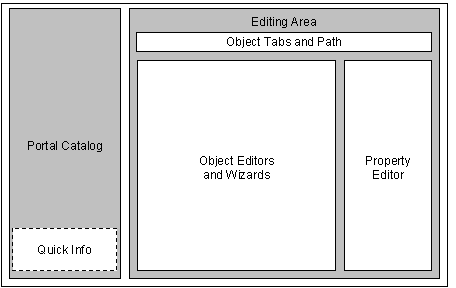
Wireframe schematic of the Portal Content Studio interface
Each part of the Portal Content Studio interface is dedicated to a particular function:
Portal Catalog |
Provides a centralized access point to portal content stored in the portal content directory (PCD) and the ability to manage the content in a structured hierarchy: · The Browse tab displays a structured tree of all portal content objects to which you have access permissions. · The Search tab enables you to find content objects in the Portal Catalog based on search criteria you specify. The Quick Info area at the bottom of the Portal Catalog display basic information about the object currently selected in the Portal Catalog. The information displayed depends on the type of object selected.
The Portal Catalog does not display child objects that are assigned to other content objects; for example, iViews assigned to a page, or pages assigned to a role. To view these objects, you need to open the parent object in its respective editor; for example open a role in the Role Editor to view the iViews, page and worksets assigned to it. For more information, see Portal Catalog. |
Editing Area |
The area of the Portal Content Studio where the tools that enable you to create and maintain content are displayed. |
Object Tabs and Path |
The Portal Content Studio enables you to edit multiple Portal Catalog objects at the same time. The object tabs and path enable you to toggle between objects being edited concurrently: · Object Tabs: Each object you open is represented by a tab, displaying the object's name. Click a tab to toggle between objects open in the editing area. · Path: Displays the path of the object being edited. This is especially useful when you are editing a child object assigned to a parent object; child objects are edited under the same tab their parent object. For example: an iView assigned to a page may display the path Account Analysis (page) > Yearly Statistics (iView). Click a level in the path toggle back to the relevant object. |
Object Editors and Wizards |
The area in which the wizards for creating portal content and the editors and tools used for maintaining content are displayed. For more information, see Object Editors & Wizards in the Portal Content Studio. |
Property Editor |
The area used by some editors in the Portal Content Studio for viewing and editing the properties and attributes of certain content objects. The properties displayed in the Property Editor relate to the object currently in focus in the object editor area. For more detailed information, see Property Editor. |


§ To maximize the editing area of the Portal Content Studio, you can collapse the navigation panel. To do so, click the resizing arrows at the top of the navigation panel.
§ You can adjust the height of the Portal Catalog and Quick Info areas by dragging the horizontal separator between the Quick Info area and the Portal Catalog.
§ You can also adjust the width of the Portal Catalog by clicking the resizing arrows at the top of the Portal Catalog.