
 Selecting
the iViews to Configure
Selecting
the iViews to Configure 
Use
Before you can customize the display attributes of the Portal Catalog, you need to determine which iViews you need to configure.
· Each editor in the Admin Studio framework uses its own iView that defines the Browse tab in the Portal Catalog.
· All primary editors integrated into the Portal Content Studio, such as the Page Editor and Role Editor, share the same iView for the Browse tab.
· The iView for the Browse tab in editors that are not part of the Portal Content Studio are related through a delta link to the Browse tab iView of the Portal Content Studio (see following figure).
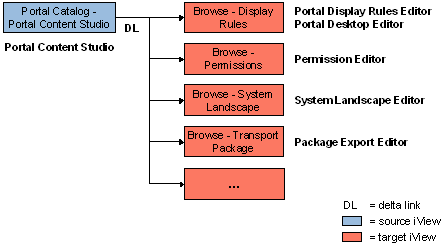
iViews providing functionality for the Browse tab in various primary portal editors
Procedures
Selecting the iView to Customize the Portal Catalog in All Editors
To change the display settings of the Portal Catalog in all portal editors, you need to configure only a single iView: Portal Catalog - Portal Content Studio.
This iView is a delta link source object to other editor iViews; therefore, its property values are passed on to all editors (unless this property has already been manually modified in the iViews of these editors).

If you do not want a particular editor to inherit the display attributes of the Portal Content Studio iView, you can manually change the properties of the respective editor iView to its default value. See following section, Selecting the iView to Customize the Portal Catalog for a Specific Editor.

The procedure described here requires you modify initial content in the SAP-reserved Content Provided by SAP folder. Any future portal updates you perform may override your customizations and you may need to make the necessary modifications again.
To customize the Portal Catalog in all Admin Studio framework editors:
...
1. In the Portal Content Studio, open the following iView:
Portal Content> Content Provided by SAP> Admin Interfaces> Admin iView Templates> Portal Catalog - Portal Content Studio
(pcd:portal_content/com.sap.pct/admin.templates/iviews/com.sap.portal.contentCatalogTree)
2. In the Property Editor, modify the Maximum Number of Node Child Items and Display Text Format of Tree Nodes properties, as needed.
For details, see Defining the Maximum Number of Objects Displayed Per Folder and Defining the Object Display Format of the Portal Catalog.
Selecting the iView to Customize the Portal Catalog for a Specific Editor
If you want to change the display attributes of the Portal Catalog in a particular editor or want to customize the editors differently to one other, you need to configure the iView of each editor separately.
To customize the Portal Catalog for a specific Admin Studio framework editor:
...
1. In the Portal Content Studio, navigate to the Portal Catalog folder that contains the administration role to which the editor you want modify is assigned:
Portal Content > Portal Administrators > <admin_role_folder>
Changes to the Content-, System, and User Admin roles in the above folder will not be applied to the Super Admin role, and vice versa. For more information, see SAP Note 814509.
2. Open the role containing the editor you want to modify.
3. In the role hierarchy, locate the page that represents the editor of the Portal Catalog you want to modify. Note that the role structure is based on the editor’s launch path in the navigation hierarchy of the portal (as displayed in the top-level navigation and detailed navigation).
4. Open the page in the Page Editor.
5. In the page, open the iView whose ID begins with:
com.sap.portal.contentCatalogTree
6. In the Property Editor, modify the Maximum Number of Node Child Items and Display Text Format of Tree Nodes properties, as needed.
For details, see Defining the Maximum Number of Objects Displayed Per Folder and Defining the Object Display Format of the Portal Catalog.
Note the following:
· To modify the Portal Catalog displayed in the runtime Page Personalize tool that is available to portal end users, you must configure the following iView (this iView is not a delta link to the Portal Catalog - Portal Content Studio iView):
Portal Content > Content Provided by SAP> Admin Interfaces> Admin iView Templates> com.sap.portal.personalizedContentCatalogTree
Example
The following example shows how to locate the iView representing the Browse tab of the Portal Catalog in the Permission Editor:
...
1. In the Portal Content Studio, open the following role:
Portal Content > Portal Administrators > System Administrator> System Admin
2. In the role, open the following page:
System Admin > System Administration> Permissions> Portal Permissions
3. In the page, display the properties of the following iView:
Browse – Permissions (ID=com.sap.portal.contentCatalogTreePermissions)