
 Request For Feedback
Purpose
You can gather feedback from other users. The initiator or the creator of the process defines the topic on which the user wants to get feedback. The initiator defines the users who will provide feedback.
There is also a quick response (survey like) option available.
Process Flow
...
1. Choose Create Task.
2. From the Task Type drop-down, choose Request For Feedback.
Feedback Wizard Details
See table for Task for a description of the general parameters on the user interface. Additional parameters related to Feedback process are described below:
Information on Available Parameters Specific to Request for Feedback
Parameter |
Description |
Recipients |
Add one or more approver / recipient. You can enter the approver’s / recipient’s user ID or do a wildcard search for the list of portal users. In case of a wildcard search, 1. Enter the first character of the user ID or ‘*’ and choose Search. 2. Select the approver / recipient from the Search Result list and add to the selection column. 3. Click Ok. 4. You can also enter notes which will be private to each approver / recipient. |
Recipients can decline request |
Recipients may choose to reject this request. Disabled if Responses are anonymous is checked. |
Features
· You can provide feedback as end user notes or attachments or by selecting one entry out of a pre-configured set of feedback categories (quick response option).
· Upon submission of feedback a notification is sent to the creator of the process.
· You can configure whether or not users can refuse to provide feedback.
· You can configure whether or not feedback can be provided in a quick response option. For quick response feedback an aggregation of the feedback is provided.
· You can configure whether or not feedback is anonymous, that is, the information regarding which user gave which feedback is not visible to the process initiator.
Possible Task Processing Steps for a Recipient
The following figures show the possible steps for a recipient of a feedback request.
· The recipient can give feedback with or without the Quick Response feature.
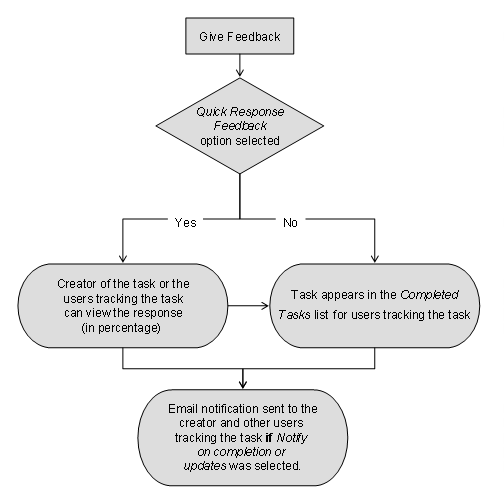
· The recipient can decline feedback.
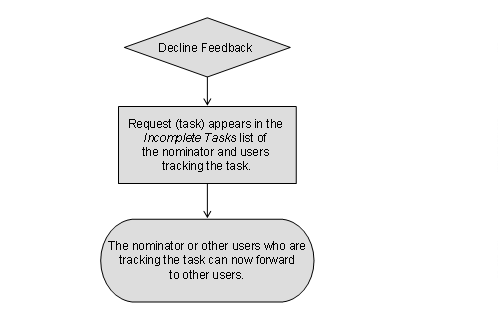
· The recipient can forward the request to other users without completing the task.

Possible Task Processing Steps for a User Tracking the Task
The following figures show the possible steps a user tracking the task can perform during the feedback request process.
1. A user tracking the task can add task assignees.

2. User can delete the task.
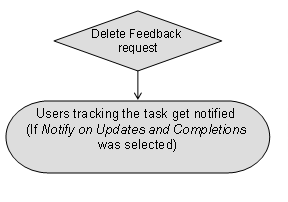
Result
You can gather feedback from other users and also view the responses in a survey like display (if the quick response feedback was selected).
Example
A user in the HR department wants feedback from the employees on a new HR tool. The employees who provide feedback can comment on the new tool and may also have an option to give quick responses.