
 Creating a Task
Purpose
You can create tasks using the Task wizard. Task creation takes place in a simple one page screen allowing for creation of a task where workflow controls the lifecycle of the task.
A task is a request to one or more assignees. You may issue the task to a group of users as a whole or each individually. Alternatively, you can define a sequence of separate multiple step task, assigned to a single user or separate users. Once created, additional properties can be set using the task Details page. Completed tasks may require an additional approval step or the process can be finished by a task completion step.
Process Flow
...
1. From the UWL view, choose Create Task.
2. Select Task from the Task Type dropdown selection.
3. On the Task wizard enter the required information. For details on the fields see Wizard Details below. The required fields are marked by asterisk (‘*’).
4. Choose Send to send the task to the assignees.
Wizard Details
Description of Parameters
Parameter |
Description |
|
Title |
Title or subject to identify the task. It is a required field. |
|
Assigned to |
Select or enter the Ids of those users you want to assign the task to. You also have an option to decide whether the assignees can decline the tasks, and also decide if you want to separate the tasks for each assignee. |
|
Priority |
Defines the workflow priority. This affects the urgency of the tasks that will be generated by the workflow. |
|
Due |
Defines the deadlines for the process step by entering due date and time. Choose the calendar icon to select the due date or enter manually in mm/dd/yyyy format. Choose the time from the dropdown selection or enter manually in hh:mm format. (Note: the date and time you enter here refers to the date and time on the server machine). You also have an option to select ASAP. |
|
Description |
An overall task description. These notes will be visible to all process participants. |
|
Trackers |
Tracking and final approval is by the user defined in this field. You can also assign more users to track and approve the task. |
|
Task Requires Final Approval |
Task only consists of a task completion step or is a combination of task completion and approval of task completion. This is an optional selection. |
|
Allow Assignees to Decline Task |
Assignees can decline task. |
|
Separate Task for Each Assignee |
In case of multiple assignees, each assignee can be assigned a different task. |
|
Notification |
None |
No notification is sent. |
When Complete |
A notification is sent on completion of the task process. |
|
On updates, completion and If overdue |
Notification is sent on completion of task, any updates of the task or when reaching the task due dates. |
|
Attachments |
Launches the Attachment view. You can attach arbitrary documents to workflow instances. These documents are visible to all workflow participants. You can also delete attachments. Choose Upload to upload items from your local machine. To add documents or links within the portal, choose Add. Follow the instructions on the screen to add documents. |
|
Task Actions
An assignee (user to whom the task is assigned) can confirm or decline a task.

A user can decline a task only if the option Assignees can decline task is selected by the task creator.
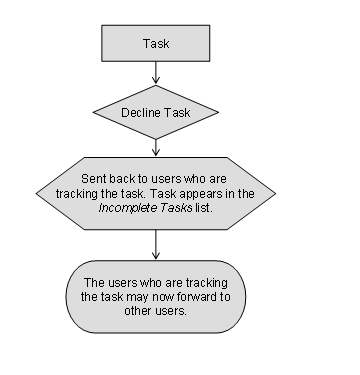
The following figure shows the possible steps a task assignee can perform after the task has been assigned.
Confirming a Task

Declining a Single Step Task
When a single step task is rejected by a tracker it is sent back to the task assignee(s). The progress of the task is automatically set to 50 percent and its status is In Progress. The task assignee can then submit the task again to the tracker by choosing Complete Task. The status of the task changes to Confirmed. To break the cycle the tracker can either delete or approve the task.
Declining a Multiple Step Task (Task List) – Sequentially Created
A rejection in a multi-step task list, created sequentially, will return the process flow to the last Action Item step before the approval step.
For example, if an Action Item is assigned to user 1 and user 2, who each complete, and then an Approval step is required from user 3. If the user 3 rejects the task, the Action Item will again appear in the UWL of user 1 and user 2. They must redo their steps and resubmit for approval. If no Action Item step exists, the workflow will conclude, and the task history will show the rejection.
If the step is assigned to multiple users and has a minimum threshold of approvals assigned (that is, assignees are user 1, user 2, and user 3, and two of the three are required to approve before this step can be completed). For this case,
· two of the three users must approve before the step is considered approved
· if two of the three users reject, the step is rejected, and consequently will either return the task to the last Action Item assignees or, if no previous Action Item exists, will conclude the task, with the history reflecting the rejection.
Declining a Multiple Step Task (Task List) – Created in Parallel
A rejection in a task list, created in parallel, concludes that step and the rejection will be recorded in the task history. However, all of the other parallel steps must be concluded as well before the task is considered complete.
Some examples:
· Approval Step 1 is approved ® Approval Step 2 is rejected:
When Step 2 is rejected, the workflow will conclude - the task status will be set to Completed and the task history will show the rejection.
· Action Item 1 is confirmed ® Approval Step 2 is approved ® Approval Step 3 is rejected:
In this case, when Approval Step Three is rejected, the task will return to the assigned user(s) for Action Item 1. At this point, the task status will remain In Progress and the assignee(s) of Action Item 1 must again complete their task, and subsequent approval must be obtained again from the approver(s) of both Step 2 and Step 3. The task history will show all rejections.
· Action Item 1 is confirmed ® Approval Step 2 is approved ® Action Item 3 is confirmed ® Approval Step 4 is rejected:
In this case, when Approval Step 4 is rejected, the task will return to the assigned user(s) for Action Item 3. The assignees for Action Item Three must redo their task and resubmit it to the approver(s) of Step 4. The task status will be In Progress until Approval Step 4 is approved
Deleting a Task
Once a task is deleted, all related tasks are also deleted. See example below for further clarification.

User 1 creates a feedback task, assigns it to user 2 and user 3.
User 2 completes the task.
User 3 declines the task.
User 1 receives the task declined by user 3. User 1 deletes the task.
At this point, the task (item) from user 2 is also deleted, user 1 is not able to see it from tracking anymore.
...
Rejecting a Task Versus Declining a Task
The terms rejecting and declining a task can be confused in the context of Collaboration Tasks.
An approver of an approval step in a task may choose to reject - this means that he/she does not approve of the previous Action Item(s) and requires these previous steps to be redone and resubmitted for approval.
When an assignee declines a task, this means that the assignee refuses to participate in the task. That is, the assignee may not have even examined any steps in the task, has done no work on his assigned step, and is not providing any approval or rejection of previous steps. In this case, the task trackers are notified of the declination, and must reassign the task.
Result
The approvers / recipients / assignees see the workflow item in their task list.
Depending on the notifications selected in the creation wizard, the workflow’s users tracking the task will receive status notifications as the workflow assignees perform work or respond to approve / reject tasks. The workflow creator can also view the status of an active workflow by going to the Tasks screen in the Universal Worklist and viewing details of the appropriate process. All steps that have been executed in the process so far are displayed.
After completion of a process, all steps along with the comments entered by the process participants are displayed in the Completed Requests screen in the Universal Worklist of the initiator of the workflow.
See also:
For the Universal Worklist user interface descriptions see The Universal Worklist.