3.4.4 Configuring Personalize Settings 
You can make different configuration settings which help you personalize the design of the Business Client. Choose  Personalize
  Options
  and then Personalize.
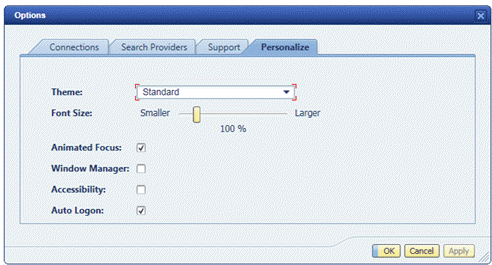 (Example of Personalize)
Name |
Description |
|---|---|
Theme |
You can choose between Standard and High Contrast.
|
Font Size |
Use the slider to increase or decrease the font size. |
Animated Focus |
This option improves the display of the active focus. A red frame is displayed around the focussed screen element. When the tab button is pressed, the focus and the red frame moves to the next element. |
Window Manager |
In the Business Client Help menu a window manager is offered which helps the user to control the placement and appearance of Business Client windows. The user can access the window manager via The window manager shows all open windows and lets you change the appearance and placements of the windows. |
Accessibility |
Use this option for accessibility mode enabling. Accessibility mode means that the rendered HTML pages contain additional HTML coding which provide input for screen readers. |
Auto Logon |
This option is activated per default. With this option activated, NWBC automatically logs on to the last used/active system connection. For information on system configuration, see 3.4.1 Configuring Connections. If you deactivate this option, NWBC displays a system selection screen, just like the normal logon screen, where you can choose between all systems that have been configured. In addition, on the system selection screen you can change or delete existing connections or create new ones. For more information, see 2.1 Starting NWBC. |
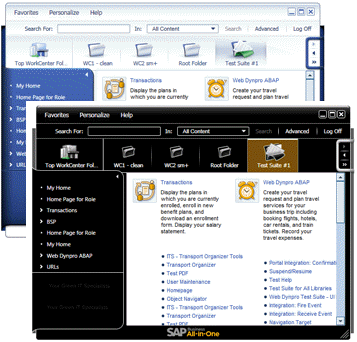 (Example of the two themes)